
Interactive Whiteboard for Classroom — Choosing the Right Platform for Australian Schools
Most schools that struggle with their interactive whiteboard for classroom investment made the same three mistakes: they chose hardware before deciding on an ecosystem, underestimated what the network needed to support a full classroom fleet, and delivered staff training weeks before installation rather than at the point of use. None of these are obvious mistakes at the time — they only become visible after the hardware is on the wall.
The reason these mistakes happen is consistent — schools evaluate interactive whiteboards the way they'd evaluate any display purchase: screen size, resolution, brightness, price per unit. Those specs matter, but they're the last thing to compare, not the first. Behind every panel is a software ecosystem, an Android or Windows architecture, a content management approach, and a manufacturer's update lifecycle. Get those wrong and the hardware becomes a problem within three years regardless of the brand name on the front.
This page works through the decision in the order it should actually be made — ecosystem first, architecture second, hardware third. By the time you're comparing brands and screen sizes, the decisions that actually determine whether the investment works have already been made correctly. It covers writing feel, platform comparison, Android SoC vs Windows OPS, multi-classroom rollout, and total cost of ownership.
Ready to talk through your school's specific situation, or want to see how this fits into your broader campus signage picture?
- Deploying in Schools Since 2007
- All Major Education Brands
- South Australia Based
- Australia-Wide Supply
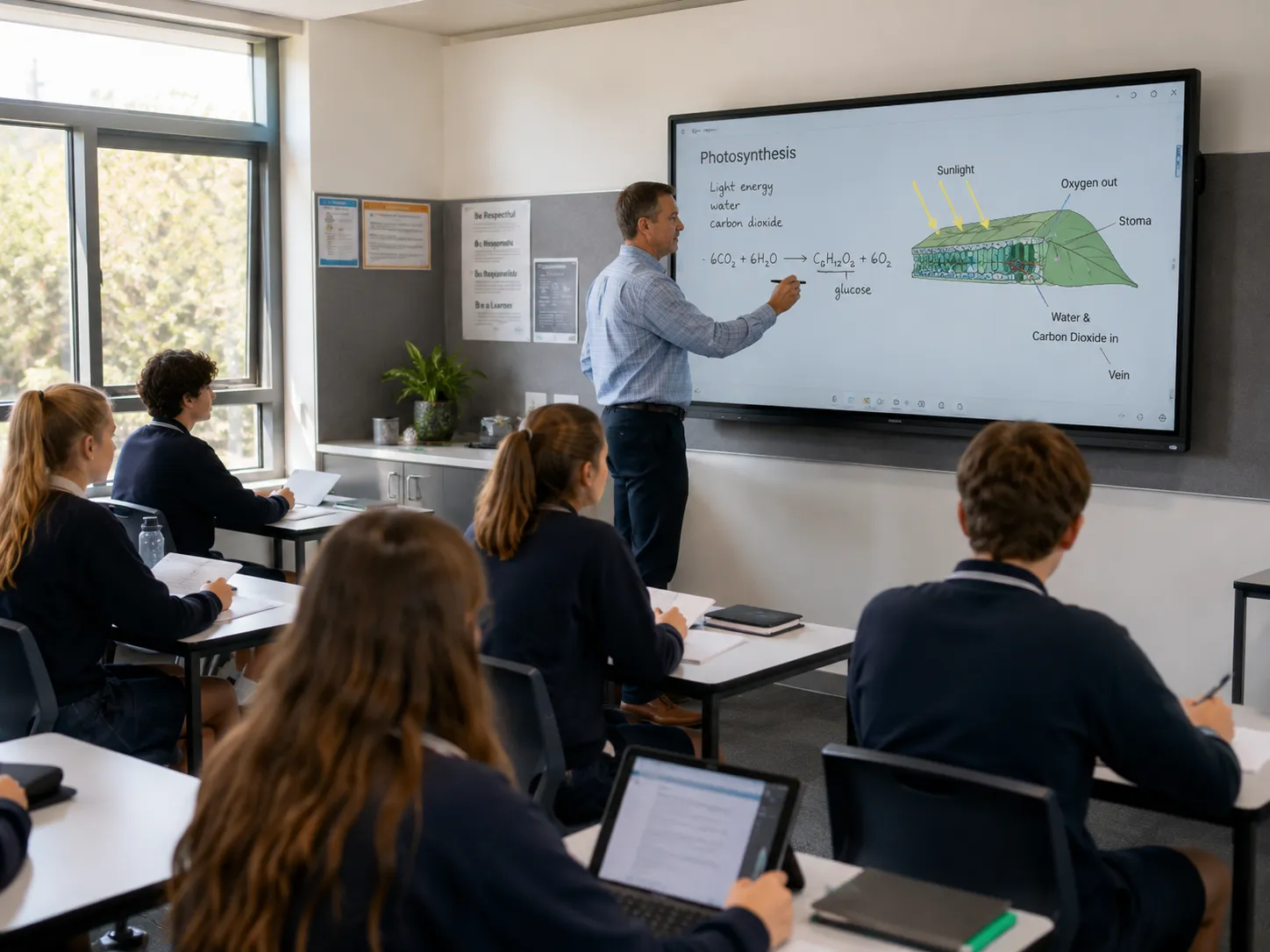
What Australian Schools Need to Know Before Choosing a Classroom Interactive Display
Eight decisions shape every classroom interactive display purchase — and most schools only discover the difficult ones after the hardware has arrived. The points below are the ones that matter most, in the order they should be considered.
- The platform decision lasts longer than almost any other technology purchase a school makes — an interactive display purchased today will probably still be in use when this year's Year 1 students graduate
- Writing feel is the single most important daily-use variable — latency, palm rejection, and optical bonding matter more than resolution or processor speed, and none of them appear clearly on a specification sheet. Our page on what to test before buying an interactive whiteboard covers how to evaluate this properly before purchase.
- The ecosystem choice — Google Workspace vs Microsoft 365 — should drive platform selection before any hardware is considered — making the hardware decision first is one of the most common and most expensive mistakes in school display procurement
- Android SoC and Windows OPS are fundamentally different deployment architectures — understanding the difference before purchase prevents expensive mistakes during rollout
- SMART Board and Promethean are the most established education-specific platforms in Australian schools — Samsung and BenQ offer strong alternatives particularly in Google Workspace environments
- Multi-classroom rollouts consistently surface one problem schools didn't anticipate — network infrastructure that wasn't provisioned for interactive displays
- Teacher onboarding delivered at the point of installation — not months before — is the single most reliable predictor of whether the investment gets used
- The most expensive classroom display is rarely the one with the highest purchase price — it's the one teachers quietly stop using after six months
Classroom Whiteboards vs Interactive Displays — Understanding What You're Actually Buying
A traditional whiteboard and an interactive flat panel display are different product categories — different use cases, different price points, and fundamentally different operational commitments. Many schools arrive at this decision searching for one and leave having purchased the other without fully understanding what that means in practice.
A traditional whiteboard — even a high-quality glass or porcelain surface — is a passive writing surface. It requires no power, no software, no network connection, and no IT support. It costs a fraction of an interactive display and will last twenty years with minimal maintenance.
An interactive flat panel display is a networked computer with a large touchscreen. It does everything a traditional whiteboard does — and significantly more — but it requires power, network connectivity, software licences, IT management, staff training, and periodic hardware refresh. The value it delivers over a traditional whiteboard comes entirely from how well the software ecosystem integrates with how teachers actually teach.
The question worth asking before committing to an interactive display is not "is this better than a whiteboard?" It almost certainly is, on paper. The better question is: "Are we ready to support the software ecosystem, the staff training, and the ongoing IT management that makes the hardware investment worthwhile?"
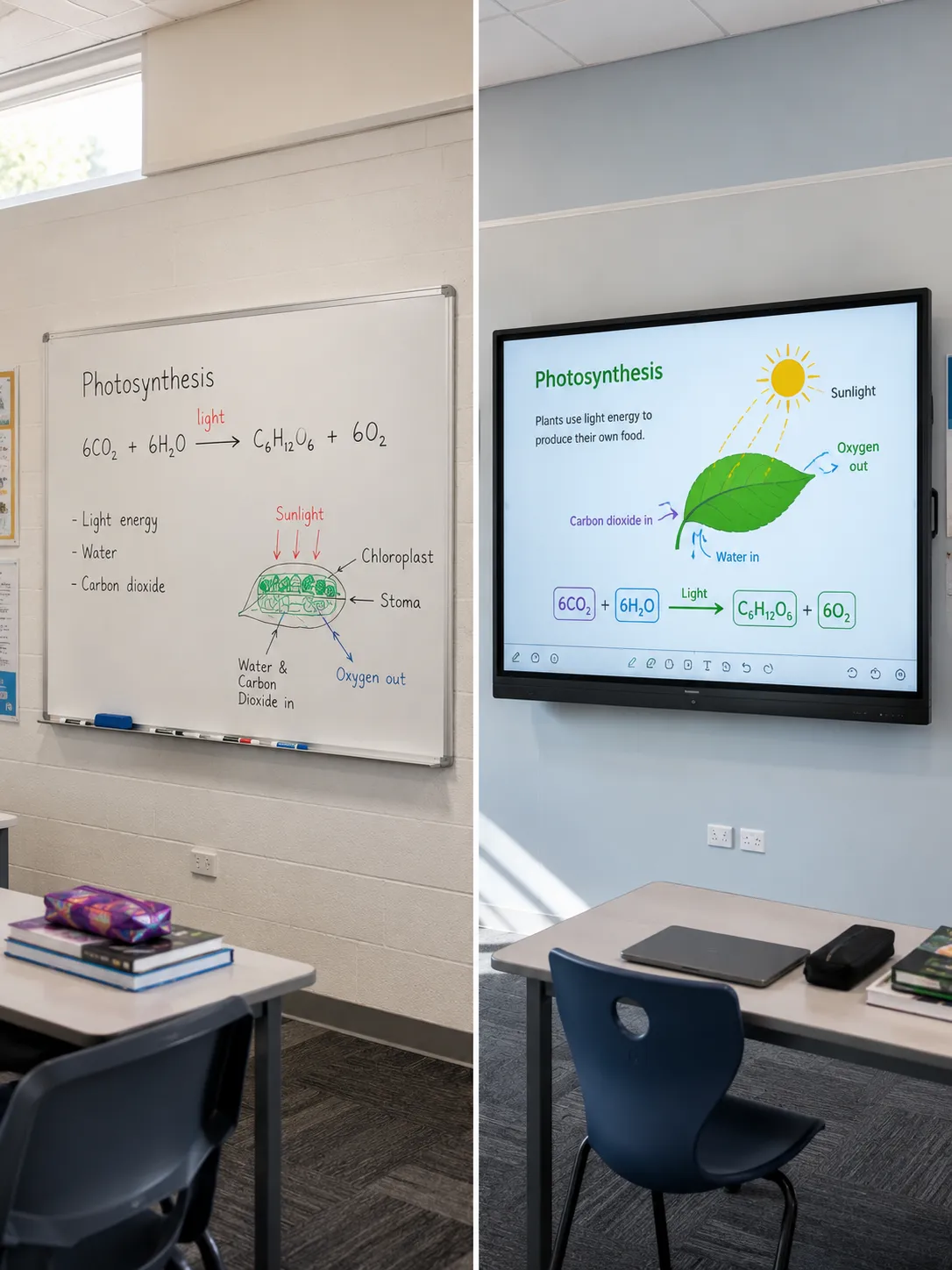
The table below summarises the practical differences between a traditional whiteboard and an interactive flat panel display — useful for any school weighing up whether the investment in an IFP is the right decision for their specific context.
Passive Writing Surface
- No power or network required
- No software licences or subscriptions
- No IT management overhead
- No staff training required
- 20+ year operational lifespan
- Low upfront cost, minimal ongoing cost
- Cannot display digital content
- Cannot support hybrid learning
- No collaborative or interactive features
Best for: Low-tech environments, budget constraints, spaces without reliable network
Networked Teaching Platform
- Power and network connection required
- Software licences — ongoing annual cost
- IT management and MDM integration
- Staff training — at installation and ongoing
- 7–10 year operational lifespan
- Higher upfront and total cost of ownership
- Full digital content display and annotation
- Native hybrid learning capability
- Collaborative, multi-touch, cloud-connected
Best for: Schools ready to support the full ecosystem — software, training, IT management
A school purchases interactive displays across thirty classrooms, delivers two days of training, and considers the project complete. Eighteen months later, the IT coordinator notices that a significant proportion of teachers are using the displays as expensive projector screens — showing slides and videos, but never using the touch or collaborative features.
The hardware is fine. The problem is that the software ecosystem was never properly embedded into how those teachers plan and deliver lessons. The investment is technically deployed. It just isn't being used.
Interactive Display Writing Experience — Why It Matters More Than the Specification Sheet
Writing experience is the single variable that most directly determines whether classroom teachers use an interactive display enthusiastically or reluctantly — and it is the one variable most consistently underrepresented on specification sheets. Four things determine it: touch latency, palm rejection, pen tip feel, and optical bonding.
The most expensive classroom display is rarely the one with the highest purchase price. It is the one teachers quietly stop using after six months — and the most common reason that happens is writing feel that was never quite right from day one.
The diagram below shows what each of the four variables means in practice and what good looks like versus what to watch for.
The Delay Between Pen and Mark
Human perception registers latency above approximately 25 milliseconds as lag — a slight disconnect between physical motion and visual result. Most quality commercial displays achieve well below this threshold.
Entry-level and consumer-grade panels often don't. A teacher who writes on a laggy panel for 30 minutes a day will stop using the pen within a term.
Look for: Under 20ms. Ask for a live demo — don't trust the spec sheet alone.
Distinguishing Pen from Hand
Poor palm rejection produces unwanted marks whenever a teacher's hand rests near their writing — a constant interruption that makes extended writing frustrating.
Good palm rejection is invisible in use. Bad palm rejection becomes a reason teachers revert to markers on a traditional whiteboard within weeks.
Look for: Test with your own writing style — rest your palm naturally while writing.
The Tactile Writing Experience
A pen that feels scratchy, lightweight, or disconnected from the surface creates a writing experience that feels digital rather than natural. This is more subjective but genuinely matters for daily use across a teaching career.
Manufacturers like SMART invest significantly in pen engineering precisely because this variable drives teacher satisfaction more directly than almost any spec on a data sheet.
Look for: Have teachers who write extensively — maths, science — test the pen specifically.
Eliminating Parallax Offset
Displays without optical bonding show a visible parallax effect — the mark appears slightly offset from where the pen touches the glass. This is most noticeable when writing at an angle, which is how most teachers naturally write on a wall-mounted display.
Optically bonded panels eliminate this effect entirely. Not all panels in the education price range include optical bonding — verify before purchasing.
Look for: Confirm "optically bonded" in writing — not just "anti-glare glass".

Request a hands-on demonstration with actual teachers before committing to a platform. Not a demo with a sales representative — a demo where two or three of your own teachers spend thirty minutes using the display to do the things they actually do in lessons. Write a sentence. Annotate a document. Draw a diagram quickly.
The difference between a panel that feels right and one that feels slightly off is immediately apparent when you're doing real classroom tasks. Thirty minutes of that is worth more than any specification comparison document.
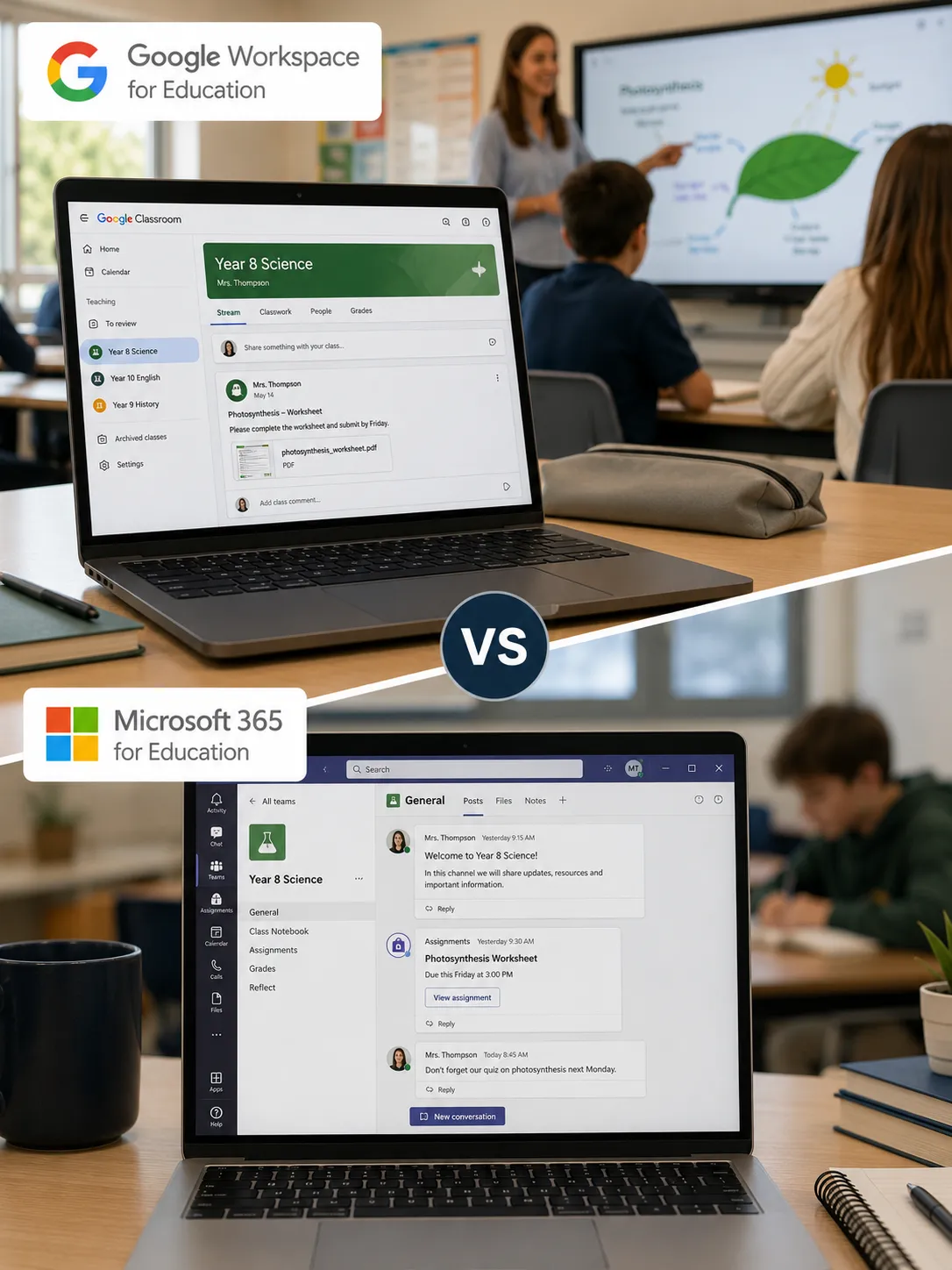
Google Workspace or Microsoft 365 — Choosing the Right Ecosystem Before the Hardware
The ecosystem decision — Google Workspace or Microsoft 365 — should be made before any hardware is selected. Schools that choose a display first and then try to fit their teaching workflows around the software that comes with it consistently struggle more than those that made the ecosystem choice first and let it drive the hardware decision.
The platform decision is: which digital ecosystem will teachers use to plan, deliver, and share lessons? The answer to that question should determine which hardware you buy — not the other way around.
In Australian schools, the ecosystem question almost always resolves to one of two environments. The cards below show what matters in each.
The diagram below maps the decision — follow the branch that matches your school's existing digital environment before looking at any hardware:
Most Australian Government Schools
Platform priorities: EDLA certification for native Google Play Store access, Chromebook casting without additional software, Google Classroom integration, and Drive-based lesson sharing. Teachers plan in Docs and Slides, share through Classroom, work across devices with a single Google account. A display that integrates naturally removes friction. One that requires workarounds adds it.
Independent and Catholic Schools
Platform priorities: Microsoft Teams integration, OneNote Classroom compatibility, SharePoint-based content sharing, and Azure AD single sign-on. Teachers plan in Teams assignments, share through SharePoint, conduct hybrid sessions through Teams meetings. A display that integrates with this workflow becomes a natural extension of how the school already operates.
Had invested three years in building a lesson content library in a platform's native format — hundreds of hours of teacher time accumulated across a faculty. When the school moved to a different interactive display platform, the content migration was only partially successful. Some file types converted cleanly. Others lost formatting, annotations, and interactive elements.
The teachers most invested in creating that content were also the most resistant to the new platform — not because the new platform was worse, but because their investment hadn't transferred.
The switching cost of getting the ecosystem decision wrong is significant and often underestimated before it happens. Choose the ecosystem that fits how your school already works — then find the hardware that serves it best.
The schools that get the most from their interactive display investment almost always made the ecosystem decision before they made the hardware decision.
The schools that struggle most almost always did it the other way around — they found a display they liked the look of, bought it, and then tried to fit their teaching workflows around the software that came with it. The ecosystem drives the hardware. That sequence matters.
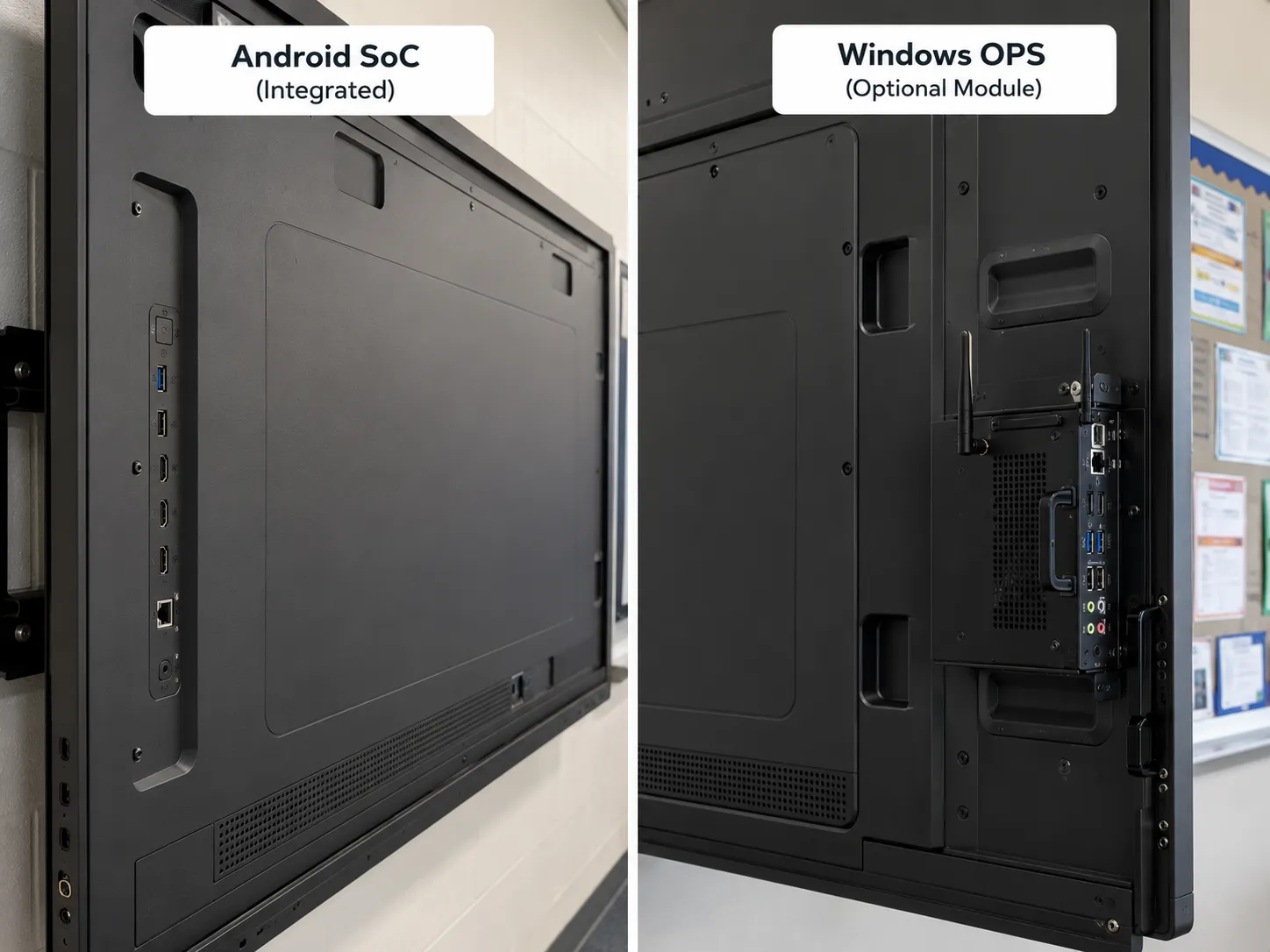
Android SoC vs Windows OPS — What School IT Needs to Know
Interactive flat panel displays are available with two fundamentally different computing architectures. Understanding the difference before purchase prevents expensive mistakes during rollout — because these are not equivalent options with different aesthetics. They are different deployment architectures with different IT management implications.
The comparison below shows what each architecture means in practice for school IT coordinators managing a fleet of classroom displays.
Built Into the Display
The computing hardware is integrated into the panel. No separate module. Boots quickly, lower power consumption, simpler to manage at scale via MDM.
Natural choice for Google Workspace environments — the majority of classroom software runs natively on Android. EDLA-certified Android panels support native Google Play Store access without sideloading.
Limitation: legacy Windows-only curriculum software won't run natively. If your school has Windows-only assessment tools or specialist applications, check compatibility before committing.
Best for: Google Workspace schools, clean fleet management, schools without legacy Windows software dependencies
Modular Windows PC in the Display
A small Windows PC in a standardised bay in the back of the panel. Full Windows capability — any software that runs on Windows runs here.
For schools with legacy Windows-based curriculum software — older assessment tools, specialist STEM applications, subject-specific programs not yet available on Android or web — this is often the deciding factor.
Trade-offs: higher cost, greater power consumption, longer boot time, and the full IT management overhead of a Windows PC fleet — patching, antivirus, imaging, hardware refresh cycles.
Best for: Microsoft 365 schools with legacy Windows software, schools where specific curriculum tools require Windows
A practical note for IT coordinators: Android SoC panels are generally more consistent to manage at scale because the OS is purpose-built for the device. Windows OPS deployments introduce the full variability of Windows PC management into the display fleet. Neither is wrong — but understanding which model fits your IT team's existing capability before purchasing saves significant pain during deployment.
Classroom Display Platforms Compared — SMART, Promethean, BenQ and Samsung
The four manufacturers with the strongest genuine education credentials in the Australian classroom display market each have a distinct positioning. Current model ranges change regularly — for current Australian model availability and pricing, contact us directly. The table below summarises how to start the evaluation by school environment.
The table below shows the recommended starting point for evaluation based on your school's environment — not a definitive recommendation, but a useful orientation before a deeper conversation:
| School Environment | Best Starting Point | Key Reason |
|---|---|---|
| Google Workspace schools | BenQ Board Samsung | EDLA certified, native Google Play, Chromebook casting without additional software |
| Microsoft 365 schools | SMART Board Promethean | Deep Teams integration, established education software ecosystems, large Australian installed base |
| Legacy Windows curriculum software | Windows OPS panel | Any brand — confirm OPS slot available; Windows environment required for legacy apps |
| Primary school — student interaction | BenQ Board | Anti-microbial glass, lower mounting height consideration, eye-care certifications |
| Large multi-classroom rollout | Any — confirm MDM first | Central management capability is the priority; confirm MDM compatibility before any brand decision |
| Already using Promethean | Promethean | ActivInspire content library and teacher familiarity have real switching cost — evaluate carefully before changing |
| Already using SMART Board | SMART Board | SMART Notebook content and ecosystem investment — switching cost is real; evaluate before changing platform |
Writing Feel Benchmark
Most widely recognised IFP brand in Australian schools. Strongest reputation for classroom writing feel — particularly on optically bonded mid-to-premium panels. SMART Notebook and Learning Suite are purpose-built for classroom delivery with a large existing content library. Well established in Microsoft 365 environments with strong Teams integration.
If you're comparing SMART Board against Promethean and BenQ across common Australian school scenarios:
Promethean vs BenQ vs SMART — three-way comparison →If the decision is between SMART and Promethean specifically, this post covers that head-to-head in an Australian school context:
Promethean vs SMART Board for Australian schools →If you've decided on SMART Board and need to understand the difference between the GX, MX, and RX series before choosing a tier:
SMART Board GX vs MX vs RX — which series suits your school →Largest Australian Installed Base
ActivPanel range and ActivInspire software are deeply embedded in primary and secondary education across Australia. For schools already running Promethean, the switching cost is real — ActivInspire lesson content, teacher familiarity, and IT team knowledge all have genuine value. Education-specific software development with a focus on classroom engagement tools built for teacher workflows.
If the decision is between Promethean and SMART Board — the two most widely deployed education brands in Australian schools:
Promethean vs SMART Board for Australian schools →If you're weighing Promethean against BenQ and SMART in a broader three-way comparison:
Promethean vs BenQ vs SMART — three-way comparison →If your school uses displays in both classroom and boardroom environments, this post covers Promethean's positioning across both:
Promethean for education and the boardroom →Strong Google Workspace Credentials
Google EDLA certified with TÜV-certified anti-microbial glass — relevant for primary schools where hygiene carries procurement weight. Built-in microphone arrays support hybrid learning without additional peripherals. Open Android platform integrates naturally with Google Workspace. Eye-care certifications address a legitimate concern in classrooms where students face a display for extended periods.
If you're comparing BenQ Board against SMART and Promethean in an Australian school context, this three-way post covers the key differences:
Promethean vs BenQ vs SMART — three-way comparison →To see the full BenQ commercial display range available through Kickstart, including current education models:
BenQ commercial display range at Kickstart →Commercial Engineering in Education
Education display range carries Google EDLA certification with built-in camera and microphone arrays making hybrid learning capability native rather than peripheral-dependent. Open Android platform integrates naturally with Google Classroom and Chromebook casting. For schools already invested in Samsung's broader technology ecosystem, consistent management experience across the fleet.
If you're comparing Samsung's WMFX and WAFX-P models and need to understand which generation suits your school environment:
Samsung WMFX vs WAFX-P — which suits your school →If the decision is between the Samsung Flip Pro and the WMFX — comparing the corporate collaboration model against the education-focused generation:
Samsung Flip Pro vs WMFX →To see the full Samsung Flip interactive whiteboard range and all available models at Kickstart:
Samsung Flip interactive whiteboard hub →Head-to-Head Comparison Articles
If you're already narrowed down to two or three platforms and want a detailed side-by-side evaluation, the posts below cover the most common education display comparisons we're asked about. Each one is written from deployment experience — not specification sheets.
Education three-way comparison — covers SMART, Promethean, and BenQ side by side for Australian school contexts:
Promethean vs BenQ vs SMART →Head-to-head between the two most widely deployed education brands in Australian schools:
Promethean vs SMART Board →If you're evaluating the SMART Board range and need to understand the series differences before choosing a tier:
SMART Board GX vs MX vs RX →For schools comparing Samsung's education display generations — WMFX vs the newer education-focused WAFX-P:
Samsung WMFX vs WAFX-P →Covers the platform architecture question that underpins every interactive display purchase — Android SoC vs Windows OPS in detail:
Android SoC vs Windows OPS →A balanced look at the limitations of interactive whiteboards — useful reading before committing to any platform:
Disadvantages of interactive whiteboards →Screen Size, Room Configuration and Mounting Height
Screen size selection is more nuanced than the "bigger is better" instinct that often drives purchasing decisions. The right size depends on room dimensions, seating configuration, viewing distances, and — critically for primary schools — mounting height for student interaction.
Viewing distance is the primary driver of minimum screen size. A useful rule of thumb for classroom environments: the screen diagonal in inches should be at least one third of the maximum viewing distance in feet. A classroom where the furthest student is 30 feet from the board needs a minimum 86″ display for comfortable text legibility from the back row.
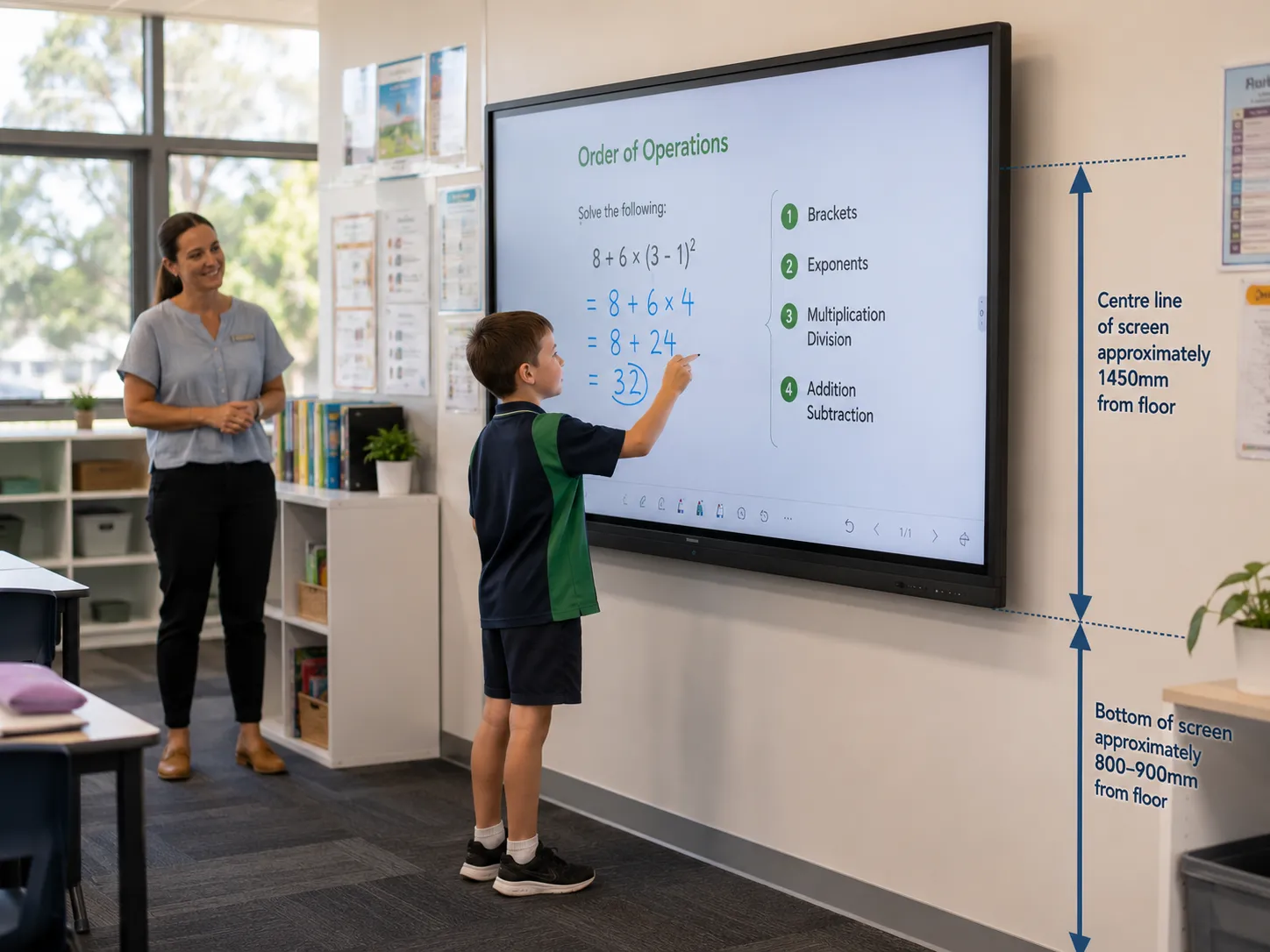
Mounting height is the variable most often specified incorrectly for primary school deployments. An interactive display mounted at adult working height places the lower writing area above comfortable reach for primary school students. For classrooms where students regularly interact with the display directly, mounting height should be adjusted so that the lower third of the active area is accessible to the shortest students. This needs to be specified in the installation brief — not left to the installer's judgement on the day.
Room lighting affects display performance in ways that specification sheets don't always capture. Windows behind or beside the display create glare and reflections that reduce contrast and legibility. Before finalising display selection for a specific room, assess the lighting conditions at the time of day the room is most heavily used.
Fixed vs mobile mounting is worth considering for rooms serving multiple purposes. Fixed mounting provides a better writing surface — the display doesn't shift under hand pressure. For dedicated classroom installations, fixed mounting is generally preferred.
The table below gives a quick-reference starting point for screen size by classroom type — confirm against actual room dimensions before purchasing:
| Classroom Type | Recommended Size | Key Consideration |
|---|---|---|
| Secondary classroom | 75″ – 86″ | Viewing distance primary driver |
| Primary classroom | 65″ – 75″ | Lower mounting height for student reach |
| Small group / breakout | 55″ – 65″ | Closer viewing distances, tighter rooms |
| Training / lecture room | 86″ – 98″ | Larger audience, greater viewing distance |
| Rooms with direct sunlight | Any size — specify anti-glare glass | Glass treatment matters more than size |

Hybrid Learning Requirements — What a Classroom Interactive Display Needs to Deliver
Not all classroom interactive displays support hybrid learning equally — and the gaps only become visible once the hardware is on the wall and a teacher is trying to run a live session with remote students. Four specific capabilities determine whether a display actually delivers on hybrid learning: camera field of view, microphone array range, platform integration, and simultaneous content and camera sharing.
The cards below show what each one means in practice and what to check before purchasing.
Captures Teacher and Board Simultaneously
A camera mounted at the top centre of a large panel captures a very different field of view than one positioned differently. In a classroom where the teacher moves around and writes on the panel, camera position relative to the writing area matters considerably.
Picks Up the Room, Not Just the Front
Sufficient range to pick up classroom audio clearly without requiring the teacher to stay in one position. A microphone that only captures clearly within a metre of the display makes natural classroom movement impractical during hybrid sessions.
Native Teams or Google Meet
Native integration with the school's video conferencing platform — Teams or Google Meet in most Australian schools — without switching inputs or managing multiple devices. Workarounds that require a separate laptop add friction that teachers quickly route around.
Both Feeds to Remote Students
The ability to share both the display content and the room camera feed to remote participants simultaneously. Remote students should see what's on the board and the teacher — not one or the other depending on which input is active.
For schools where hybrid learning is a genuine ongoing requirement, requesting a live demonstration of a hybrid session — with a remote participant connected and the teacher moving naturally around the room — is the most reliable way to assess whether the hardware actually delivers on the marketing.
Multi-Classroom Rollouts — IT Management and Remote Administration
Deploying interactive displays across multiple classrooms introduces IT management requirements that a single-classroom evaluation rarely surfaces. A common scenario looks like this: a school evaluates one display in a pilot classroom, the teacher loves it, the principal approves a full school rollout — and the IT coordinator discovers six weeks into deployment that the wireless network isn't provisioned for thirty displays running simultaneously.
Network infrastructure is the constraint that surfaces latest and costs most to fix. Interactive displays are bandwidth-intensive devices — particularly when streaming content, running video conferencing, and syncing cloud-based lesson content simultaneously. A school wireless network designed for laptops and Chromebooks may not be provisioned for the additional load of a full display fleet. A network assessment before deployment planning is worth the investment.
Central management is equally important at scale. A fleet of thirty interactive displays that each require individual software updates, firmware patches, and configuration changes represents a significant ongoing IT burden without central management capability. Most enterprise-grade interactive display platforms support MDM integration — confirm compatibility with the MDM platform your IT team already uses before purchasing.
Firmware consistency across a fleet matters more than it sounds. A display running different firmware to the rest of the fleet may behave differently when new software features are pushed, or have compatibility issues with shared lesson content. Establish a firmware baseline during deployment and maintain it through a managed update process.
Warranty and support response time at scale deserves specific attention. A single display failure in a 30-room deployment means one classroom without its primary teaching tool until the repair or replacement arrives. Establish support commitments and loan device arrangements before committing to a supplier — not after.
The image below shows a school IT coordinator managing a classroom display fleet centrally — the MDM dashboard approach that makes a 30-room deployment manageable rather than a daily support burden.

Multi-Classroom Rollout Sequence
The steps below show the sequence that prevents the most common rollout problems — each step confirms something before the next commitment is made.
Network assessment
Confirm wireless infrastructure can handle full fleet load before ordering any hardware
MDM platform confirmed
Verify display brand MDM compatibility with your existing IT management tools
Pilot classroom
One room, real teachers, one full term — validate platform before scaling
Staff training at installation
Not weeks before — at the point of use, on their own display, with their own lesson plan
Fleet firmware baseline
Establish consistent firmware across all devices during deployment — not after
Support model confirmed
Response time commitments and loan device arrangements locked before go-live
The single most common surprise in a multi-classroom display rollout is the network. Not the displays — the network. Schools consistently underestimate how much bandwidth a fleet of interactive displays consumes when they're all running simultaneously — streaming lesson content, syncing cloud files, running video conferencing for hybrid sessions, and pushing software updates in the background.
We've seen schools complete a 20-room rollout and then spend the following term trying to retrofit wireless access points and switch upgrades that should have been scoped before a single display was ordered. Get the network assessment done first.
Total Cost of Ownership — What Schools Consistently Underestimate
The hardware unit price is the number that dominates most classroom display procurement conversations. It is rarely the number that matters most over the life of the deployment. A realistic total cost of ownership calculation includes all of the following:
- Hardware Per-unit display price multiplied by the number of classrooms. This is the number most schools start with and, unfortunately, sometimes end with.
- Installation Professional wall mounting, cable management, power outlet installation or relocation, network point installation. In Australian schools, electrical work requires a licensed electrician. Installation costs across a full school deployment are frequently 15–25% of the hardware cost.
- Software licences SMART Notebook, ActivInspire, and similar platforms carry annual subscription costs per device or per user. These continue for the life of the deployment — operational expenditure, not capital.
- Content migration Schools moving from one platform to another often have years of lesson content in the previous platform's native format. Migration is time-consuming and sometimes only partially successful. The cost in staff time is almost always underestimated.
- Staff training Initial training at deployment, refresher training as software updates introduce new features, and onboarding for new staff joining the school across a ten-year deployment period.
- IT management Ongoing overhead of managing a fleet through its operational life — firmware updates, software updates, troubleshooting, warranty claims, and eventual decommissioning.
- Hardware refresh Commercial-grade displays have a 7–10 year operational lifespan. Budget planning that doesn't include a hardware refresh allocation is planning to have an unbudgeted capital expenditure in year eight.
The image below represents the conversation that happens in too many schools — a budget review that reveals costs that should have been planned for from the start.

The hardware budget gets approved.
Installation is booked.
Staff training is scheduled.
Then six months later someone in finance asks why there's an annual software subscription that wasn't in the original budget.
SMART Notebook, ActivInspire, and similar education platforms aren't expensive in isolation — they are ongoing operational costs rather than one-off capital purchases. The costs aren't hidden — they're documented by the manufacturers. They're simply easy to overlook when procurement conversations focus almost entirely on hardware unit prices.
Budget for the software before approving the hardware.
Why Teacher Training Matters More Than the Interactive Display You Buy
Teacher training — not hardware specification, not software ecosystem, not installation quality — is the single most reliable predictor of whether a classroom interactive display investment delivers its intended value. Schools that get the training right consistently get more from their displays. Schools that treat training as an afterthought consistently find that expensive hardware gets used as an expensive projector screen.
Four factors determine whether training produces adoption or frustration. The cards below show what each one means and what good looks like in practice.
Timing — At the Point of Use
Training delivered in the term before installation is largely wasted. Teachers cannot consolidate learning about a tool they haven't yet used. Training delivered in the first week of actual use — when teachers are actively applying what they're learning — produces dramatically better retention. If installation schedule doesn't allow for immediate training, schedule it for the first week of term after installation, not the last week before.
Format — Workflows Not Features
Whole-staff training covering every platform feature in a single day produces teachers who feel overwhelmed and remember very little. Small group sessions focused on specific workflows each cohort actually uses — annotating a document, running a collaborative activity, connecting a student device — produce teachers who leave knowing two or three things confidently. Confidence in two features used daily is worth more than theoretical familiarity with twenty that never get touched.
Early Adopters — Internal Champions
In every school, two or three teachers engage with new technology enthusiastically and experiment voluntarily. Identifying these teachers before deployment and giving them early access creates internal champions who support colleagues in the weeks after formal training ends. Peer support from a trusted colleague in the same faculty is often more effective than vendor-provided training in driving sustained adoption.
Ongoing Support — A Clear Pathway
Knowing who to ask when something doesn't work matters more than it's given credit for in deployment planning. A teacher who encounters a problem in the middle of a lesson and can't quickly resolve it will work around the display rather than stopping to troubleshoot. A clear, low-friction support pathway — a specific IT contact, a quick-reference card on the wall, a school-managed knowledge base — keeps adoption from stalling when the inevitable small problems arise.
The image below shows the kind of training session that actually works — small group, real classroom, real lesson plan, on the day the display goes live.
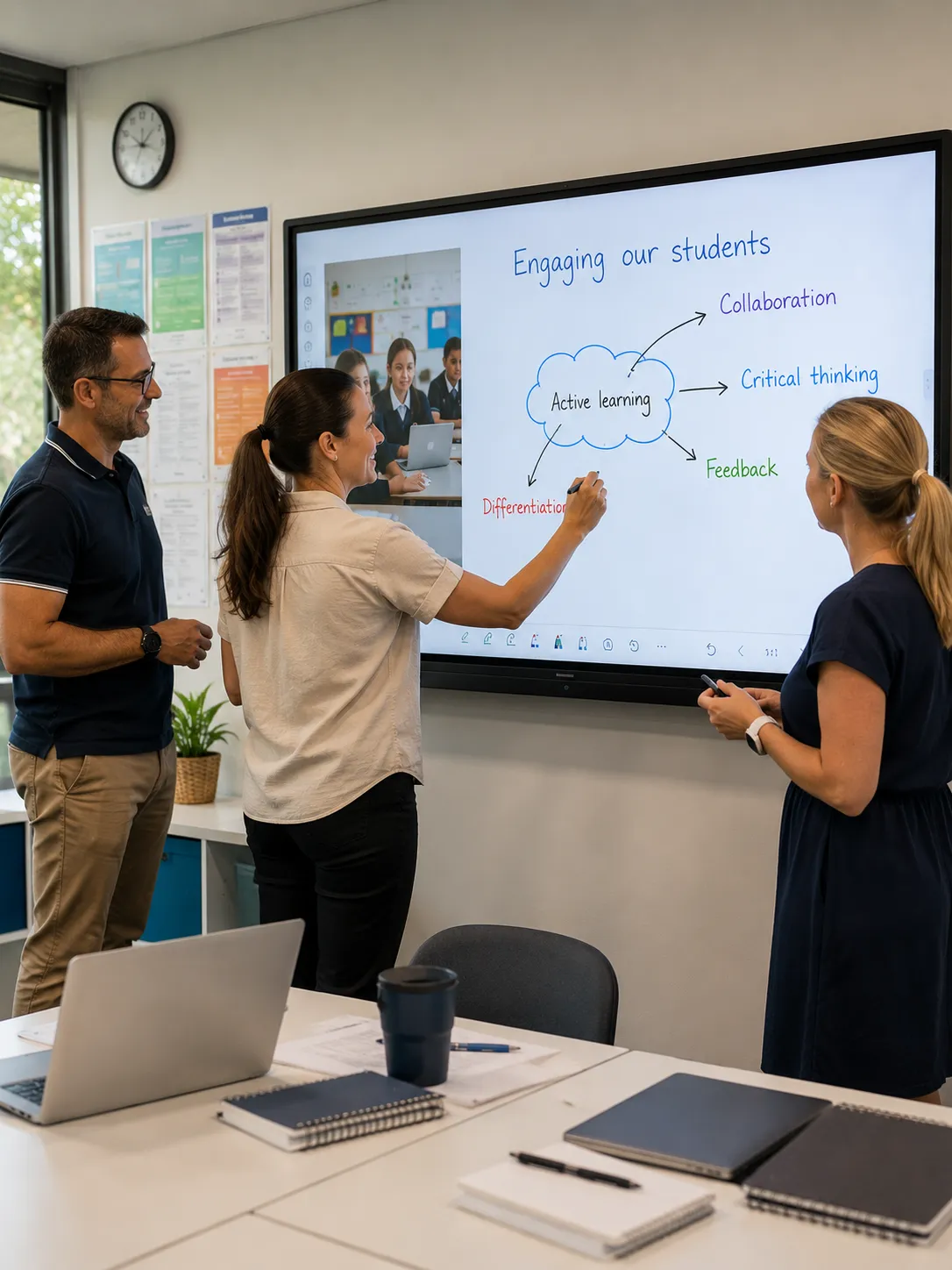
We've seen schools deliver excellent training six weeks before installation, then watch adoption stall because by the time the displays went on the wall, most teachers had forgotten the specifics and were too busy to revisit them.
The best onboarding we've seen was a one-hour session on the first morning the displays were live — teachers in their own classroom, on their own display, with their own upcoming lesson plan open on the screen. That's the session that sticks. Everything else is preparation for it.
Classroom Interactive Display FAQ — Buying, Setup and Platform Questions Answered
- Traditional interactive whiteboards used a projector to display an image onto a flat surface, with touch or stylus input detected on that surface. Interactive flat panel displays are self-contained — the display, touch layer, and computing hardware are integrated into a single panel with no projector required. Flat panels produce significantly better image quality, are easier to use in ambient light, require less maintenance, and have become the standard in Australian school classrooms over the past decade.
- There is no single best brand — the right choice depends on your school's digital environment, existing software investments, and IT management capability. SMART Board and Promethean are the most established education-specific platforms with the largest installed bases in Australian schools. BenQ and Samsung offer strong alternatives particularly in Google Workspace environments. We recommend based on your specific situation and current Australian availability — contact us for a recommendation tailored to your school.
- Android SoC suits most Google Workspace environments and schools without legacy Windows-only software requirements. Windows OPS suits schools with curriculum software that requires a full Windows environment. For a detailed comparison of both architectures across education and commercial deployment scenarios, see our dedicated page: Android SoC vs Windows OPS for interactive displays →
- For most Australian secondary classrooms, 75″ to 86″. For primary classrooms with shorter room depths, 65″ to 75″. The right size depends on room dimensions, maximum viewing distance, and — for primary schools — mounting height for student interaction. A room-by-room assessment is more reliable than a single campus-wide specification. Contact us and we can help scope the right size for each space before you purchase.
- Commercial-grade interactive displays correctly specified and maintained have an operational lifespan of approximately 7–10 years. The software platform commitment typically runs for the same period — which is why ecosystem choice matters as much as hardware specification. Budget for a hardware refresh allocation from the outset rather than treating it as an unexpected future expense.
- EDLA stands for Google Enterprise Devices Licensing Agreement. An EDLA-certified display has native, security-compliant access to the Google Play Store without sideloading or third-party APK workarounds. For school IT teams with strict security policies, EDLA certification means the display operates within the same managed Google environment as Chromebooks and other school devices — no separate app stores, no workarounds, no security exceptions required.
- Through MDM (Mobile Device Management) integration. Most enterprise-grade interactive display platforms support MDM, allowing firmware updates, software configuration, and device monitoring to be managed centrally across the fleet from a single console. Confirm MDM compatibility with your existing management platform before purchasing — retrofitting central management after deployment is significantly more complex than building it in from the start.
- Less than most schools expect — if it is delivered at the right time and in the right format. Whole-staff training covering every feature in a single day produces teachers who feel overwhelmed and retain very little. Small group sessions focused on two or three workflows teachers will actually use daily — delivered in the first week of live use, not weeks before installation — produce confident adoption far more reliably. The goal is not comprehensive feature knowledge. It is two or three things done confidently from day one.
- Generally yes — a standardised fleet is significantly easier to manage, train, and support. A single brand means one software ecosystem, one MDM configuration, one support channel, and one firmware update process across every classroom. Mixed fleets are manageable but introduce complexity at every level of IT administration. If budget or legacy constraints mean a mixed fleet is unavoidable, standardising on a single CMS and confirming both platforms integrate with your existing MDM reduces the overhead considerably.
- Content migration depends on what format the existing content is in and what platform you're moving to. Native file formats — SMART Notebook files, ActivInspire flipcharts — don't always transfer cleanly to other platforms. Web-based content (Google Slides, PowerPoint Online, PDFs) is generally platform-agnostic and transfers without issue. Factor content migration time and effort into your platform change planning before committing to a switch — the cost in staff time is almost always higher than anticipated.
- In most new Australian classroom installations, yes. Interactive flat panels provide significantly higher brightness, require almost no maintenance, eliminate projector lamp replacements, and deliver far better touch accuracy. Projectors still have a place in very large lecture theatres or specialist spaces where throw distance and screen size requirements exceed what a flat panel can deliver — but interactive displays have become the preferred solution for the vast majority of teaching environments.
- The hardware unit price varies considerably depending on screen size, brand, and specification tier — but the unit price is rarely the complete picture. A realistic budget for a classroom interactive display deployment includes the display itself, professional installation (wall mounting, cable management, power and network point work), any OPS module if Windows capability is required, a camera and microphone array if not built in, software licensing for the platform, and an allocation for staff training. Installation alone typically adds 15–25% to the hardware cost across a full school deployment. For a current indication of pricing based on your school's specific requirements, contact us directly — we can scope the full cost of deployment, not just the unit price.
If this page has helped you think through your school's classroom display decision, we'd genuinely appreciate you sharing that.
As an independent small business, we rely on recommendations from businesses who find our advice genuinely useful.
If you're short on time, even a simple star rating helps other schools discover practical, experience-based display advice.
Leave a Google Review →Schools rarely regret buying a better display.
They often regret buying the wrong platform.
Talk to Australia's Classroom Interactive Display Specialists
Platform selection, multi-classroom rollout planning, and current product recommendations based on your school's specific environment — from a team that has been deploying classroom display technology across South Australian schools since 2007.
Contact Us About Your School Display Project