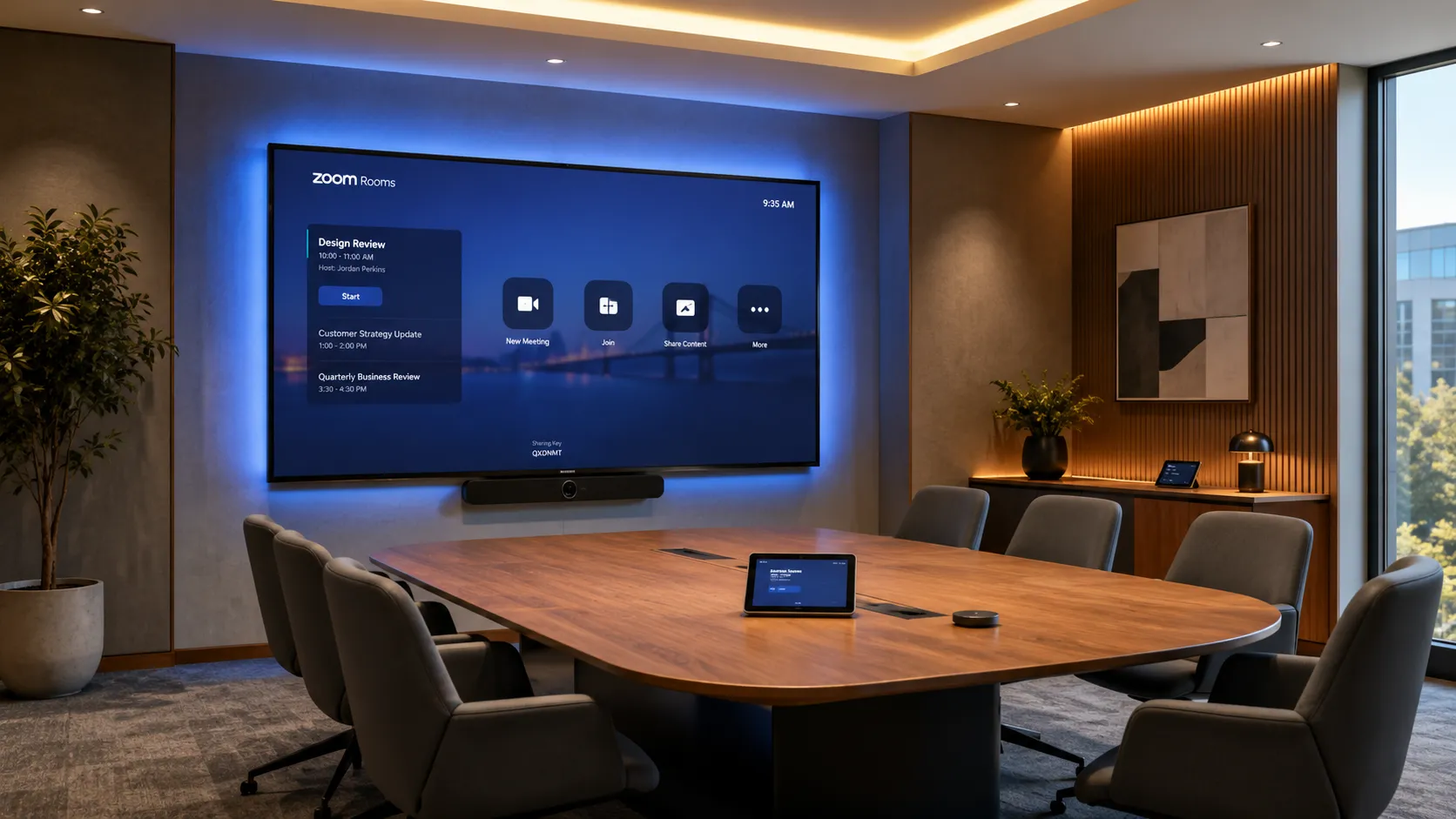
Modern collaborative meeting room with Zoom Rooms setup — single large display, rounded table, warm amber and cool-blue lighting
Platform Guide — Zoom Rooms

Jump Ahead Too

Zoom Rooms for Australian Businesses —
The Honest Deployment Guide

Zoom Rooms turns any meeting space into a one-touch video conferencing room. No complicated IT infrastructure. No steep learning curve. Just a consistent, familiar Zoom experience — on dedicated hardware, in every room across your office.

Why Australian businesses choose Kickstart

  • Australian Business Since 2007
  • Multi-Brand Independent Advice
  • Zoom-Certified Hardware
  • All Room Sizes
  • No Lock-In
What You Need To Know First

The honest answers to the questions
we get asked most about Zoom Rooms

Question 01

Is Zoom Rooms simpler to deploy than Microsoft Teams Rooms?

Generally, yes — especially for small to medium businesses without a dedicated IT team. Zoom Rooms runs on a tighter hardware stack, has fewer licensing dependencies, and the touch-panel interface is immediately familiar to anyone who already uses Zoom on their laptop.

See full deployment comparison →

Question 02

Do you need special hardware for Zoom Rooms?

Yes. Zoom Rooms requires Zoom-certified hardware — you can't simply install the Zoom app on a generic PC and call it done. The good news is that most leading brands (Logitech, Yealink, Poly) make dedicated Zoom Rooms appliances that are pre-configured and ready to deploy.

See hardware by room size →

Question 03

Should you choose Zoom Rooms or Microsoft Teams Rooms?

It depends less on the platforms themselves and more on how your business already works. If your team lives in Zoom daily and values speed and simplicity, Zoom Rooms is a natural fit. If your organisation runs Microsoft 365 deeply — with Intune, Active Directory and Teams as the communication backbone — Teams Rooms is the more logical choice.

See full platform comparison →
Platform Overview

What Zoom Rooms actually is —
and how it works in a real meeting room

Zoom Rooms is a software-based room conferencing system — it's not the same as the Zoom app on your laptop. It's designed to run on dedicated, certified hardware permanently installed in a meeting room, giving that room a consistent one-touch join experience for every meeting, every time.

How a Zoom Room configures

  1. Licence

    Configure the Zoom Rooms per-room licence in your admin console. The room gets a fixed permanent identity — independent of individual staff accounts.

  2. Compute

    Install the processing engine. Small and medium rooms use an integrated Android bar (e.g. Yealink A20). Large rooms use a dedicated Windows mini-PC for advanced audio matrix processing and enterprise network authentication.

  3. Controller

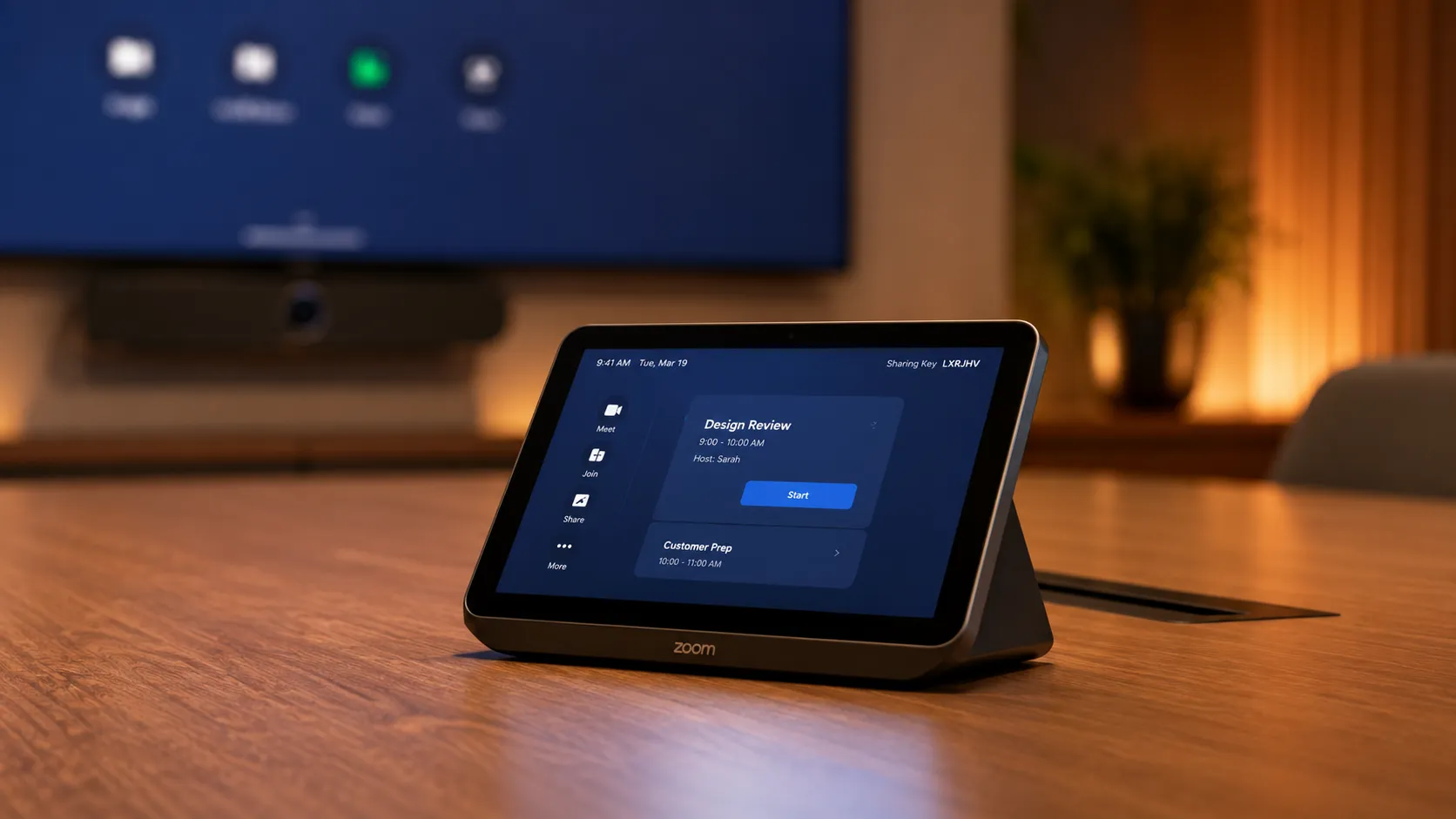
    Place the Zoom-certified touch panel on the meeting table. It parses the room calendar automatically and presents the day's meetings for one-touch join.

  4. Connect

    The room is always ready. Anyone walks in, taps Join, and the room connects — camera, microphone and display, all at once. No setup required.

  • Zoom Rooms touch controller on a modern meeting room table with warm amber lighting

    01 — The Basics

    One-touch join. Every time.

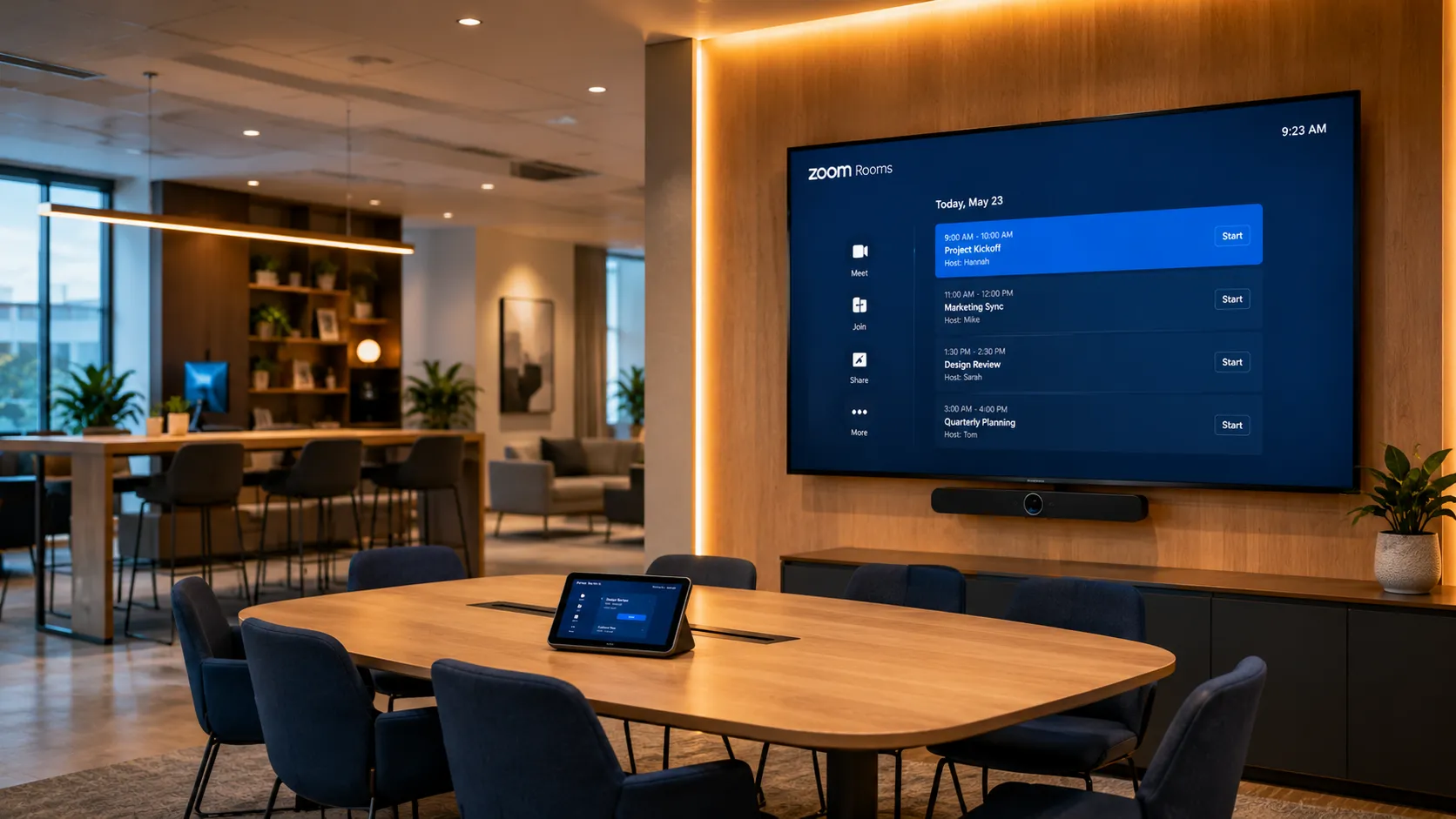
    The Zoom Rooms experience centres on simplicity. A touch controller on the table shows the day's scheduled meetings. Anyone walks in, taps Join, and the room connects automatically — camera, microphone, display, and all.

    No logging in. No laptop cables. No “can everyone hear me?” rituals.

    • One-Touch Join
    • Scheduled Meetings
    • Automatic Connect

    Many businesses underestimate how much time is lost to meeting startup friction. In rooms where people are connecting manually every time, five minutes per meeting across a week adds up to a meaningful productivity cost — especially in organisations running back-to-back sessions.

    See hardware options →
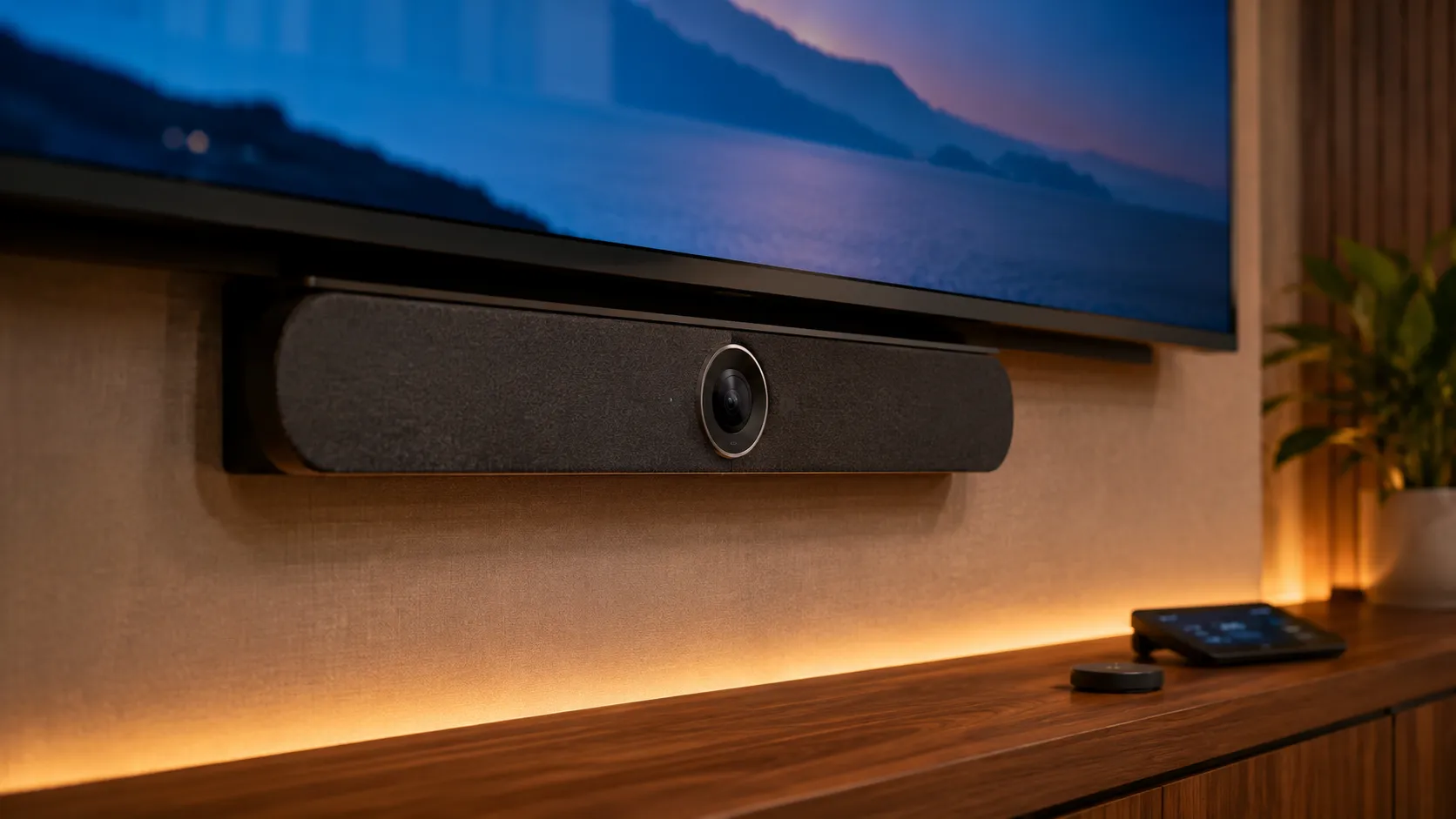
  • Zoom Rooms all-in-one video bar mounted below a display with neat cable management

    02 — The Hardware

    What’s actually in a Zoom Rooms setup

    A complete Zoom Rooms installation typically includes: a dedicated compute device (either a standalone appliance or a Windows PC), a certified camera, a certified speakerphone or ceiling microphone array, a touch controller, and one or more displays. Everything is pre-configured to run the Zoom Rooms software on startup.

    • Camera
    • Speakerphone
    • Touch Controller
    • Display
    • Compute

    Businesses often ask whether they can use existing AV equipment with Zoom Rooms. Some components are compatible — but using non-certified hardware is a common source of audio and video quality problems. Zoom’s echo-cancellation algorithms rely on tightly integrated hardware chipsets. If it’s not on the certified list, it will cause problems.

    See certified hardware brands →
  • Modern collaborative meeting space with Zoom Rooms scheduling interface on display

    03 — The Licensing

    How Zoom Rooms licensing works

    Zoom Rooms requires a Zoom Rooms licence per room, in addition to any standard Zoom user licences your team holds. The room licence covers the room itself — not the individuals joining. External guests joining via a standard Zoom meeting link don’t need a Zoom Rooms licence.

    • Per-Room Licence
    • Zoom Meetings Compatible
    • External Guest Access

    In most environments the licensing model is straightforward. Where it gets more complex is when organisations try to mix Zoom Rooms with Teams or other platforms in the same building — managing multiple room licences across platforms requires planning, and is one of the first questions we work through with clients.

    See full licensing guide →
Licensing Guide

Zoom Rooms licensing —
what you actually need to pay for

Zoom Rooms licensing is simpler than Teams Rooms — but it's not free. Unlike Teams Rooms Basic, there's no free tier for Zoom Rooms. Every room requires a paid Zoom Rooms licence, billed per room per month. What most reseller websites don't explain clearly is what that licence covers, what's separate, and where businesses overspend.

Do you actually need a Zoom Rooms licence for every room?

The honest answer: yes, for every dedicated room system. But not every space needs a full Zoom Rooms deployment — and that distinction matters for budget planning. A room used occasionally for informal catch-ups can run a laptop and USB camera. A room used daily for scheduled client meetings always justifies the licence.

The Licensing Reality

  • Every room requires a paid Zoom Rooms licence — no exceptions
  • Zoom Rooms licences are separate from standard Zoom user licences
  • No free tier — unlike Teams Rooms Basic which covers up to 25 rooms
  • External guests joining your room do not need a Zoom Rooms licence
  • One licence covers the room regardless of how many people are in it
  • Annual billing is lower than monthly — confirm at time of purchase
  • No volume discount at small scale — Room 1 and Room 10 cost the same

Where Businesses Save Money

  • Occasional-use spaces can run a laptop and USB camera instead
  • Reserve Zoom Rooms for rooms with regular scheduled meetings
  • Annual billing over monthly saves meaningfully at scale
  • Android appliance hardware saves $500–$1,500 per room vs Windows compute
  • Check if your Zoom Business or Enterprise plan bundles room licences
  • Mixed approach — Zoom Rooms in high-use rooms, simpler setups elsewhere

What Determines Your Licence Count

  • Count rooms with permanent installed hardware — not every meeting space
  • Huddle spaces used occasionally may not justify a full room licence
  • Rooms used daily for scheduled meetings always justify the licence
  • Large rooms with Windows compute have higher hardware cost but same licence cost
  • Running Zoom Rooms alongside Teams Rooms means two separate licence costs
Zoom Rooms vs Microsoft Teams Rooms — Licensing Comparison
FeatureZoom RoomsTeams Rooms BasicTeams Rooms Pro
CostPaid per room/monthFree — up to 25 roomsPaid per room/month
Free tierNoneUp to 25 rooms per tenantN/A
Dual screen supportIncluded — standard licenceSingle screen onlyIncluded — Pro licence
Guest accessStandard Zoom link — no licence needed for guestsTeams meetings onlyZoom/Webex Direct Guest Join included
Remote managementZoom Admin Portal — includedLimitedFull Teams Admin Centre
Calendar integrationGoogle Calendar, Exchange, Microsoft 365Microsoft 365 nativeMicrosoft 365 native + advanced
Room count limitUnlimited25 rooms — Pro required aboveUnlimited
Best fitZoom-first organisationsSmall M365 businesses under 25 roomsLarger M365 organisations, complex rooms

Indicative features as of 2026. Verify current pricing and exact features at zoom.com/en-au and microsoft.com/en-au — both platforms update licensing regularly.

Bottom Line

Zoom Rooms has no free tier — every room requires a paid licence. The decision isn't Basic vs Pro, it's which rooms genuinely justify a permanent installation. For most Australian businesses, the right answer is fewer Zoom Rooms licences deployed properly, rather than more rooms deployed cheaply.

Real business scenarios — which rooms actually need a Zoom Rooms licence?

Scenario 01

Small professional services firm — 3 meeting rooms

Two rooms are used daily for client calls — these justify Zoom Rooms. One small huddle space is used occasionally for internal catch-ups — a laptop and USB camera is sufficient. Licence count: 2, not 3.

Scenario 02

Medium business — 8 rooms, mixed Teams and Zoom

Four rooms run Teams Rooms Basic (free). Four collaboration spaces run Zoom Rooms for cross-company client meetings. Mixed-licence strategy — pays only for what each room actually does.

Scenario 03

25-room business — all-in on Zoom

All 25 rooms require Zoom Rooms licences — no free tier available. Annual billing chosen to reduce ongoing cost. Android appliance hardware selected across small and medium rooms to reduce hardware spend per room.

Platform Comparison

Zoom Rooms vs Microsoft Teams Rooms —
an honest comparison

Both platforms deliver a one-touch join room experience. Both run on certified hardware from the same manufacturers. The differences come down to ecosystem fit, deployment complexity, and who in your organisation drives the decision.

Zoom Rooms vs Microsoft Teams Rooms — feature by feature comparison. Indicative as of 2026.
FeatureZoom RoomsMicrosoft Teams Rooms
Licensing modelPaid per-room licence — no free tierBasic free up to 25 rooms; Pro paid per room
Dual screen supportNative on standard licence Zoom advantageRequires Teams Rooms Pro licence for Front Row dual-screen layout
Hardware ecosystemLogitech, Yealink, Poly — Android or Windows computeSame brands — controller pairing locked to specific compute environment
Controller flexibilityiPad or Android panel interchangeable Zoom advantageController locked tightly to the specific compute appliance
Guest joiningExternal guests join via standard Zoom link — no special setup Zoom advantageDirect Guest Join for Zoom/Webex — can be restricted by corporate tenant controls
Cross-platform joiningJoins Teams, Google Meet via calendar parsingJoins Zoom/Webex via Direct Guest Join — requires IT configuration
Wireless sharingNative from Zoom app — no dongle required Zoom advantageMiracast or Teams Cast — device and network dependent
IT managementZoom Admin Portal — lightweight and centralisedMicrosoft Intune / Teams Admin Centre — deeper integration, more configuration
Calendar integrationGoogle Calendar, Exchange, Microsoft 365Microsoft 365 native; Google Calendar supported but secondary
Compute architectureAndroid bars for small/medium; Windows mini-PC for large roomsSame — Android or Windows depending on hardware selection
Deployment complexityLower — fewer dependencies, faster setupHigher — benefits from existing M365 infrastructure and IT team
Best fitZoom-first teams; cross-company collaboration; simpler IT environmentsOrganisations deeply standardised on Microsoft 365 with dedicated IT management

Bottom Line

Zoom Rooms generally suits businesses prioritising simpler deployment and flexible cross-company collaboration. Teams Rooms aligns more naturally with organisations already deeply standardised on Microsoft 365. Neither is objectively better — the right answer depends on how your business already works. Many Australian businesses run both — Zoom Rooms in collaboration spaces, Teams Rooms in formal boardrooms.

Hardware Guide

Zoom Rooms hardware —
matched to your room size

The same certified hardware brands cover Zoom Rooms across all room sizes. The difference is in camera field of view, microphone pickup range, and compute architecture as rooms get larger — from integrated Android bars in small rooms to dedicated Windows compute units in large boardrooms.

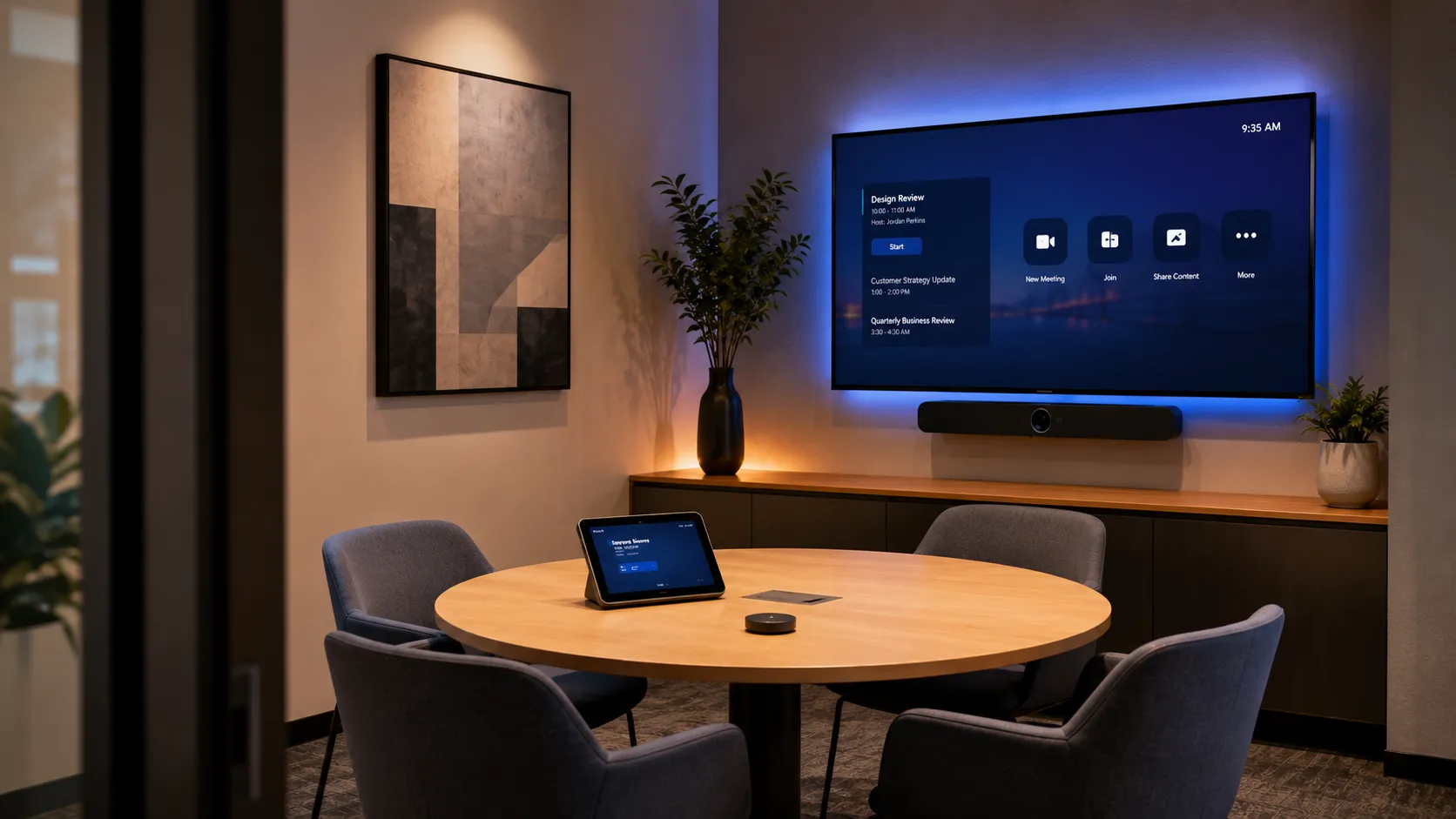
  • Small collaborative huddle space with Zoom Rooms setup, compact rounded table, single display, warm amber lighting

    Room Size 01

    Small Rooms & Huddle Spaces
    (2–5 people)

    The priority in small rooms is simplicity and compact footprint. All-in-one bars work well here — a single Android-based device handles camera, microphone and speaker, mounts below the display, and connects to a touch controller on the table.

    Android compute: These bars run on an integrated Android OS — zero Windows update cycles, near-instant startup, and no separate compute unit to manage. Ideal for businesses without a dedicated IT team.

    Recommended Hardware

    • All-In-One Android Bar
    • Single Display
    • Compact Footprint
    • Easy Deploy
    Typical budget $3,000 – $6,000 AUD

    Many businesses over-specify small rooms. A well-chosen all-in-one bar in a 4-person huddle space outperforms a complex multi-component system — and is significantly easier to support.

    See small room solutions →
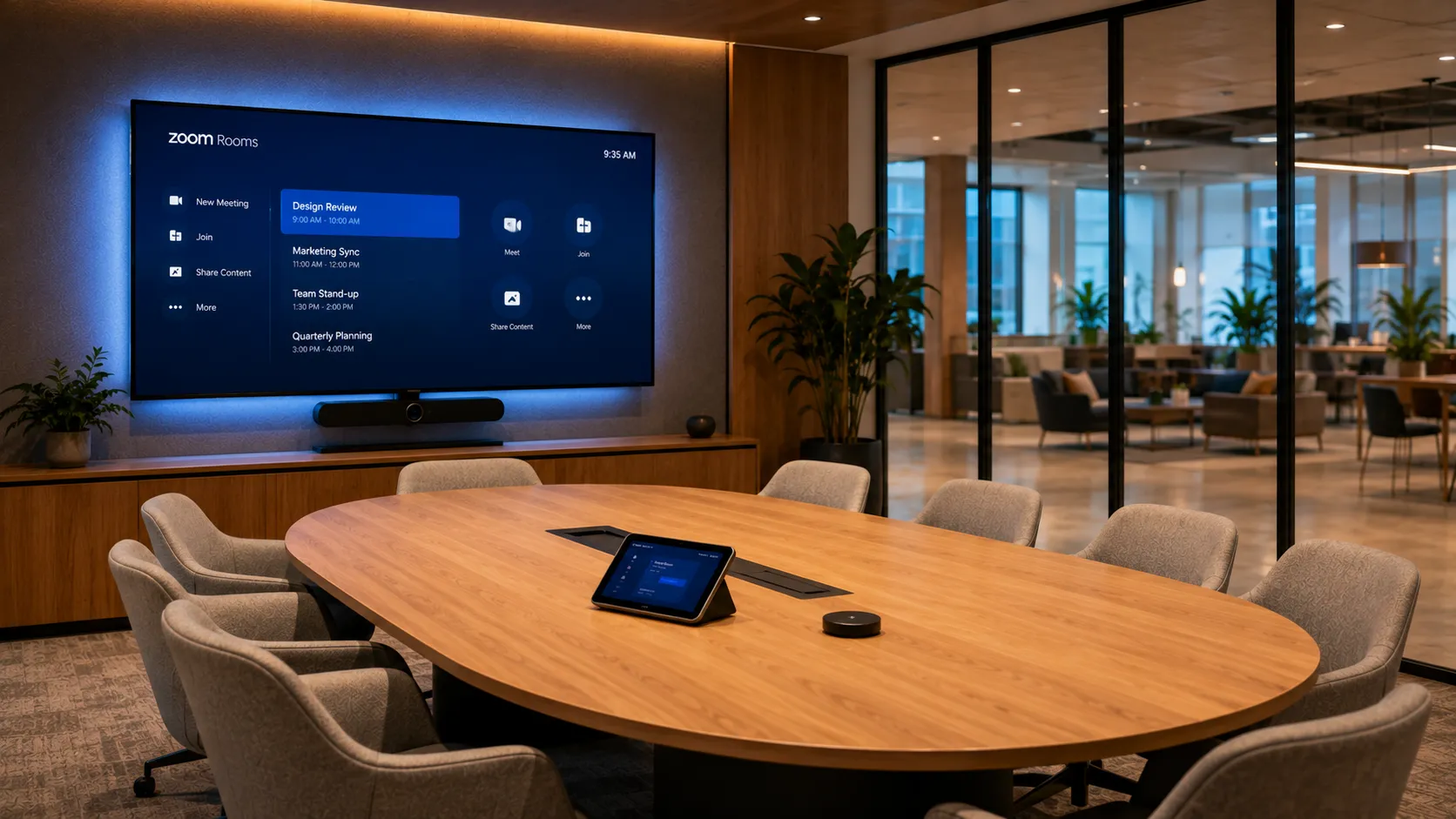
  • Medium collaborative meeting room with Zoom Rooms, rounded table 6 to 8 chairs, single large display, amber and cool-blue lighting

    Room Size 02

    Medium Meeting Rooms
    (6–10 people)

    Medium rooms benefit from a step up in camera field of view and microphone coverage. A mid-range all-in-one Android bar or a component system ensures people at the far end of the table are clearly seen and heard.

    Android compute: Mid-range bars like the Yealink A30 and Logitech Rally Bar still operate on Android — maintaining the same zero-maintenance compute advantage as smaller rooms, with upgraded optics and audio reach.

    Recommended Hardware

    • Wide FOV Camera
    • Extended Mic Range
    • Android Compute
    • Single or Dual Display
    Typical budget $6,000 – $12,000 AUD

    The most common medium-room problem is audio — specifically, people at the far end of a long table not being picked up cleanly. In rooms over 5 metres, a ceiling microphone array or satellite mic is worth considering over a bar-mounted microphone.

    See medium room solutions →
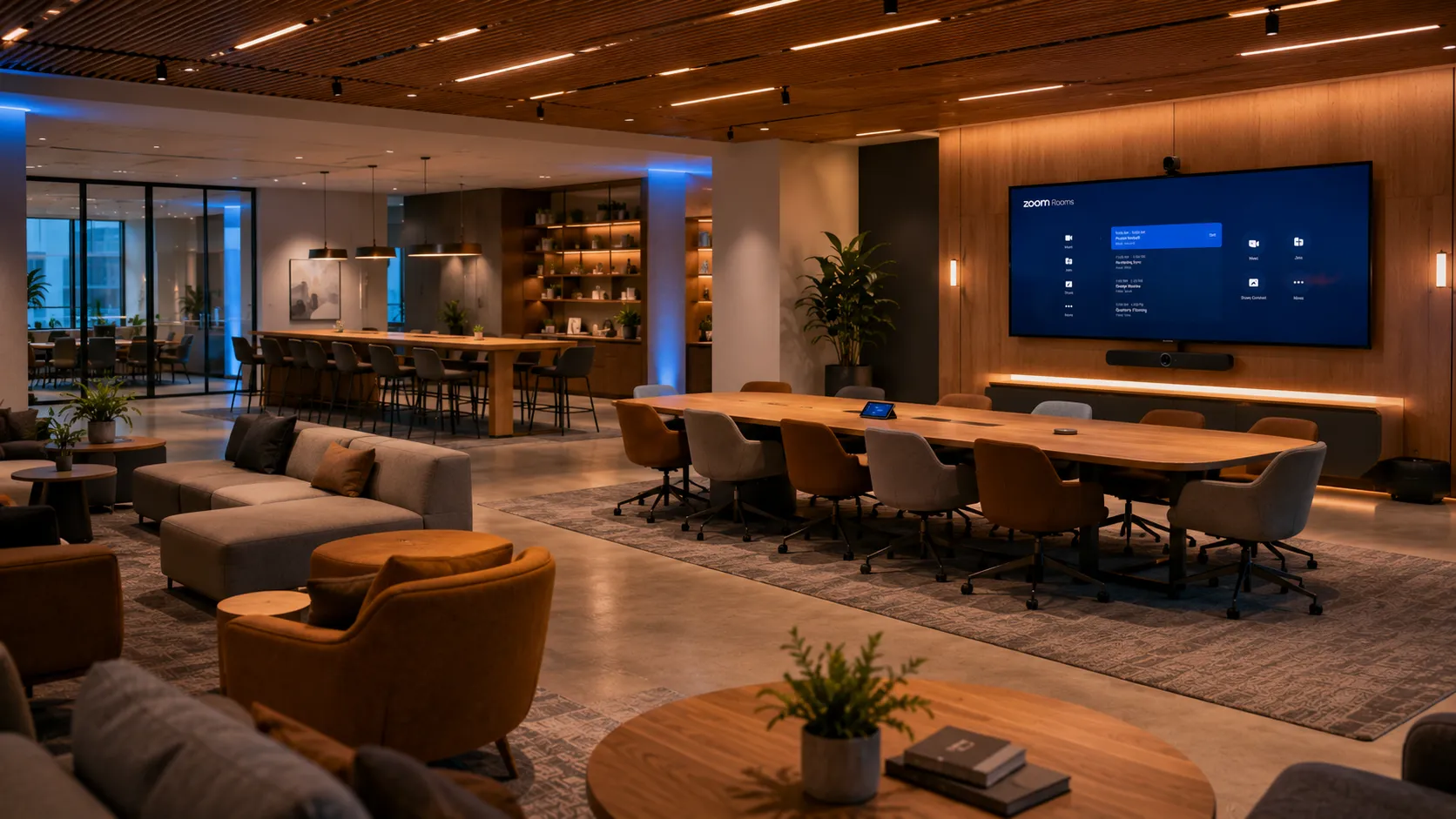
  • Large collaboration space with Zoom Rooms, asymmetric composition 12 or more seats, ultra-wide display, amber and cool-blue lighting

    Room Size 03

    Large Rooms & Boardrooms
    (12+ people)

    Large rooms require PTZ cameras with speaker-tracking capability, distributed microphone arrays, and often dual displays. This is where the compute architecture shifts — from an integrated Android bar to a dedicated Windows mini-PC mounted behind the display.

    Windows compute: Systems like the Yealink MVC960 and Logitech Rally Plus pair with a dedicated Windows core unit — delivering the processing headroom for multi-camera audio matrix processing and enterprise network authentication that large rooms require.

    Recommended Hardware

    • PTZ Camera
    • Speaker Tracking
    • Distributed Mics
    • Windows Compute
    • Dual Display
    Typical budget $12,000 – $25,000+ AUD

    Businesses often discover that large-room deployments require more acoustic planning than hardware planning. Even the best PTZ camera and microphone array will underperform in a room with hard surfaces, poor ceiling treatment, or HVAC noise. We review room acoustics before recommending hardware for large spaces.

    See large room & boardroom solutions →
Bottom Line

For most Australian small and medium businesses, an Android all-in-one bar is the right starting point — lower hardware cost, faster deployment, and no ongoing Windows management overhead. Windows compute becomes the right choice when room size, display configuration, or enterprise network requirements genuinely demand it.

Zoom Strength

BYOD and wireless sharing —
where Zoom Rooms has a genuine advantage

One area where Zoom Rooms consistently outperforms Teams Rooms in real-world deployments is wireless content sharing and bring-your-own-device flexibility. This matters particularly in environments with frequent external visitors, cross-company collaboration, or mixed device environments.

  • Advantage 01

    Guest access without friction

    External guests joining a Zoom meeting via a shared link connect seamlessly into a Zoom Room — no special hardware, no app download required on their side. The room joins the same meeting they are already in.

    In environments where external visitors are frequent — professional services, agencies, consultancies — this matters more than IT teams typically plan for. Teams Rooms guest access works, but adds more steps for the external party.

  • Advantage 02

    Wireless content sharing

    Zoom Rooms supports wireless screen sharing directly from a laptop or mobile device without a cable or dongle. Sharing is initiated from the Zoom app the presenter is already running — no additional software required.

    Many businesses still use HDMI cables as the primary sharing method in meeting rooms in 2026. Wireless sharing eliminates the cable-hunt, works across Mac, Windows and iOS, and is more reliable than it was three years ago on modern hardware.

  • Advantage 03

    Mixed platform environments

    Zoom Rooms handles meetings initiated from Teams, Google Meet or other platforms — participants can join via standard links. This makes Zoom Rooms a practical choice in organisations that work with clients or partners using different collaboration platforms.

    The multi-platform reality of Australian businesses is often underestimated. Many organisations interact daily with clients on Teams, partners on Google Meet, and internal teams on Zoom. Zoom Rooms manages this more gracefully than a platform-locked solution.

Where Zoom Rooms leads in real-world deployments

  • One-touch guest join

    External guests need only a standard Zoom link. No configuration on their side.

  • Wireless sharing stability

    Native from the Zoom app. No Miracast dependency or dongle required.

  • Cross-platform joining

    Joins Teams and Google Meet invites via calendar parsing with minimal friction.

  • BYOD flexibility

    Works with any device running the Zoom app. No platform lock-in for attendees.

  • Fast meeting startup

    Familiar interface means zero learning curve for anyone already using Zoom.

  • Simpler IT overhead

    Zoom Admin Portal is lightweight. No Intune or Active Directory dependency.

Expert Guidance

What actually causes problems in
Zoom Rooms installations — and how to avoid them

Most Zoom Rooms deployment problems are predictable. After installing these systems in Australian businesses since 2007, the same issues appear repeatedly — and almost none of them are the platform's fault.

Non-certified hardware causing audio and video problems

The most common issue. A business purchases a Zoom Rooms licence, uses an existing camera or speakerphone they already own, and spends weeks troubleshooting audio echo, video lag or connection instability. The root cause is almost always incompatible hardware.

What to do Do not repurpose old desktop webcams or USB speakerphones. Zoom's echo-cancellation algorithms rely on tightly integrated hardware chipsets. If it's not on the certified list, it will drop calls or echo.

Touch controller placement creating daily usability problems

A touch controller installed at the wrong height, in the wrong location on the table, or without clear cable management creates daily friction. People reach past it, knock it, or ignore it and use their laptop instead — defeating the purpose of the room system.

What to do Plan controller placement during room design, not as an afterthought during installation. Cable management and table position are as important as the hardware itself.

Network configuration blocking Zoom Rooms traffic

Zoom Rooms requires specific network ports and firewall rules. In businesses with tightly managed networks — common in legal, finance and healthcare — Zoom Rooms traffic can be partially blocked, causing intermittent connection failures that are difficult to diagnose.

What to do Review Zoom's network requirements with your IT team before installation. This is a 30-minute conversation that prevents weeks of troubleshooting.

Acoustic Reality

“In larger meeting rooms, microphone placement and room acoustics typically have more impact on meeting quality than camera resolution.”

It's the variable most businesses don't plan for — and the one that causes the most post-installation complaints. Hard surfaces, poor ceiling treatment and HVAC noise affect every system equally, regardless of brand or price point. We assess room acoustics before recommending hardware for any space over 6 metres.

Licensing confusion between Zoom user licences and Zoom Rooms licences

Organisations with existing Zoom accounts assume their current licences cover Zoom Rooms. They don't. Zoom Rooms requires a separate per-room licence. Discovering this after hardware installation creates delays and budget surprises.

What to do Confirm licensing requirements before purchasing hardware. We work through this with clients as part of scoping — it's one of the first questions we ask.

Ordering hardware without confirming pre-configuration requirements

A business orders Zoom-certified hardware, it arrives, and the IT manager spends a day installing and configuring software that could have been pre-loaded at the factory. Or worse — the hardware arrives pre-configured for Teams Rooms because nobody specified Zoom during the order, and a full factory reset is now required before deployment can begin.

What to do Confirm platform pre-configuration requirements before payment is taken and before the order ships. This is a five-minute conversation that saves hours on deployment day — and potentially an entire factory reset process if the wrong platform was assumed.

Bottom Line

Almost every Zoom Rooms deployment problem we see comes down to one of three things: wrong hardware, wrong network configuration, or wrong assumptions about licensing. All three are avoidable with a scoping conversation before anything is ordered.

Independent Advice

Why Australian businesses choose
Kickstart for Zoom Rooms
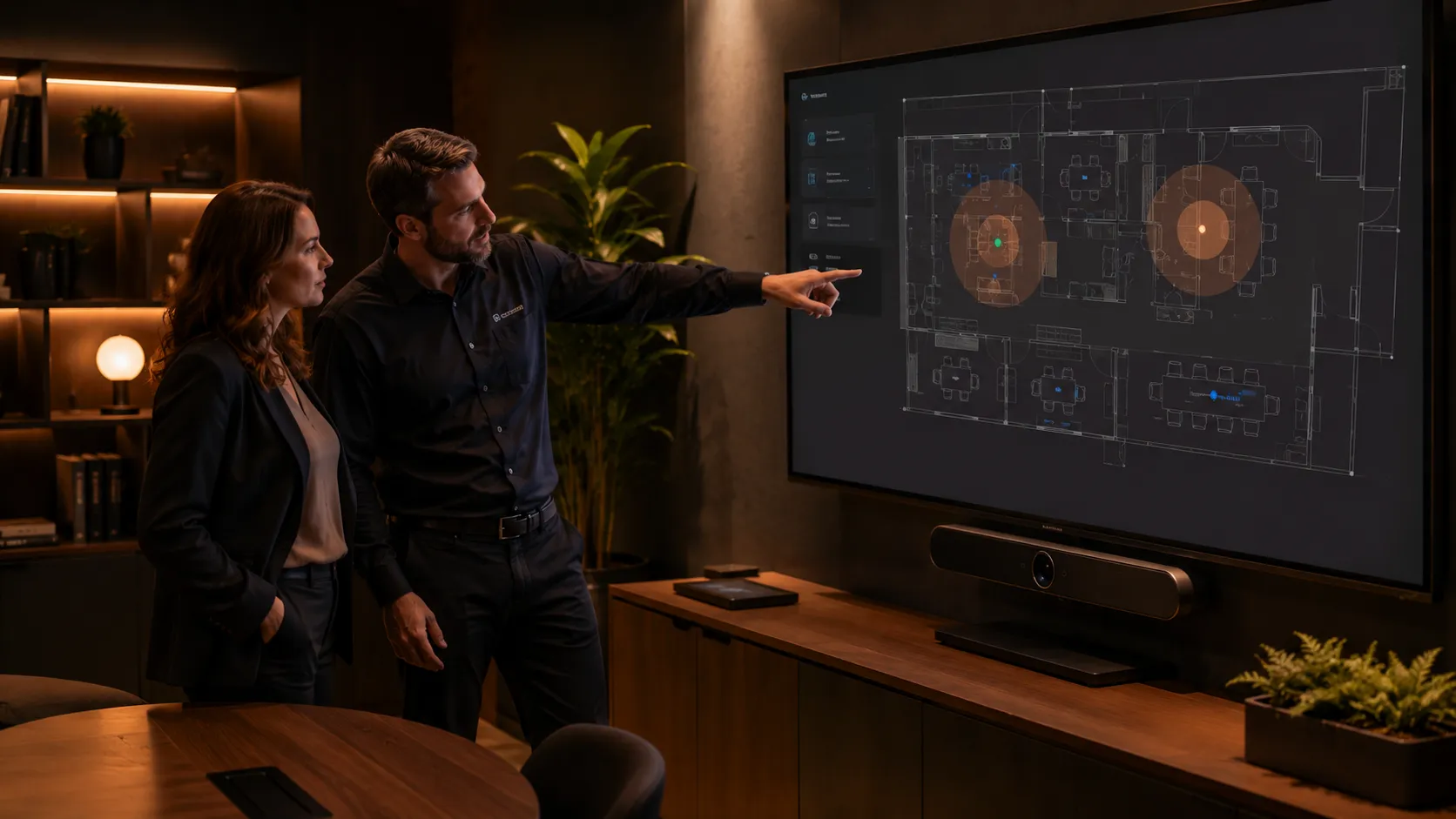
Kickstart Computers consultant reviewing Zoom Rooms setup with a client in a corporate environment Independent advice since 2007

We've been advising Australian businesses on boardroom, video conferencing and collaboration technology since 2007. We're not aligned to a single hardware vendor or platform ecosystem — our role is to match your room size, workflow, deployment requirements and budget to the right Zoom Rooms hardware combination.

Unlike many AV resellers, we don't steer projects toward whichever manufacturer offers the highest margin. Our pricing structure remains consistent across brands, which means recommendations are based on what genuinely suits the room — not what we're trying to push.

On Zoom Rooms specifically: we know which hardware combinations work reliably at different room sizes, we've seen the deployment mistakes, and we understand where Android systems make sense — and where Windows compute deployments are the better long-term option.

  • Independent hardware advice We compare Logitech, Yealink, Poly, Neat and other Zoom Rooms systems based on room suitability and deployment reliability — not vendor incentives.
  • Multi-brand procurement leverage For larger projects we actively negotiate with multiple manufacturers and distributors to ensure competitive pricing across the entire deployment.
  • Real deployment experience We've seen the real-world issues that affect Zoom Rooms deployments — microphone coverage, room acoustics, controller placement, licensing and compute platform selection.
  • Australia-wide projects From single huddle spaces to large national rollouts, Kickstart provides independent Zoom Rooms advice and supply across Australia.
2007

Kickstart Computers has been advising Australian businesses on meeting room technology for over 18 years. That means we've worked through platform shifts, hardware generations, licensing changes and large-scale deployment challenges — while staying independent of any single manufacturer or ecosystem.

Common Questions

Zoom Rooms — questions we get asked
by Australian businesses

  • Yes — and many Australian organisations do. It's common to see Teams Rooms in formal boardrooms (where Microsoft 365 integration and calendar management are the priority) and Zoom Rooms in collaboration spaces and huddle rooms (where simplicity and cross-company access matter more).

    Managing two platform licences adds administrative overhead, but for the right organisation it's a practical solution rather than a compromise.

    This is one of the first questions we ask during scoping. The answer determines whether a mixed-licence strategy makes sense — or whether standardising on one platform is the cleaner approach.

  • Not if you plan ahead. Hardware from manufacturers like Yealink can be pre-configured with Zoom Rooms before it leaves the warehouse — the device arrives with the correct software already installed, licensed, and ready to connect to your network. Plug it in, enter your credentials, and the room is live.

    This pre-configuration is typically available at an additional cost and needs to be confirmed before the order is placed and payment is taken — it can't be retrofitted after the unit ships. For IT managers deploying multiple rooms, this is worth discussing early. The time saving on a 5-room deployment is significant.

    Many businesses don't ask about pre-configuration until after hardware has shipped. By then the option is gone. It's one of the first questions we raise with clients during the scoping conversation.

  • Yes — but it's not a simple software swap. In most cases, switching a room from Teams Rooms to Zoom Rooms (or the reverse) requires a full factory reset of the device. The operating environment is locked to whichever platform was configured at setup.

    A factory reset means following the manufacturer's reset procedure, reinstalling the correct platform software, re-entering credentials, and reconnecting to your network and calendar system. For a single room this is manageable. For a 10-room building switching platforms, it's a half-day IT project — sometimes longer.

    This is one of the most underestimated switching costs in meeting room technology. The right time to make the platform decision is before hardware ships — not after installation.

  • No — but changing later requires the factory reset process described above. Pre-configuration is a deployment convenience, not a permanent lock-in. The hardware itself is platform-agnostic in most cases — Yealink, Logitech and Poly all make certified hardware for both Zoom Rooms and Teams Rooms. The configuration is what's platform-specific.

    If there's any genuine uncertainty about which platform your business will standardise on, raise it before ordering. In some cases the right answer is to delay pre-configuration and keep the option open. We work through this with clients as part of the scoping process.

  • Zoom Rooms hardware is available through authorised resellers and technology advisors in Australia — not directly from Zoom or the hardware manufacturers. Kickstart Computers supplies and installs Zoom-certified hardware from Logitech, Yealink and Poly for Australian businesses across all room sizes, from small huddle spaces to large boardrooms.

    The distinction worth understanding is the difference between a reseller that ships a box and an advisor that scopes the room, recommends the right hardware combination, manages pre-configuration before shipping, and handles installation. For a single room the difference is marginal. For a multi-room deployment, it's the difference between a smooth rollout and weeks of troubleshooting.

    Many businesses search for the cheapest Zoom Rooms hardware online and then discover that installation, licensing setup, network configuration and pre-configuration are separate costs and separate skills. Buying the hardware and deploying it correctly are two different things — and the gap between them is where most deployment problems start.

  • A small-room Zoom Rooms installation — all-in-one Android bar, touch controller, single display and Zoom Rooms licence — typically ranges from $3,000 to $6,000 AUD for hardware and installation, plus the annual Zoom Rooms licence fee per room.

    These figures are indicative of complete commercial-grade deployments. Exact pricing varies depending on display selection, cable infrastructure and installation requirements. We provide fixed-price quotes after a room assessment.

  • Zoom on a laptop relies on whoever brought the laptop — their battery, their audio, their camera angle, their login. Zoom Rooms is permanently installed in the room. The room is always ready, always the same quality, regardless of who walks in or what device they're carrying.

    That consistency is the core value of a room system. No logging in. No laptop cables. No “can everyone hear me?” rituals.

  • Yes. Zoom Rooms integrates with Google Calendar, Microsoft Exchange and Microsoft 365 calendar. The touch controller automatically pulls scheduled meetings from whichever calendar system your organisation uses and displays them for one-touch join.

  • Zoom recommends a minimum of 3 Mbps up and down per room for HD video conferencing. For larger rooms with dual displays and multiple video streams, 10 Mbps dedicated per room is a more reliable planning figure.

    More important than raw speed is network stability and quality of service configuration — a consistent 5 Mbps connection outperforms a variable 20 Mbps connection for video quality.

  • Yes. The Zoom Admin Portal provides centralised management of all Zoom Rooms in your organisation — room status, software updates, usage analytics and remote troubleshooting. This is one of the platform's stronger enterprise features and is often underutilised by smaller deployments.

Get Expert Advice

Not sure whether Zoom Rooms is right for your business?

Talk to us. We'll ask about your rooms, your team size, your existing Microsoft or Google environment, and your budget — and give you an honest recommendation. Sometimes that's Zoom Rooms. Sometimes it's Teams Rooms. Sometimes it's both.

No sales pitch. No platform preference. Just the right answer for your rooms.
  • Australian Business Since 2007
  • Independent Advice
  • Multi-Brand Hardware
  • All Room Sizes
  • Fixed-Price Quotes
  • No Lock-In
Shopping Cart
Scroll to Top