
The choice between Android SoC and Windows OPS is the most consequential platform decision in any interactive display deployment — and it's regularly treated as an afterthought. Android SoC integrates computing directly into the display for a simpler, lower-cost deployment; Windows OPS adds a modular Windows PC inside the display for full software compatibility, Teams Rooms certification, and enterprise IT integration. Choosing the wrong platform for your environment creates operational friction that compounds every day the display is in use.
This guide is written for Australian businesses, schools, and IT teams who need to understand the real-world implications of this decision — not just the spec sheet difference.
When organisations research commercial interactive displays, most of the attention goes to screen size, touch technology, brand, and price. The computing platform powering the display — whether it runs on an integrated Android SoC or a Windows OPS module — is often treated as a secondary consideration or a technical detail to resolve later.
In practice, the platform decision is frequently the most consequential choice in the entire deployment. It determines which software runs on the display, how IT manages the device fleet, how familiar the interface feels to daily users, whether Teams Rooms certification is achievable, and how much flexibility the organisation retains for future upgrades. Getting this decision right from the beginning saves significant operational cost and deployment friction over the life of the system.
This guide is designed to help organisations understand not just what Android SoC and Windows OPS are — but why the choice between them is really a question about people, familiarity, and operational fit rather than purely a technical specification decision.
The platform decision is not simply about which operating system is technically superior. It is about which environment your users will actually adopt, your IT team can confidently manage, and your organisation can operationally sustain over a five to ten year deployment.
Platform is usually the second decision in a deployment, not the first. Before Android SoC vs Windows OPS becomes relevant, it's worth working out what the room itself actually needs — screen size, mounting, viewing distance and lighting all shape which platform makes sense once you get there.
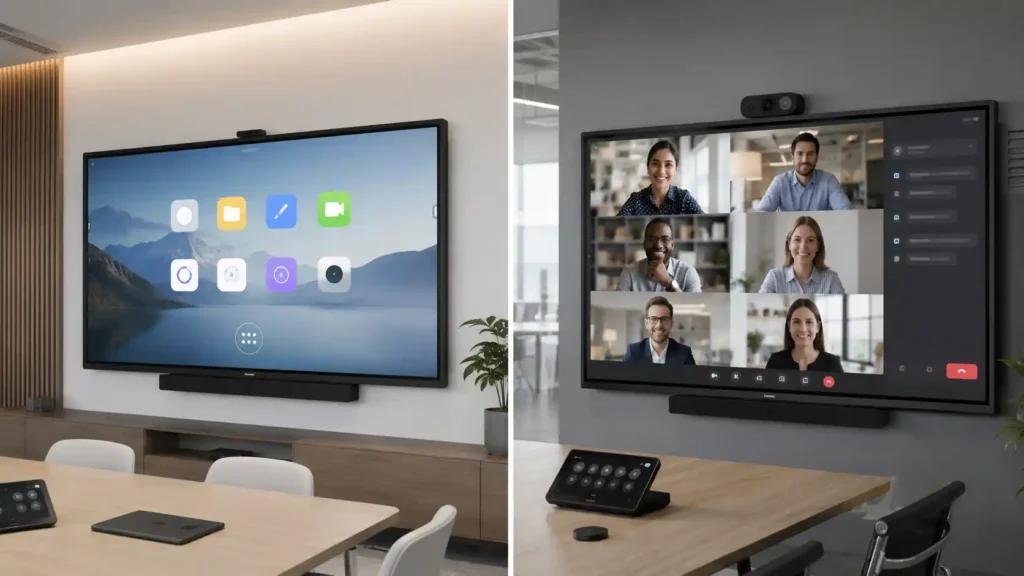
Why Familiarity Matters More Than Specs
To understand the Android SoC vs Windows OPS decision properly, it helps to step back and think about a parallel that most people already understand intuitively: the Mac vs Windows debate.
Many users and professionals regard Mac as a more elegant and refined operating system — and in certain respects it is. Yet Windows dominates enterprise environments not because it is superior in every way, but because familiarity, IT infrastructure investment, software compatibility, and institutional momentum create a commercial reality that technical merit alone cannot overcome.
Most corporate IT departments run Windows because it is what their people know, what their software runs on, and what their support infrastructure is built around. Changing that is not simply a software upgrade — it is an organisational change with real costs attached.
And then there is Linux — arguably the most powerful and stable of the three, running most of the world's servers and critical infrastructure. In most commercial organisations outside technical environments, it is almost completely absent from the desktop — because the familiarity gap is simply too large for most teams to bridge without substantial training investment and disruption.
The Android SoC vs Windows OPS decision maps almost perfectly onto the Mac vs Windows vs Linux dynamic. Android is capable, increasingly familiar, and often technically elegant — but it is not the environment most corporate users live in every day. Windows OPS is chosen in many enterprise deployments not because it is the best platform in isolation, but because it is the one people already know how to use.
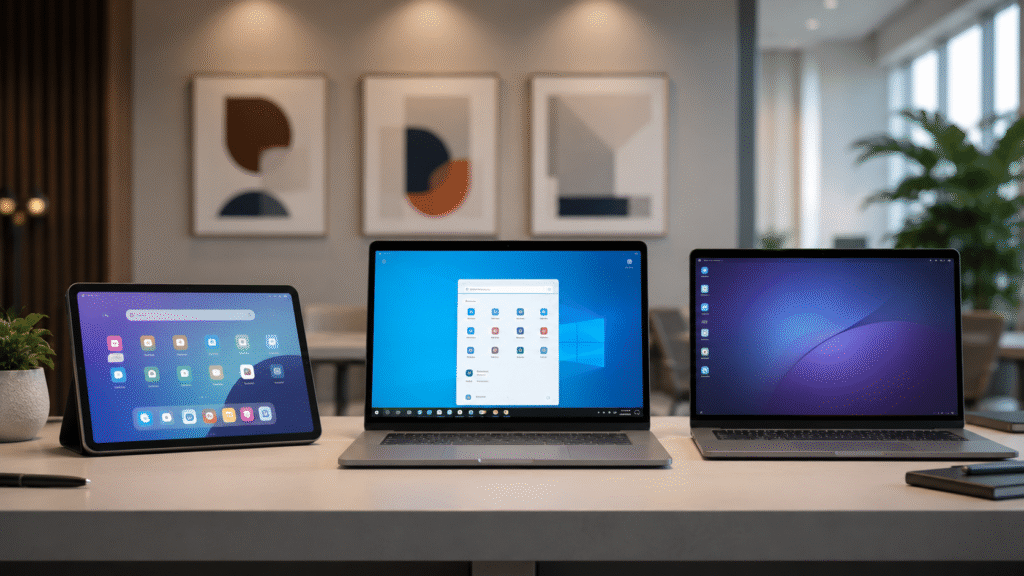
What Actually Powers an Interactive Display
Most people researching this decision assume there are only two options — Android or Windows. In practice, there's a layer underneath both of them that almost never gets explained, and it's worth understanding before the Android SoC vs Windows OPS comparison means very much.
Every interactive display contains software written by its own manufacturer. Before Android or Windows even starts, the display already knows how to recognise a finger, track a pen, erase ink and display the on-screen menus. That underlying software is called the manufacturer's firmware, and it's what Samsung, SMART, Promethean, BenQ, ViewSonic and Yealink each build specifically for their own hardware.
From the user's perspective, this firmware behaves as the manufacturer's own operating environment — regardless of whatever operating system it may technically be built upon underneath.
Samsung Flip is probably the easiest example to understand. Samsung didn't simply install Android and stop there. They built their own whiteboarding software, pen tools, annotation features, screen sharing and user interface around the hardware — which is why writing on a Flip feels noticeably different to writing on a generic Android display, even where both share the same underlying platform. The result is an experience that feels purpose-built for writing rather than simply running Android apps on a large screen. SMART has its own Notebook environment, Promethean has its ActivPanel software, BenQ runs EZWrite, ViewSonic runs myViewBoard, and Yealink builds its own meeting interface. Each manufacturer fine-tunes this layer around its own hardware, which is generally why the pen feel and touch response on a well-built panel is noticeably better than on a generic one — the company that engineered the touch hardware also developed the software interpreting those touch inputs.
That closeness between hardware and software is the advantage of manufacturer firmware. The trade-off is flexibility. Because these environments are designed to be reliable and easy to support across thousands of classrooms and meeting rooms, manufacturers deliberately restrict what users can install or modify. That makes them exceptionally stable, but less open than a Windows computer.
In practical terms, that control usually extends to which apps can be installed at all. A display running Samsung's firmware only offers what Samsung has decided a Flip owner needs — not the open marketplace of a general-purpose Android device. It's a similar dynamic to how the early iPhone was locked entirely to Apple's own App Store, before Android's more open ecosystem, and eventually unlocked variants from Samsung and other manufacturers, gave buyers a genuine alternative. Interactive display firmware is, in that sense, still living in an earlier phase of that same story — the manufacturer decides on the buyer's behalf, for better and for worse.
Above that firmware layer, a display may also include a built-in Android computer — the Android SoC most buyers are already comparing with Windows OPS. Some displays can also accept a Windows OPS module, which is a completely separate computer that slides into a dedicated slot behind the panel. These layers aren't mutually exclusive. A single interactive display can contain manufacturer firmware, a built-in Android SoC and a Windows OPS computer all at the same time, with each performing a different role. Understanding which layer is doing which job makes the rest of this comparison much easier to follow.
Windows OPS and Android SoC are two different things you can optionally add on top of a display that already works. The firmware and touch hardware underneath stay the same either way.
What OPS Actually Means
OPS gets used constantly in interactive display specifications, and it's regularly misread as a brand name or a proprietary computer. It isn't either.
OPS stands for Open Pluggable Specification. It's an industry standard that defines a common slot, connector and mounting size, allowing a compatible computing module to physically slide into a display built by another manufacturer. The idea behind the standard was straightforward — one slot, one connector and one standard size, so the computer driving the display could be replaced or upgraded without replacing the display itself.
In practice, most major manufacturers follow the specification closely. While the physical fit is standardised, it's still worth checking firmware, BIOS compatibility, power delivery and feature support before assuming every OPS module will work seamlessly in every display. What the standard reliably provides is the ability to upgrade the computing platform independently of the touch hardware. The panel, touch sensor and pen technology remain exactly the same; only the computer behind them changes.
Why OPS Became Common in the First Place
This is the part of the comparison that rarely gets explained, and it has more to do with processor history than with software preference.
Early embedded computing platforms used in interactive displays weren't designed for desktop-class performance. Whether they ran Android or another embedded operating environment, they were engineered for low heat, low power consumption, reliability and silent operation rather than workstation-level processing power. That was more than adequate for annotation, PDFs, presentations and general browsing. It became a genuine bottleneck once organisations wanted to run Microsoft Teams meetings, Zoom calls with multiple video streams, engineering software, or anything else that leaned on real processing power.
For many organisations, the reason for fitting an OPS computer wasn't simply faster performance. It was the ability to run Windows-only software that had no Android equivalent, while continuing to use the existing display hardware.
It's also the reason a number of older interactive displays simply didn't include a built-in camera. Running a 4K panel, touch input, annotation and wireless casting at the same time as several HD video streams could overwhelm the processors available at the time, so many manufacturers left video conferencing to an external Windows OPS computer rather than compromise the display's core performance. We regularly saw otherwise excellent interactive displays that still had years of life left in them, but whose embedded processors simply couldn't keep pace with the demands of modern collaboration software. Rather than replacing the entire display, installing an OPS computer often restored the performance users expected while letting them keep the existing touch hardware.
That last point is worth being clear about, because it's a common misconception: the touch experience doesn't come from the OPS computer. The display's touch sensors, glass and pen technology continue to be managed by the manufacturer's firmware underneath. Installing an OPS module changes the computer driving the display — it doesn't change the quality of the touch hardware itself.
Modern interactive displays have moved a long way past the processing limitations that made cameras impractical. Current-generation processors, and in some cases dedicated AI acceleration, mean built-in cameras and video conferencing are far more practical than they were even five years ago. The OPS-as-upgrade-path pattern hasn't disappeared, though — it's simply shifted from "the built-in processor can't handle video calls" toward "we want Windows-specific software, Active Directory integration, or a longer independent upgrade cycle than the display's own hardware allows."
Once that's clear, the rest of the comparison is really a question of which of the two upper layers — Android SoC or Windows OPS — fits how a particular room actually gets used day to day.
What Is Android SoC and When Is It the Right Choice
Android SoC (System on Chip) integrates the computing hardware directly into the display — meaning the display operates as a self-contained Android device without requiring an external PC or computing module. The Android operating system handles all applications, content management, wireless presentation, and collaboration workflows from within the display itself.
For many deployment environments — particularly education, training rooms, and lightweight corporate collaboration spaces — Android SoC is not just adequate. It is genuinely the better choice for an interactive whiteboard or display platform. It is simpler to deploy, faster to start up, lower in cost, and for users who are comfortable with Android through smartphones and tablets, it is increasingly intuitive in daily use.
The familiarity argument for Windows loses considerable weight when the user base is already comfortable with Android — which, given smartphone penetration, is an increasingly large proportion of the workforce and student population. A teacher or facilitator who uses an Android phone every day is unlikely to find an Android display significantly more difficult to operate than a Windows one.
What Android SoC Does Well
- Self-contained deployment — no external computing hardware required
- Faster startup times and simpler daily operation
- Lower upfront cost — no OPS module purchase required
- Strong Google ecosystem integration for Google Workspace environments
- Google EDLA certification on select displays — native Google Play Store access
- Reduced IT management complexity for straightforward deployments
- Increasingly familiar to users through smartphone and tablet experience
- Well suited to education, training rooms, and lightweight collaboration environments
Where Android SoC Has Limitations
- Limited Windows software compatibility — Windows-only applications cannot run natively
- Native Microsoft Teams Rooms certification not achievable on Android SoC alone
- Android app ecosystem — while broad, may not include all enterprise applications
- IT management tooling differs from Windows fleet management — different skills and infrastructure required
- Users deeply embedded in Windows workflows may find the interface unfamiliar initially
- Long-term hardware upgrade flexibility more limited than modular OPS systems
The Android App Ecosystem — Is It Enough?
One of the most common enterprise questions about Android SoC displays is whether the Android application ecosystem is sufficient for commercial deployment requirements. The honest answer is: it depends entirely on what your organisation needs to run daily.
For organisations running Google Workspace, the Android ecosystem is genuinely comprehensive. For organisations whose daily workflows revolve around Microsoft 365 applications, Teams Rooms certification, or Windows-specific software, Android may create meaningful gaps that affect daily productivity. The key question is not whether Android has apps — it does — but whether the specific apps your organisation relies on daily are available, well-implemented, and intuitive on Android in a display context.
The difference between lightweight Android collaboration and enterprise Windows deployment becomes much clearer when viewed in real-world environments rather than specification tables alone.
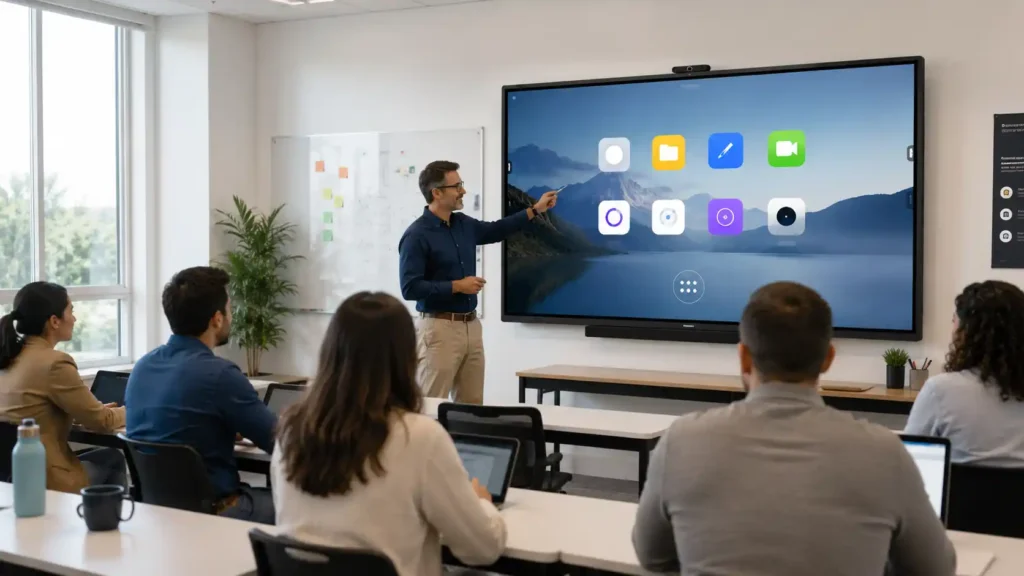
What Is Windows OPS and When Does Your Organisation Actually Need It?
Windows OPS (Open Pluggable Specification) is a modular Windows computing module that slots into a compatible interactive display, providing a full Windows environment within the display itself. The display becomes, in effect, a large-format Windows PC with a touchscreen — running the same operating system, the same applications, and the same IT management infrastructure that most enterprise organisations already operate.
That familiarity is the central commercial argument for Windows OPS in enterprise environments — and it is a genuinely powerful one. When a display runs Windows, IT departments know how to manage it. Users know how to operate it. Microsoft Teams runs exactly as it does on a laptop. Software installs the way software always installs. Troubleshooting follows familiar patterns. The entire operational overhead of managing something new and different is eliminated.
For organisations where video conferencing is a primary daily function, Windows OPS also enables native Microsoft Teams Rooms and Zoom Rooms certification — which delivers a certified, IT-managed conferencing experience that Android SoC cannot replicate as a standalone platform.
What Windows OPS Does Well
- Full Windows environment — the same OS your organisation already runs and manages
- Native Microsoft Teams Rooms and Zoom Rooms certification support
- Enterprise software compatibility — Windows applications run natively
- IT management integration with existing Windows infrastructure and tooling
- Modular upgradeability — OPS module can be replaced independently as technology evolves
- Strong enterprise security management, provisioning, and account control
- Familiar interface for users already embedded in Windows daily workflows
- Well suited to boardrooms, enterprise collaboration, and government deployments
Where Windows OPS Has Limitations
- Higher upfront cost — OPS module adds meaningful cost to the display investment
- Greater infrastructure complexity — more hardware components to manage and maintain
- Longer startup times compared to integrated Android SoC platforms
- IT management requires Windows expertise — not simplified by Android familiarity
- Overkill for lightweight collaboration environments where Android SoC would perform equally well at lower cost
- Windows fleet maintenance expectations — updates, security patching, and occasional reboots introduce operational overhead that Android SoC deployments typically avoid
The Familiarity Premium — Is It Worth Paying?
The honest commercial question about Windows OPS is whether the familiarity premium is worth the additional investment in your specific environment. For a corporate boardroom running daily video conferences with senior executives who live in Windows — the answer is almost certainly yes. The cost of user friction, IT support overhead, and adoption resistance in that environment can easily exceed the OPS module cost within the first year of deployment.
For a school deploying displays across thirty classrooms for teachers who use Google Workspace and Android phones — the Windows familiarity argument loses most of its weight, and the additional cost of OPS is difficult to justify against the genuine operational benefit Android SoC delivers in that context.
Security, Compliance, and Enterprise Policy Environments
For organisations operating under compliance requirements — including government departments, healthcare environments, and enterprise organisations with formal security frameworks — Windows OPS offers a meaningful additional advantage beyond user familiarity.
Windows OPS displays can be integrated directly into Active Directory environments, enabling centralised account management, group policy enforcement, and security provisioning through the same infrastructure used to manage the broader Windows device fleet.
This means IT teams can apply consistent security policies, enforce compliance controls, and manage user access across interactive displays alongside every other Windows device in the organisation — without requiring a separate management platform or additional administrative overhead.
For Android SoC deployments in compliance-sensitive environments, dedicated mobile device management platforms can provide meaningful control — but the depth of policy enforcement, Active Directory integration, and compliance tooling available in Windows environments is difficult to fully replicate in Android at the enterprise level. Organisations with formal compliance obligations should evaluate this distinction carefully before selecting a platform.
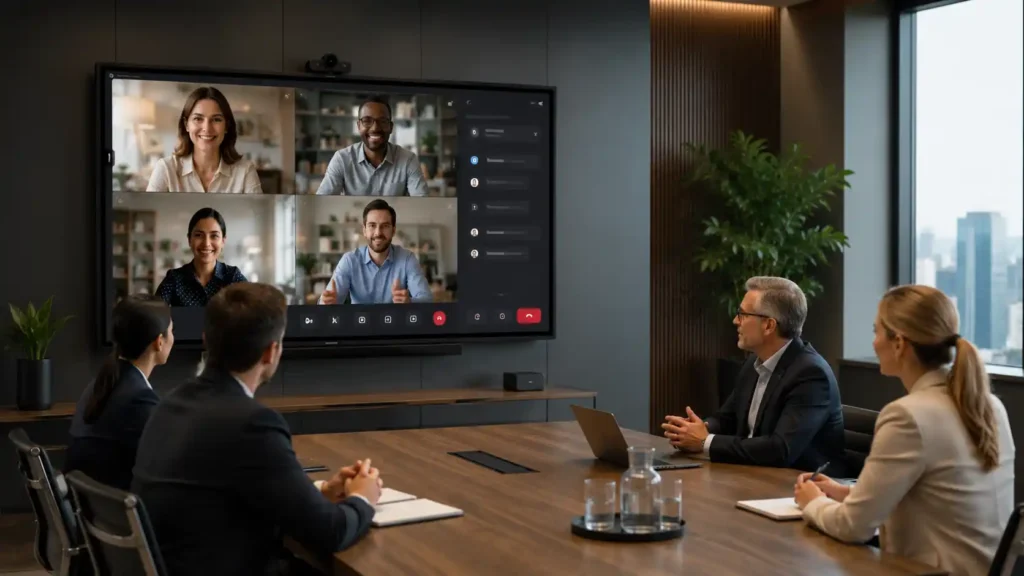
The Real Cost of Choosing the Wrong Platform
One of the most important and least quantified costs in any platform decision is the cost of the familiarity gap — the time, frustration, support overhead, and productivity loss that occurs when users are operating in an environment that does not behave the way they expect.
This cost is real in both directions. An organisation that deploys Windows OPS in an environment where Android would have been simpler and equally capable has paid a hardware premium it did not need to. An organisation that deploys Android SoC in a corporate boardroom full of Windows users who struggle with the interface, cannot find their applications, or cannot run their Teams meetings as expected has created an ongoing operational cost that compounds every day the display is in use.
The calculation is straightforward in principle — though harder in practice: how many people use this display daily, how much of their working day does it touch, and what is the cost of their time when the platform creates friction rather than removing it? In most enterprise boardroom environments, that calculation strongly favours paying the Windows OPS premium. In most education and lightweight collaboration environments, it strongly favours the simplicity and cost efficiency of Android SoC.
Saving money on the platform today and spending it on IT support, user training, adoption resistance, and productivity loss over three years is not a saving. The platform decision should be made on total operational cost over the deployment lifetime — not upfront purchase price alone.
Android SoC displays can be managed via dedicated MDM (Mobile Device Management) platforms — enabling IT teams to push software updates, enforce configuration policies, and remotely monitor a fleet of 50 or more interactive displays simultaneously from a central dashboard, without physical access to each device.
Windows OPS deployments integrate this capability directly into existing Windows infrastructure via tools like Microsoft Intune, SCCM, or Group Policy. The management approach differs; the capability is available on both platforms. What matters is whether your IT team already has the skills and tooling for one approach or the other — because retraining adds to total deployment cost just as surely as hardware does.
Google EDLA Certification
One important distinction within the Android SoC category that deserves specific attention is Google EDLA (Enterprise Device Licensing Agreement) certification. Not all Android interactive displays carry EDLA certification — and the difference matters considerably for organisations that rely on Google Workspace or need access to the native Google Play Store.
EDLA-certified displays have been validated by Google for enterprise use and include native access to Google Play Store, Google Workspace applications, and Google services. Non-EDLA Android displays may offer a more limited application ecosystem — typically pre-installed applications only, without the ability to install additional apps from Google Play.
For education environments running Google Workspace for Education, EDLA certification is often the difference between an interactive whiteboard display that integrates naturally into the school's digital environment and one that feels disconnected from it. When evaluating Android SoC displays, confirming EDLA certification status is an important step that is easily overlooked in a specification comparison focused on screen size and touch technology.
Android SoC vs Windows OPS: Full Platform Comparison
| Consideration | Android SoC | Windows OPS |
|---|---|---|
| Computing Architecture | Integrated — computing built into the display | Modular — Windows PC module slots into the display |
| Operating System | Android — familiar from smartphones and tablets | Windows — familiar from enterprise desktop and laptop environments |
| Familiarity Analogy | The Mac equivalent — capable and elegant but not what most corporate users operate daily | The Windows equivalent — the environment most enterprise users already know and IT already manages |
| Teams Rooms / Zoom Rooms | Not natively certified as standalone platform | Yes — native certification achievable with appropriate licensing |
| Google Workspace | Yes — particularly strong with EDLA certification | Compatible via browser and applications |
| Windows Software | Not compatible — Android only | Yes — full Windows application compatibility |
| IT Management | Android device management — different tooling from Windows infrastructure | Windows fleet management — integrates with existing enterprise IT infrastructure |
| Startup Speed | Fast — integrated SoC starts quickly | Standard Windows boot time |
| Upgrade Flexibility | Limited — SoC is fixed hardware within the display | Strong — OPS module can be replaced independently |
| Upfront Cost | Lower — no additional hardware module required | Higher — OPS module adds meaningful cost |
| Best Interactive Whiteboard / Display Use Case | Education, training rooms, Google Workspace organisations, lightweight collaboration | Enterprise boardrooms, government, Teams Rooms deployments, Windows-centric organisations |
| Primary Long-Term Strength | Cost efficiency, simplicity, and Google ecosystem depth for appropriate environments | Enterprise familiarity, software compatibility, and conferencing certification for complex environments |
Can You Run Both? When a Hybrid Deployment Makes Sense
In many larger organisations, the most honest answer to the Android SoC vs Windows OPS question is not one or the other — it is both, deployed deliberately in the right rooms for the right reasons.
A common and effective deployment strategy uses Android SoC interactive whiteboard displays across general collaboration spaces, training rooms, and classrooms — where simplicity, cost efficiency, and Google ecosystem integration make it the appropriate platform — while reserving Windows OPS deployments for dedicated boardrooms, executive meeting rooms, and formal conferencing environments where Teams Rooms certification, Windows familiarity, and enterprise IT management are operationally essential.
This approach captures the cost efficiency of Android SoC where it is genuinely the better fit, without compromising the enterprise conferencing capability and user familiarity that Windows OPS delivers in the environments where those things matter most. It also allows IT departments to manage both platform types explicitly — rather than trying to force a single platform to serve every environment adequately.
Signs a Hybrid Deployment Is Right for Your Organisation
- You have both formal conferencing rooms running daily Teams meetings and general collaboration spaces used for training and presentations
- Your IT team manages Windows infrastructure for the enterprise but has separate Google Workspace deployments in education or operational teams
- Budget is a consideration — deploying Windows OPS only where it is genuinely required reduces overall platform cost without compromising capability
- Different user groups within the organisation have meaningfully different platform familiarity and daily software requirements
How to Choose: Android SoC vs Windows OPS Decision Guide
Before selecting a platform, ask: what must this display run on day one, every day, to justify the investment? The platform that best serves your non-negotiable daily operational requirements is the right choice — regardless of which specification sheet looks more impressive.
Choose Android SoC if your daily absolutes are:
- Simplicity — a self-contained display that starts fast, runs reliably, and requires minimal IT overhead
- Google ecosystem — Google Workspace, Google Play Store access, and native Google service integration
- Cost efficiency — lower upfront platform cost without sacrificing genuine daily collaboration capability
- Education or training room deployment — where Android familiarity from smartphones translates naturally to display use
- Lightweight collaboration — wireless presentation, annotation, and content sharing without enterprise conferencing complexity
Choose Windows OPS if your daily absolutes are:
- Microsoft Teams Rooms or Zoom Rooms certification — native enterprise conferencing in a certified, IT-managed environment
- Windows software compatibility — applications that only run on Windows are part of daily workflows
- Enterprise IT integration — the display needs to be managed within existing Windows infrastructure and tooling
- User familiarity — your users are deeply embedded in Windows and the cost of platform unfamiliarity is a genuine operational concern
- Long-term upgrade flexibility — the ability to replace the computing module independently as technology evolves
Talk to an Australian Display Specialist
The best platform decision is usually the one that feels invisible to the people using it daily — because the technology fits naturally into the environment rather than forcing users to adapt around it.
Kickstart Computers supplies commercial interactive displays across both Android SoC and Windows OPS platforms — including Samsung, SMART Board, Promethean, Yealink, ViewSonic, Hisense, and other commercial ecosystems. We can help evaluate your specific environment, user base, IT infrastructure, and daily operational requirements to recommend the platform that delivers the best outcome — not just the lowest upfront price.
The platform decision shapes every aspect of how a display performs in daily use. Getting it right from the beginning is worth the conversation.
Whether you go Android SoC or Windows OPS, the architecture decision is one layer of the classroom display choice — ecosystem selection, manufacturer comparison, rollout planning, and teacher onboarding all sit on top of it.
Our dedicated classroom interactive display page covers every aspect of the decision for Australian schools — from platform architecture through to multi-classroom fleet management and total cost of ownership.
Interactive whiteboard for classroom — full platform decision overview →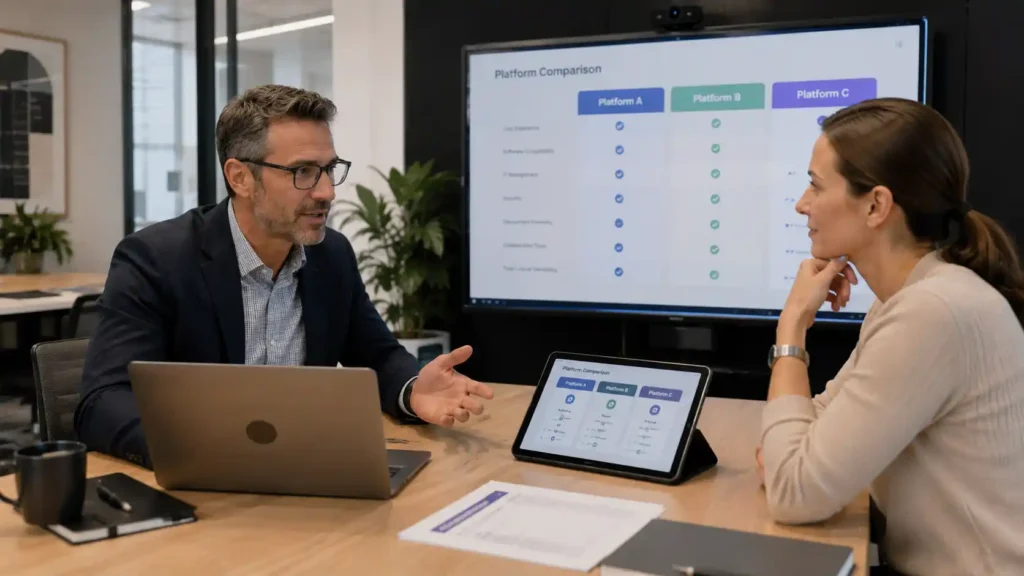
Further Reading
-
LG CreateBoard Interactive Whiteboards
LG's CreateBoard range runs Android 14 natively with an OPS slot for Windows when it's needed — a display worth knowing about alongside the Samsung, SMART, Promethean and BenQ options already covered here.
-
Promethean vs BenQ vs SMART: Interactive Whiteboards Compared
A closer look at how the three biggest interactive whiteboard manufacturers compare on hardware, firmware and classroom fit — useful once you've settled the Android SoC vs Windows OPS question and are narrowing down a brand.
-
Microsoft Teams Rooms for Interactive Displays
What Teams Rooms certification actually requires, and why it's one of the clearest signals that a room needs Windows OPS rather than Android SoC.
-
Zoom Rooms for Interactive Displays
The Zoom equivalent of the Teams Rooms question above — certification requirements and how they factor into the platform decision.
-
Video Conferencing Equipment
Beyond the display itself — cameras, microphones and room systems that round out a properly equipped conferencing space.
Frequently Asked Questions — Android SoC vs Windows OPS for Interactive Displays
Android SoC (System on Chip) integrates the computing hardware directly into the display itself, creating a self-contained Android interactive display platform. Windows OPS is a modular Windows PC that slots into the display, turning it into a full Windows computing environment with enterprise software compatibility, Teams Rooms support, and deeper IT infrastructure integration.
Yes — for many environments, Android SoC is not only sufficient but often the better deployment choice. Education, training rooms, wireless presentation spaces, and lightweight collaboration environments frequently benefit from Android SoC because of its simplicity, fast startup times, lower cost, and reduced infrastructure complexity.
For many organisations, probably not. The built-in Android platform handles whiteboarding, presentations, web browsing and wireless screen sharing comfortably on its own in most classrooms, meeting rooms and collaboration spaces. You're more likely to need one if you're already relying on Windows-only software, Microsoft Teams Rooms certification, full desktop Microsoft Office, Active Directory integration, or your IT department has specifically requested Windows integration.
If none of that applies, or you're genuinely unsure, we usually recommend living with the Android platform first — many organisations discover they never actually need an OPS computer. If your requirements change later, a compatible OPS module can simply be installed at that point, so the decision ends up based on real-world experience rather than assumptions made in advance.
Not automatically. OPS is an industry standard — Open Pluggable Specification — that defines the physical slot, connector and mounting size, so a compatible module generally fits displays from other manufacturers. But physical fit isn't the same as full compatibility: displays can have their own BIOS, power delivery or firmware requirements, and manufacturers often recommend or certify specific OPS modules for their panels. Even where the hardware is physically compatible, some manufacturers only test and officially support their own OPS modules, so a third-party unit may limit warranty support or certain integrated features. It's worth checking the display manufacturer's compatibility list before buying a module separately from the display itself.
No — not every interactive display includes one. Entry-level and more compact displays are sometimes built without an OPS slot to keep costs down, since not every deployment needs the option. If there's any chance you'll want to add Windows capability later, it's worth confirming OPS slot availability before purchasing — retrofitting a display that was never built with one isn't possible, whereas a display with the slot gives you that option without committing to it upfront.
Not for most everyday use. Touch response, pen input and annotation are handled by the display's own firmware and hardware, not by whichever computer is driving it — so whiteboarding, presentations and wireless sharing feel much the same on a modern Android SoC as on a Windows OPS. Windows OPS boot times are generally longer, since it's starting a full desktop operating system rather than an embedded platform. Where an OPS genuinely adds performance is running demanding Windows-specific software or multitasking with desktop applications Android can't run at all — that's a software capability question more than a speed one.
For most organisations, an Intel Core i5-class processor, 8GB or more of RAM, an SSD and Windows 11 Pro provide an excellent balance of performance, longevity and compatibility. Windows 11 Pro specifically is worth specifying over the Home edition if you need domain join, BitLocker or other enterprise management features. A TPM chip is generally required for Windows 11 compliance and is standard on current-generation OPS modules. Beyond that, the display manufacturer's own recommended or certified module is usually the safest starting point, per the compatibility question above. If you're unsure, choosing the manufacturer's recommended OPS module is usually the simplest and lowest-risk option.
Windows OPS becomes valuable when organisations require native Microsoft Teams Rooms or Zoom Rooms certification, Windows-only software compatibility, Active Directory integration and compliance-grade policy management, or deep integration with existing Windows IT infrastructure. It is particularly common in enterprise boardrooms, government environments, and formal conferencing deployments.
Yes — Android interactive displays can run Microsoft Teams applications and support video conferencing workflows. This is typically the standard Android Teams application experience rather than a fully certified Microsoft Teams Rooms (MTR) deployment.
It depends on how formal the conferencing needs to be. Android SoC handles everyday Teams and Zoom calls comfortably through the standard apps. Windows OPS is the better fit where native Microsoft Teams Rooms or Zoom Rooms certification matters — one-touch join, centralised room management, and IT-managed conferencing infrastructure that the standard Android apps don't provide on their own.
For many enterprise environments, familiarity matters more than raw specifications. Users already understand Windows, IT departments already manage Windows infrastructure, and existing enterprise software often depends on Windows compatibility. Windows OPS reduces operational friction by extending an environment the organisation already knows and supports daily.
In simpler deployments, yes. Android SoC displays generally require less infrastructure complexity and faster deployment. However, large Android fleets may still require dedicated MDM (Mobile Device Management) platforms, and organisations should evaluate the manufacturer's long-term Android update commitment and Google EDLA certification support before large-scale deployment. Windows OPS environments integrate more naturally into existing enterprise management tools like Intune, SCCM, and Group Policy where those already exist.
Google EDLA certification gives Android interactive displays native access to Google Play Store, Google Workspace applications, and Google enterprise services. For schools and organisations using Google Workspace, EDLA certification can significantly improve application availability, integration, and long-term usability.
Absolutely — and for many organisations this is the most effective long-term deployment strategy. Android SoC displays are often ideal for classrooms, training rooms, and collaboration spaces, while Windows OPS deployments are reserved for executive boardrooms, Teams Rooms environments, and formal conferencing spaces.
For many education environments, Android SoC is the stronger fit because of its simplicity, fast startup times, lower deployment cost, Google Workspace compatibility, and increasingly familiar Android-style interface. However, schools heavily dependent on Windows software ecosystems may still prefer Windows OPS deployments.
Not inherently. Android displays receive updates from the manufacturer, and EDLA-certified models in particular are built for longer enterprise support cycles. One of the biggest advantages of an OPS computer, though, is that the display and the computer become two separate upgrade paths. If Windows requirements increase in the future, you can often replace just the OPS module rather than the entire interactive display, extending the useful life of your investment.
The most common mistake is selecting a platform based purely on upfront hardware cost or specifications instead of evaluating long-term operational fit. A platform that creates daily friction, user confusion, or IT support overhead can become significantly more expensive over the life of the deployment than a platform better aligned with the organisation's workflows and infrastructure.