Microsoft Teams Rooms — Australia

Jump Ahead Too

Microsoft Teams Rooms for Australian Businesses

Microsoft Teams Rooms turns any meeting space into a one-touch hybrid collaboration environment — calendar integrated, camera live, one button to join.

Kickstart helps Australian businesses choose the right hardware, plan the right licence tier and deploy Teams Rooms correctly — based on room size and real deployment experience, not just hardware specs.
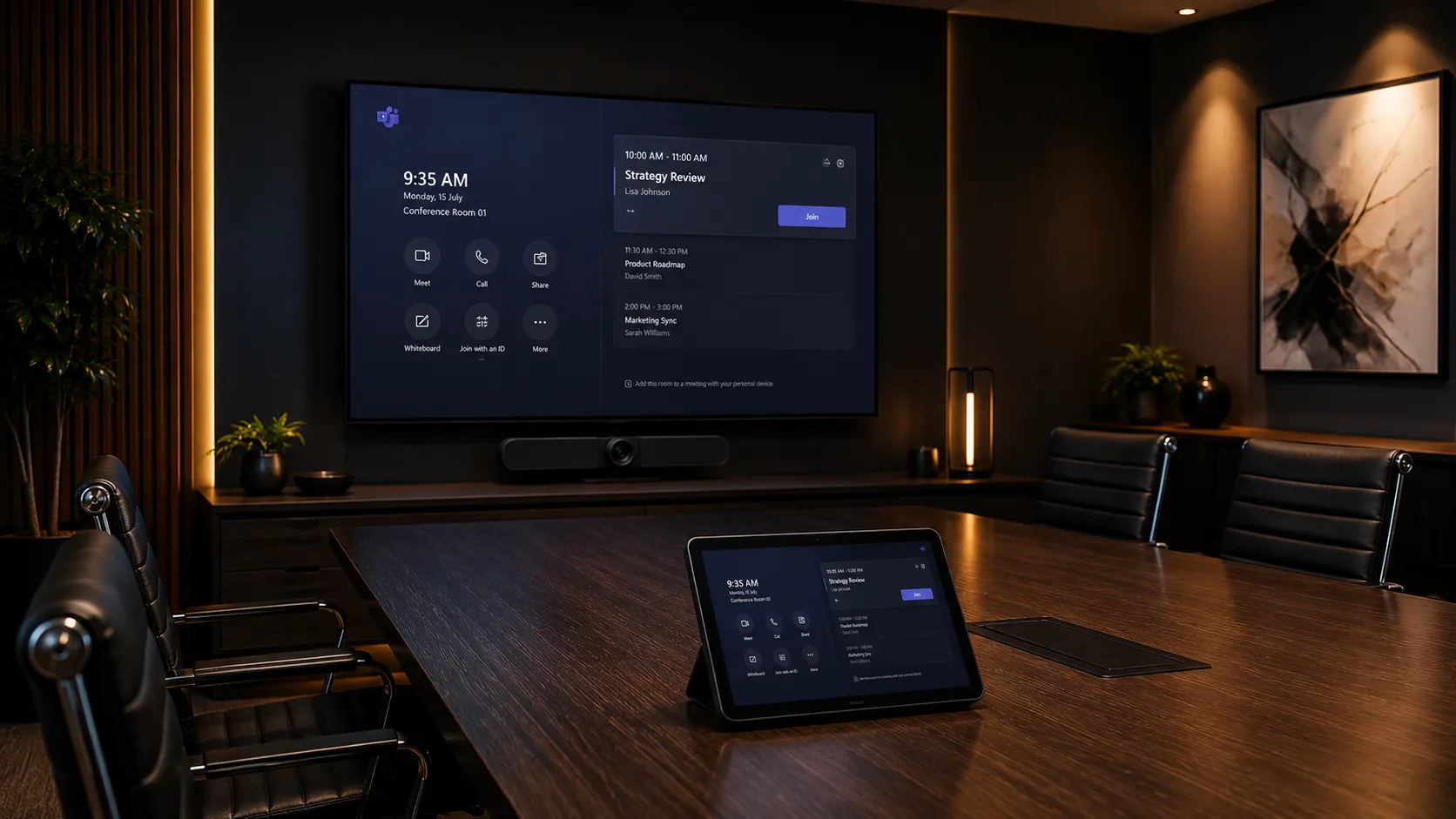
Microsoft Teams Rooms setup in a modern Australian meeting room with a large display showing the Teams Rooms interface and a touch controller
Microsoft Teams Rooms Specialists
Android & Windows Deployments
All Room Sizes
Australia-Wide Supply Since 2007
Key Takeaways

Do You Actually Need to Pay for Teams Rooms Pro? The Honest Answer.

The short answer: most small and medium Australian businesses do not need to pay for Teams Rooms Pro. The free Basic licence covers one-touch join, calendar integration and single screen support for up to 25 rooms — Pro is only required when specific features such as dual screens, Zoom or Webex joining, remote device management or compliance policies are genuinely needed. What Microsoft's documentation won't tell you clearly is where the real savings are — and that's what this page covers.

The Licensing Reality
  • Basic is genuinely free — up to 25 rooms per tenant
  • Basic covers one-touch join, single screen, Teams meetings
  • Pro is only needed when specific features are required
  • Dual screens in any room requires Pro — no workaround
  • Joining Zoom or Webex from the room requires Pro
  • Remote IT management at scale requires Pro
  • Room 26 onwards requires Pro — Basic caps at 25
Where Businesses Save Money
  • Start on Basic — only upgrade rooms that genuinely need Pro
  • Android appliance saves $500–$1,500 per room vs Windows
  • Use a BYOD passthrough for occasional Zoom or Webex calls
  • Check existing Microsoft 365 licences — Pro may be bundled
  • Not every room needs the same licence tier
  • Small businesses can deploy professionally for hardware cost only
  • Delay Pro until a specific need actually requires it
What Actually Determines Your Setup
  • Room count matters more than staff headcount
  • Single vs dual screen is the first decision point
  • Do you ever need to join Zoom or Webex calls?
  • Does IT need to manage devices remotely at scale?
  • Android appliance suits most small and medium rooms
  • Windows systems suit complex or multi-display environments
  • Compliance requirements may force Pro regardless of size

What Is Microsoft Teams Rooms — And How Does It Actually Work?

Microsoft Teams Rooms is a dedicated room conferencing platform that turns a meeting space into a one-touch collaboration environment. Unlike using a laptop for meetings, a Teams Rooms system means the room itself is always ready — calendar integrated, camera live, audio active — with a single button to join any scheduled meeting.

The first real decision isn't which hardware brand to choose. It's which deployment style suits your rooms and IT environment.

MTR on Android

Appliance-Based Teams Rooms

Android appliance systems run Teams Rooms directly on the conferencing hardware itself — no separate Windows computer required. The camera bar, microphone, speaker and Teams Rooms software are all built into one device.

Best For
  • Small rooms
  • Medium rooms
  • Simple deployments
  • Limited IT resource
  • No separate compute device — saves $500–$1,500 per room
  • Minimal cabling — cleaner, simpler installation
  • Faster to deploy and easier for staff to support
  • Fewer failure points than Windows-based systems
  • Common systems: Yealink A20, Logitech Rally Bar, Poly Studio X50

Appliance-based Teams Rooms consistently generate fewer IT support calls than Windows-based systems in small and medium room deployments.

MTR on Windows

Windows-Based Teams Rooms

Windows-based systems use a dedicated mini-PC compute unit alongside the conferencing hardware. This gives greater flexibility for complex room setups, multiple displays and enterprise IT management requirements.

Best For
  • Large boardrooms
  • Dual display rooms
  • Enterprise IT
  • Complex deployments
  • Supports multiple displays natively
  • Full enterprise IT management via Intune
  • Greater flexibility for advanced room configurations
  • Requires dedicated compute: Logitech RoomMate, Lenovo Core, Dell OptiPlex
  • Higher hardware cost and more cabling than appliance systems

Windows-based Teams Rooms make sense when complex room requirements or strict enterprise security protocols genuinely justify the additional cost and complexity.

Teams Rooms Basic vs Pro — What Do You Actually Need to Pay For?

This is the question most IT managers and business owners get confused by — and most reseller websites don't answer honestly. Here's the plain English version.

Microsoft Teams Rooms licence tier comparison — indicative features as of 2025. Verify current pricing and exact features at microsoft.com/en-au as Microsoft updates licensing regularly.
FeatureBasic — FreePro — Paid Per Room / Month
One-touch Teams meeting joinIncludedIncluded
Single display supportIncludedIncluded
Microsoft 365 calendar integrationIncludedIncluded
Number of rooms per tenantUp to 25 roomsUnlimited
Dual display supportPro RequiredIncluded
Join Zoom or Webex from the roomPro RequiredIncluded
Advanced AI camera framingPro RequiredIncluded
Remote device management via Teams Admin CenterPro RequiredIncluded
Conditional access & compliance policiesPro RequiredIncluded
Advanced analytics & reportingPro RequiredIncluded
Hot-desking supportPro RequiredIncluded
Real Business Scenarios — Which Licence Do You Actually Need?
Scenario 01

Small Business — 1 to 3 Meeting Rooms, Teams Only

Single screens, Teams meetings only, no need for remote IT management, under 25 rooms. A Yealink A10 or A20 on Android handles this perfectly. Staff walk in, hit join, done.

Verdict: Basic — completely free. Hardware cost only.
Scenario 02

Any Business Where a Room Needs Dual Screens

The moment one room has dual displays — even in a 5-person business — that room needs Pro. Basic simply won't support a second screen regardless of how good the hardware is.

Verdict: Pro required on dual-screen rooms. Basic fine for all others.
Scenario 03

Business That Occasionally Joins Zoom or Webex Calls

If clients regularly send Zoom invites, Pro is needed for the room to join natively. Alternatively a BYOD passthrough like a Logitech Swytch lets a laptop use the room's camera and audio — keeping the room on Basic.

Verdict: BYOD passthrough workaround may avoid Pro cost entirely.
Scenario 04

Enterprise — 25+ Rooms, IT Managed, Compliance Required

At this scale Pro is almost always justified — remote device management alone saves significant IT time across a large estate, and compliance requirements typically mandate it regardless of preference.

Verdict: Pro required. Cost justified at enterprise scale.

Which Teams Rooms Hardware Suits Which Room Size?

The right Teams Rooms hardware depends primarily on room size, seating capacity and whether the deployment needs Android appliance simplicity or Windows-based flexibility. These are the systems Kickstart most commonly deploys across Australian meeting environments.
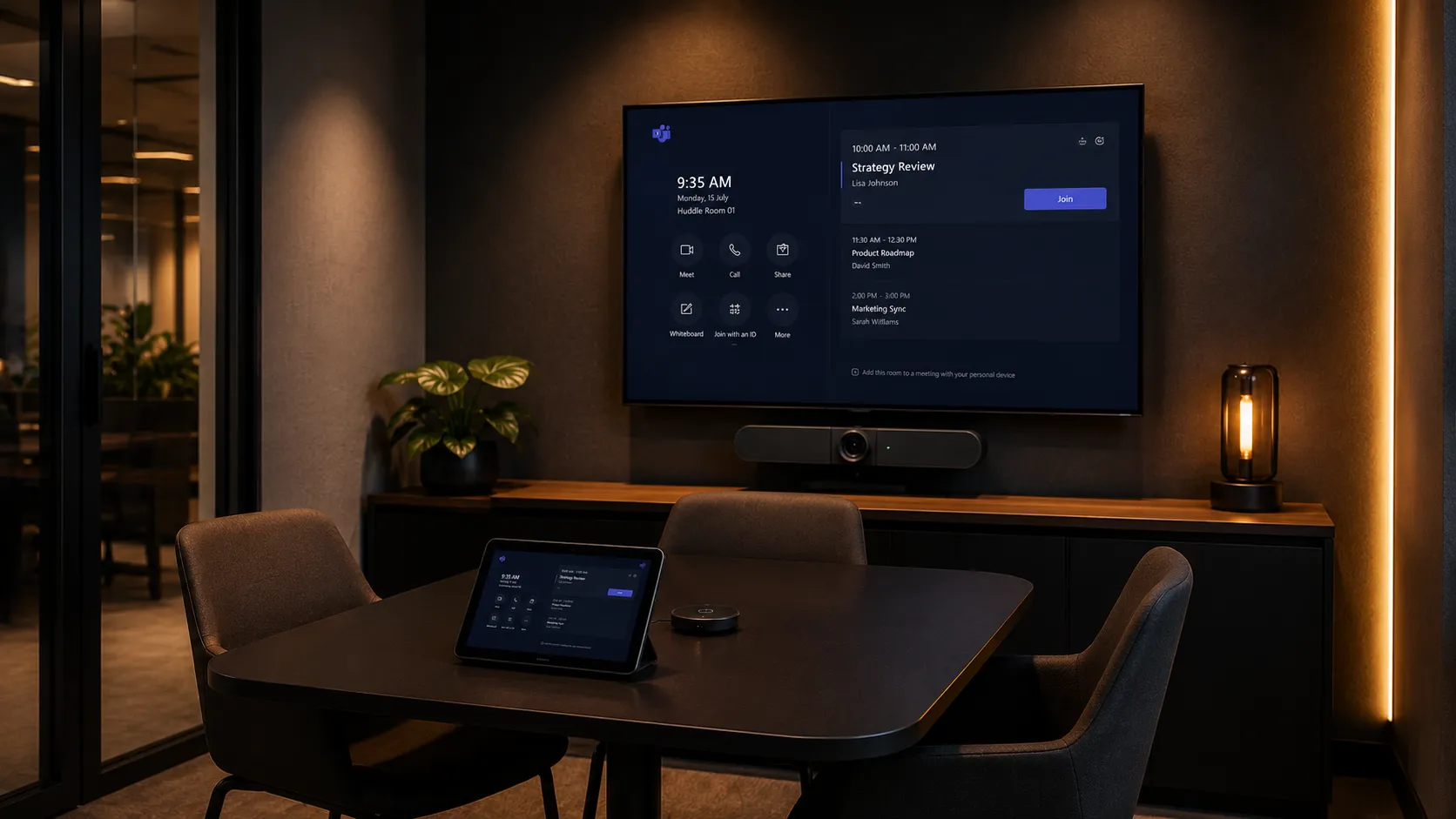
Small huddle room Teams Rooms setup with all-in-one Android conferencing bar below a display screen
Room Size 01

Small Huddle Rooms

2–4 People
  • Yealink A10 — entry-level Android appliance, ideal for Basic licence
  • Yealink A20 — mid-range Android, strong Teams Rooms integration
  • Logitech MeetUp 2 — ultra-wide camera, minimal footprint
  • Android appliance suits almost all small room requirements
  • No compute device needed — hardware cost only

Small huddle rooms on Basic licence with Android hardware represent the lowest total cost of ownership of any Teams Rooms deployment style.

Small Room Solutions
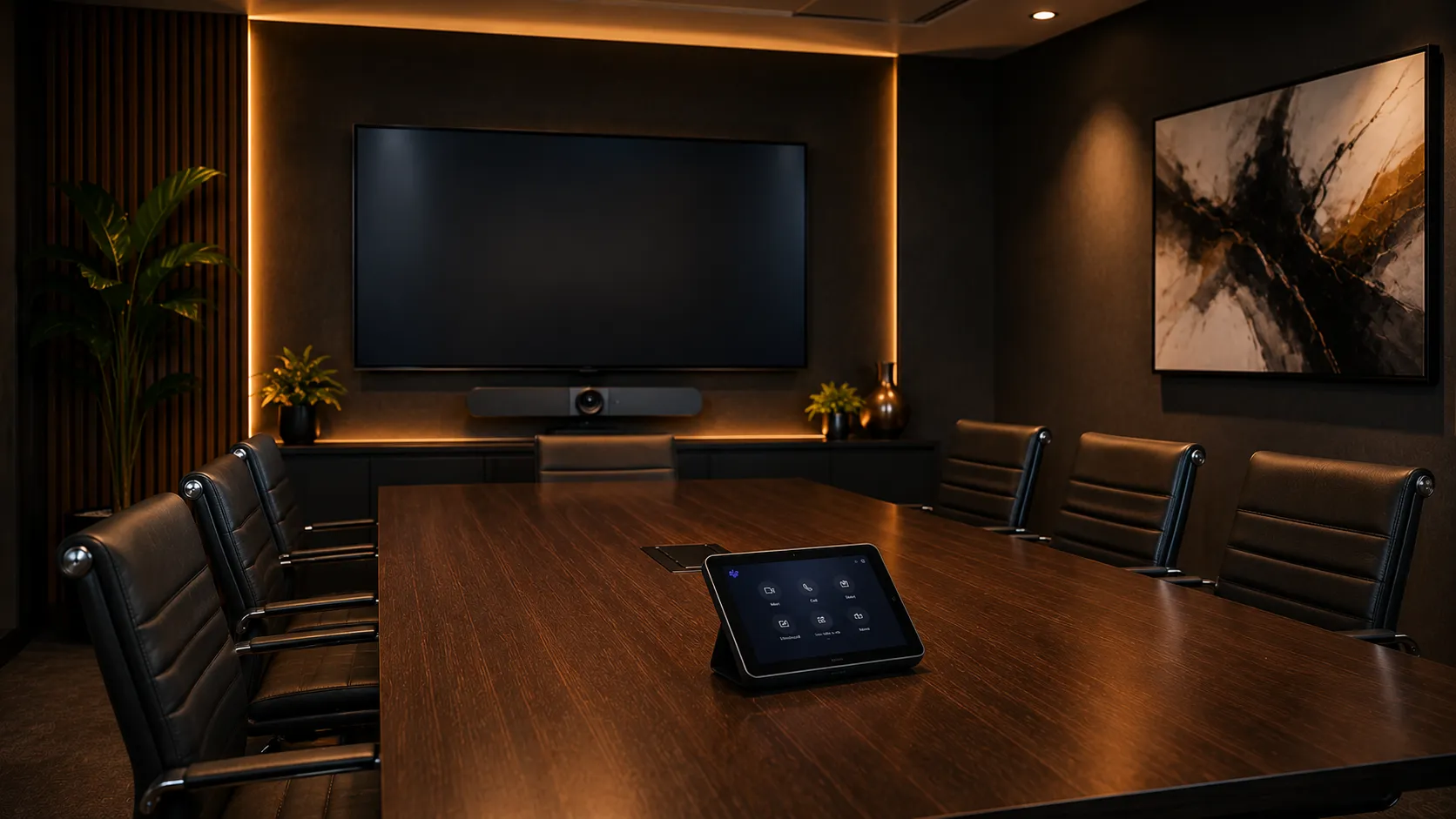
Medium meeting room Teams Rooms setup with conferencing bar and touch controller on a six-person table
Room Size 02

Medium Meeting Rooms

4–10 People
  • Yealink A20 or A30 — strong Android appliance for medium rooms
  • Logitech Rally Bar — premium all-in-one, Android or Windows
  • Poly Studio X50 — excellent audio processing for harder rooms
  • Consider Pro licence if dual screen or Zoom joining needed
  • Beamforming microphones important at this room size

Medium rooms are where the Basic vs Pro decision most commonly arises — a second display or occasional Zoom call can change the licence requirement entirely.

Medium Room Solutions
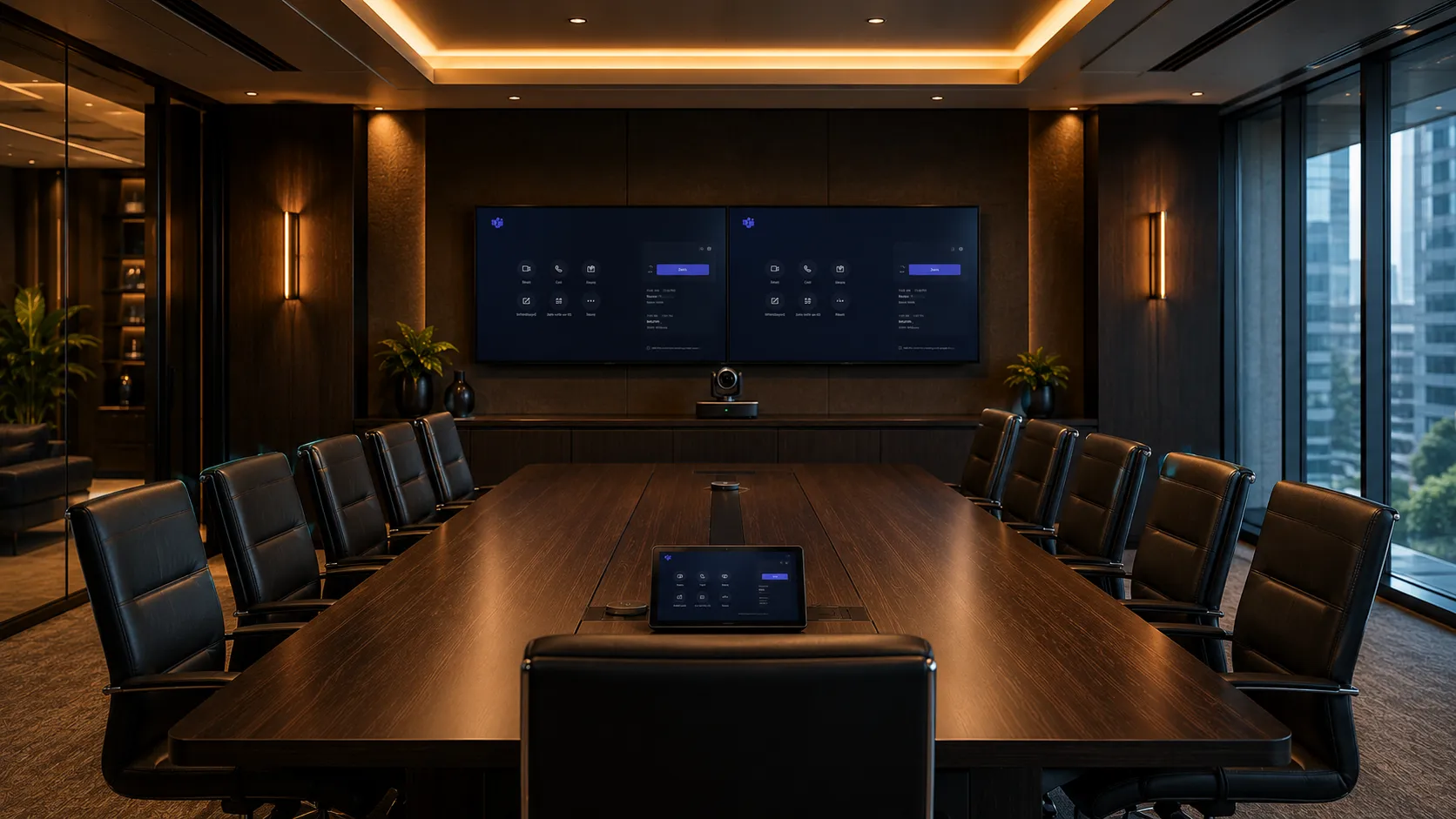
Large corporate boardroom Teams Rooms setup with PTZ camera and dual display screens
Room Size 03

Large Boardrooms

10+ People
  • Logitech Rally Plus — modular PTZ system, Windows compute
  • Yealink MVC Series — Windows-based for large room flexibility
  • Poly G20 or G85 — strong for acoustically challenging rooms
  • Pro licence almost always required at this room size
  • PTZ camera and expandable microphone arrays recommended

Large boardrooms almost always justify Pro — dual screens, remote management and compliance requirements typically all apply at this environment level.

Boardroom Solutions
Common Teams Rooms hardware recommendations by room size — Australian deployments. Availability and pricing subject to change. Contact Kickstart for current pricing.
SystemRoom SizeDeploymentLicence TierKey Strength
Yealink A10Small — 2 to 4 peopleAndroidBasic — freeEntry-level, lowest total cost
Yealink A20Small to medium — 2 to 8 peopleAndroidBasic — freeStrong Teams integration, value
Logitech MeetUp 2Small — 2 to 4 peopleAndroidBasic — freeUltra-wide camera, minimal footprint
Logitech Rally BarMedium — 4 to 10 peopleAndroid WindowsBasic — single screen. Pro if dual screen or ZoomPremium all-in-one, flexible deployment
Poly Studio X50Medium — 4 to 10 peopleAndroidBasic — single screen. Pro if dual screen or ZoomAdvanced audio for difficult rooms
Yealink MVC SeriesLarge — 10+ peopleWindowsPro required — dual screen or managementFlexible large room Windows system
Logitech Rally PlusLarge — 10+ peopleWindowsPro required — dual screen or managementModular PTZ, expandable microphones

Native Teams vs BYOD — Handling Zoom and Webex Calls

Even in a dedicated Teams Room, the reality for most Australian businesses is that someone will eventually be sent a Zoom or Webex meeting invite. Here's how to handle it without necessarily upgrading every room to Pro.

Native Third-Party Join

Teams Rooms Pro — Native Platform Joining

Teams Rooms Pro includes native third-party joining for Zoom and Webex. The room controller shows a join button for any supported platform meeting — no laptop required, no switching inputs.

  • One-touch join for Zoom and Webex meetings
  • Uses the room's camera, microphone and speakers natively
  • Clean experience — no laptop needed at the table
  • Requires Pro licence on that room

Best for rooms that regularly host Zoom or Webex calls — the Pro licence cost is justified when third-party joining is a frequent requirement.

BYOD Passthrough

BYOD Workaround — Keep the Room on Basic

A BYOD passthrough device such as a Logitech Swytch connects a laptop to the room system — allowing the laptop to use the room's camera, microphone and speakers for any video platform while the room stays on the free Basic licence.

  • Works with Zoom, Webex, Google Meet or any platform
  • Laptop connects via USB — room audio and video used
  • Room stays on Basic licence — no Pro cost
  • One-off hardware cost rather than ongoing monthly licence

For rooms that only occasionally need Zoom or Webex, a BYOD passthrough device often delivers a better return than upgrading to Pro — especially across multiple rooms.

What Actually Goes Wrong in Teams Rooms Deployments?

Most Teams Rooms problems aren't caused by the hardware or the software — they're caused by decisions made before the hardware was ordered. Understanding these common deployment mistakes can save significant time, cost and frustration.

Issue 01

Choosing Windows When Android Would Have Done the Job

Windows-based Teams Rooms systems are more complex to deploy, require more cabling and generate more IT support calls than Android appliance systems. Many businesses default to Windows because it feels more familiar to IT teams — not because the room actually requires it.

For most small and medium meeting rooms a Yealink A20 or Logitech Rally Bar on Android will deliver an identical meeting experience with less complexity, lower hardware cost and fewer ongoing support issues.

The question isn't "which is better" — it's "does this room actually need what Windows adds?" In most cases under 10 people, the answer is no.

Issue 02

Paying for Pro Across Every Room When Most Don't Need It

Many businesses licence every room at Pro tier without checking whether individual rooms actually need Pro features. A single-screen small meeting room used exclusively for internal Teams calls has no functional reason to be on Pro.

The most cost-effective approach is to audit each room individually — Basic for simple single-screen rooms, Pro only where dual screens, Zoom joining or remote management are genuine requirements.

Licensing 10 rooms at Pro when 7 could run on Basic represents a significant ongoing monthly cost that compounds over time with no benefit.

Issue 03

Installing the Hardware Before Checking the Network

Teams Rooms devices need reliable network connectivity, correct VLAN configuration and in some enterprise environments specific firewall rules to function correctly. Hardware that works perfectly in a demo environment can fail unpredictably when dropped onto a corporate network without proper preparation.

Network readiness — particularly for businesses with strict security policies or conditional access requirements — should be confirmed before hardware is ordered, not after it arrives.

More Teams Rooms deployments run into problems at the network configuration stage than at any other point in the process.

Issue 04

Forgetting the Room Account and Licence Setup

Every Teams Rooms system needs a dedicated Microsoft 365 room account — a resource mailbox configured specifically for the room device. This is separate from any user licence and is where the Teams Rooms Basic or Pro licence is assigned.

Businesses that don't plan this in advance often find themselves troubleshooting sign-in problems on day one — or discovering their Microsoft 365 tenant isn't configured to support room accounts without additional IT work.

Room account setup and licence assignment is often the last thing planned and the first thing that causes delays on installation day.

Why Australian Businesses Choose Kickstart for Teams Rooms

Deploying Teams Rooms correctly requires more than ordering hardware. Licence planning, network readiness, room account configuration and deployment style all affect long-term outcomes — and getting them wrong is expensive to fix after installation.

Independent Teams Rooms Hardware Advice

We compare Yealink, Logitech and Poly Teams Rooms systems based on your room size, deployment style and licence tier — not on which brand offers the best margin. A Yealink A20 on Android Basic is often the right answer for a small room. A Logitech Rally Plus on Windows Pro is right for a large boardroom. We recommend what suits the room, not what's easiest to sell.

Honest Teams Rooms Licensing Guidance

Most resellers won't tell you that Basic is free and covers most small business requirements — because there's no margin in it for them. We help businesses audit each room individually, identify which rooms genuinely need Pro and which don't, and avoid paying for features that add no practical value to their specific meeting environment.

We've Seen Every Teams Rooms Deployment Problem

Network misconfigurations, room account setup errors, wrong licence tier, Android chosen when Windows was needed — and Windows chosen when Android would have done the job at half the cost. Since 2007 we've been solving meeting room technology problems in Australian businesses. That means we anticipate these issues before hardware is ordered, not after it's installed.

Australia-Wide — One Room or One Hundred

Whether you need a single Yealink A10 for a small huddle room on Basic or a multi-site enterprise Teams Rooms rollout across dozens of locations on Pro — Kickstart supplies and advises on Teams Rooms deployments Australia-wide. Same independent advice regardless of order size.

Questions IT Managers Ask Before Deploying Teams Rooms

Do I actually need Teams Rooms Pro or can I get away with Basic?

Most small and medium Australian businesses do not need Teams Rooms Pro — and many are paying for it unnecessarily.

The free Basic licence covers the core meeting room experience: one-touch join for Teams meetings, Microsoft 365 calendar integration, single screen support and up to 25 rooms per tenant. For a business with straightforward meeting rooms that only run Teams meetings on a single screen, Basic delivers everything needed at zero ongoing licence cost.

Pro becomes necessary only when specific features are genuinely required: dual display support, joining Zoom or Webex natively from the room, remote device management via Teams Admin Center, conditional access and compliance policies, or more than 25 rooms. The most practical approach is a mixed-licence strategy — Basic on simple rooms, Pro only where a specific feature genuinely justifies the cost.

Can small businesses afford Microsoft Teams Rooms?

Yes — and many small Australian businesses are already running professional Teams Rooms setups for significantly less than they expect.

The free Basic licence removes any ongoing software cost for businesses with fewer than 25 rooms on single screens. Paired with an entry-level Android appliance like the Yealink A10 — which requires no separate compute device, minimal cabling and straightforward setup — a small business can have a genuine one-touch Teams Rooms experience in a huddle room for the cost of the hardware alone.

The total cost of ownership for a small room Teams Rooms deployment on Basic is typically lower than most small businesses expect, and significantly lower than the equivalent Windows-based deployment. The key is choosing the right hardware tier for the room — not defaulting to enterprise-grade systems that a small huddle room simply doesn't need.

Who can help me choose and set up Microsoft Teams Rooms in Australia?

Kickstart Computers has been helping Australian businesses solve meeting room technology and collaboration challenges since 2007 — long before Microsoft Teams Rooms existed. That experience across evolving conferencing platforms, room deployments and hybrid workplace technology means we understand the practical realities of getting these systems working correctly in real business environments.

Today that experience translates directly into Teams Rooms deployments — covering hardware selection, licence planning, Android vs Windows deployment decisions and room configuration across small huddle rooms through to large enterprise boardrooms. Unlike generic online resellers, Kickstart provides independent advice across Yealink, Logitech and Poly Teams Rooms systems based on room requirements rather than brand margin.

How can we join Zoom calls from a Teams Room without paying for Pro?

A BYOD passthrough device like a Logitech Swytch lets a laptop use the room's camera, microphone and speakers for Zoom or Webex calls. The room stays on Basic licence. For rooms that only occasionally need Zoom, this one-off hardware cost is almost always more cost effective than upgrading to Pro.

What is the difference between MTR on Android and MTR on Windows?

Android appliance systems run Teams Rooms directly on the device — no separate computer needed, less cabling, simpler support. Windows systems use a dedicated compute unit for greater flexibility with dual displays and enterprise IT management. For most small and medium rooms, Android appliance is the better choice.

Which Teams Rooms hardware works best for small meeting rooms in Australia?

The Yealink A10 and A20 are the most commonly deployed small room Teams Rooms systems in Australia — affordable, Android-based, compatible with the free Basic licence and requiring no separate compute device. The Logitech MeetUp 2 is a strong alternative where ultra-wide camera coverage is the priority.

Does every room in my office need a Teams Rooms licence?

Every dedicated Teams Rooms device needs its own room account and licence — but not all rooms need Pro. A practical approach is Basic for simple single-screen rooms and Pro only for rooms that genuinely need its additional features. This mixed-licence approach can significantly reduce ongoing costs across a multi-room deployment.

Can I check if Teams Rooms Pro is already included in my Microsoft 365 licence?

Yes — some Microsoft 365 Business Premium and enterprise plans include Teams Rooms Pro licences or discounted add-ons. It is worth checking your existing Microsoft agreement before purchasing standalone Pro licences, as you may already have entitlements available through your existing Microsoft licensing partner.

Ready to Deploy Microsoft Teams Rooms?

Whether you're setting up a single small Teams Room or deploying across multiple locations, Kickstart Computers can help you choose the right hardware, plan the right licence tier and avoid the common deployment mistakes that cost time and money to fix later.

Call Andrew today — 0416 353 501 or email sales@kickstartcomputers.com.au or use the button below
Shopping Cart
Scroll to Top