
Purchase Your Yealink A30 Today
| Model | What's Included | Ideal For | Buy |
|---|---|---|---|
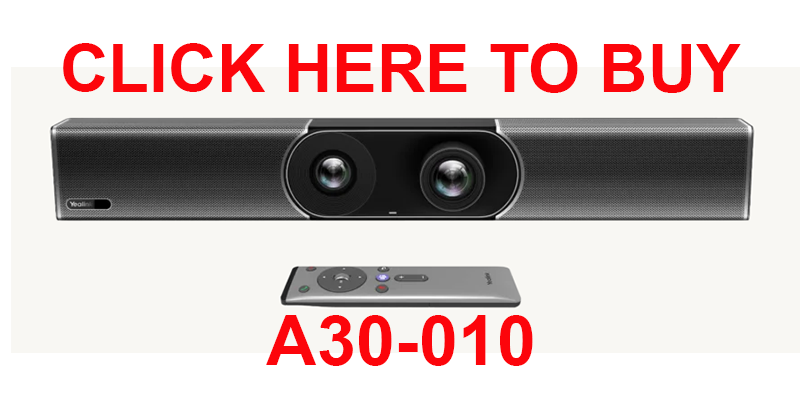
| A30-010 | Base A30 MeetingBar unit | Rooms with existing control systems or where on-screen controls are sufficient | Buy |
| A30-020 | A30 MeetingBar + CTP18 13.3" touch panel | Rooms needing dedicated touch control and room scheduling | Buy |
| A30-025 | A30 MeetingBar + CTP18 touch panel + WPP30 wireless presentation pod | Complete solution with wireless laptop content sharing | Buy |
Overview
The Yealink A30 MeetingBar is an all-in-one video collaboration bar designed for medium-sized meeting rooms seating 6–12 people. A single unit combines a 20MP wide-angle camera, 8-mic MEMS array, built-in speaker, and Android 9.0 compute — connecting to your existing display via HDMI without a separate PC, codec, or AV rack. It is natively certified for Microsoft Teams Rooms and Zoom Rooms.
This guide covers technical specifications, real-world performance assessment, deployment best practices, competitor comparisons, and common troubleshooting — based on our experience installing the A30 across financial services, healthcare, and education environments in Australia.
Technical Specifications
| Component | Specification | Real-World Notes |
|---|---|---|
| Camera | 20MP, 133° super-wide-angle | Captures all participants clearly in rooms up to 6m × 6m without repositioning |
| Microphone | 8 MEMS array, 6-metre pickup | Effective for rooms seating up to 12; optional VCM34 expansion for larger spaces |
| Processor | Qualcomm Snapdragon 865 | Handles simultaneous video processing, AI features, and dual displays without noticeable latency |
| Operating system | Android 9.0 | Stable certified platform for Teams and Zoom; no PC required |
| Display output | Dual 4K HDMI @ 30fps | Clear on displays up to 85"; dual output suits main screen plus confidence monitor |
| Connectivity | Gigabit Ethernet, Wi-Fi, Bluetooth 5.0 | Wired Ethernet recommended for production deployments |
| Platform support | Microsoft Teams Rooms, Zoom Rooms — native certified | One-touch meeting join; no laptop or external compute required |
| Dimensions | 700 × 98 × 121mm | Mounts above or below existing display using included bracket |
| Warranty | 2-year limited hardware warranty | Extended warranty available at purchase — contact Kickstart for details |
View full manufacturer specifications on Yealink.com →

AI Camera and Audio Features
- AI Auto Framing — automatically adjusts to include all participants as they move or join; no manual camera adjustment required during meetings
- Speaker Tracking — focuses on the active speaker with natural transition timing between participants
- People Counting — detects room occupancy for meeting analytics and room utilisation reporting
- Noise Suppression — filters ambient noise while preserving speech clarity; effective for open-plan adjacent rooms and rooms with HVAC noise
- Human Motion Sensor — device wakes automatically when participants enter the room, reducing startup delays
- Electric Privacy Shutter — physical camera block when the room is not in use
Yealink A30 vs. Other Yealink Models
| Feature | MeetingBar A30 | MeetingBar A40 | MeetingBar A50 |
|---|---|---|---|
| Ideal room size | Medium — 6–12 people | Small–medium — 4–12 people | Medium–large — 8–20+ people |
| Camera | 20MP, 133° HFOV single lens | Dual 48MP stitched, 110° HFOV | Triple 50MP, 98° HFOV |
| Mic pickup | 6 metres, 8 MEMS | 6 metres + 2 expansion mics | 10 metres + 3 expansion mics |
| IntelliFocus | No | Up to 4 portraits | Up to 4 portraits |
| HDMI outputs | 2× 4K | 2× 4K | 2× 4K |
| Touch controller | CTP18 (13.3") | CTP25 (10.1") | CTP25 (10.1") |
| Warranty | 2-year | 2-year | 2-year |
Yealink A30 vs. Competitor Brands
| Feature | Yealink A30 | Poly Studio X50 | Logitech Rally Bar | DTEN D7X Pro |
|---|---|---|---|---|
| Camera | 20MP, 133° FOV | 4K, 120° FOV | 4K, 120° FOV | 4K, 120° FOV |
| Mic range | 6m | 5m | 5.5m | 5m |
| Native Teams | Yes | Yes | Yes | No (Zoom only) |
| Native Zoom | Yes | Yes | Yes | Yes |
| Dual display | Yes | Yes | Yes | With additional hardware |
| Ecosystem | Extensive Yealink accessories | Limited Poly accessories | Extensive Logitech accessories | Limited |
Note: Competitor specifications are based on publicly available manufacturer data and may change. Contact us for a current comparison relevant to your specific requirements.
Implementation Case Studies
Financial Services
Profile: Regional investment firm with multiple branch offices.
Challenge: Inconsistent meeting technology across locations creating IT support burden.
Solution: Standardised A30 deployment with central management via YMCS.
Outcome: Reduced video conferencing support tickets, increased cross-branch collaboration, and improved presentation capability using dual display across all sites.
"The consistent experience across all our meeting spaces has dramatically improved productivity and reduced meeting startup delays. The A30's reliability and dual-display support has been exceptional for our detailed financial presentations."
Healthcare
Profile: Medical centre with telehealth requirements.
Challenge: High-quality, secure video consultation for remote patient and specialist access.
Solution: A30 deployment with dual-display configuration — patient video on one screen, medical data on the other.
Outcome: Enabled regular remote consultations, improved specialist availability, and simplified operation for clinical staff.
"The image quality and reliability has been crucial for our telehealth program. The dual-display capability allows us to view patients and medical data simultaneously, and our clinical team appreciates the simple operation."
Education
Profile: University business school deploying hybrid learning across seminar rooms.
Challenge: Equal participation experience for remote and in-person students without complex AV setups.
Solution: A30 with VCM34 expansion microphones for larger seminar spaces; dual display for lecture content and remote student video.
Outcome: Reduced instructor setup time, seamless hybrid session delivery, enhanced presentation capability.

Installation and Deployment Guide
Based on our experience across Australian deployments, the A30 installs in 20–30 minutes in a standard configuration. Here is our recommended process:
-
Pre-installation planning
- Room assessment — size, lighting, acoustics, mounting location
- Network verification — confirm QoS settings and available bandwidth (10Mbps minimum recommended)
- Optimal mount height: approximately 1.2m from floor when mounted below a display
-
Physical installation
- Attach wall or display mount bracket (both included)
- Cable management — route power and HDMI before mounting the bar
- Connect power and dual HDMI to displays
-
Configuration
- Network setup via Ethernet or Wi-Fi setup wizard
- Microsoft Teams or Zoom account association
- Room profile and display arrangement configuration
-
Testing
- Camera field of view verification — confirm 133° covers the full table width
- Microphone pickup test from each seat position
- AI Auto Framing and Speaker Tracking calibration
- Dual display content arrangement confirmation
-
User training
- Quick start guide distribution
- Key features walkthrough — one-touch join, camera controls, content sharing
- Support contact information
Official Yealink A30 installation guide →
Recommended Accessories
| Accessory | Function | Recommended Use Case |
|---|---|---|
| VCM34 | Wired expansion microphone | Rooms with challenging acoustics, extended seating, or U-shaped table configurations |
| WPP30 | Wireless presentation pod | Rooms with frequent guest presentations or BYOD content sharing (included in A30-025) |
| CTP18 | 13.3" touch panel controller | Rooms requiring dedicated meeting control and room scheduling interface (included in A30-020 and A30-025) |
| VCR20 | Remote control | Rooms where physical controls are preferred over on-screen navigation |
| VCH51 | Wired sharing box | Rooms requiring HDMI content input from a laptop without USB-C |
Maintenance Best Practices
- Firmware updates — enable automated scheduling via YMCS or Microsoft TAC; keep the device on the current firmware to ensure Teams and Zoom compatibility
- Camera lens cleaning — quarterly clean with a microfiber cloth; avoid sprays directly on the lens
- Audio calibration — re-run microphone pickup tests if the room layout changes or furniture is added
- Network health check — verify QoS settings annually, particularly if network infrastructure changes
- Display alignment — confirm dual display arrangement in settings after any display changes
Troubleshooting
Factory Reset
- Press and hold the Reset button on the back of the device for 15 seconds
- Wait for the system to restart and restore default settings
- Reconfigure network settings and sign in to Teams or Zoom
Web Interface Access
- Find the IP address: Settings → Network → Ethernet on the A30 touchscreen
- Default username:
admin - Default password:
admin - Important: Change the default password immediately after initial setup
Common Issues
| Symptom | First Steps |
|---|---|
| Device not powering on | Check power adapter connection and verify the power outlet is active |
| Screen not responding | Perform a soft reboot via Settings → Reboot on the touchscreen |
| Blinking LED / network error | Check Ethernet cable and switch port; verify VLAN and QoS settings on the network |
| Teams sign-in failing | Confirm the Teams Rooms licence is assigned to the room account in Microsoft 365 Admin Centre |
| No audio from far end | Check HDMI CEC settings on the connected display; verify volume is not muted in Teams/Zoom settings |
Full Yealink A30 troubleshooting guide →
Industry-Specific Configuration Notes
Financial Services
- Enable SRTP and confirm TLS signalling in the web interface for compliance environments
- Use dual-display configuration — participant video on one screen, financial data or presentation on the second
- Integrate with room booking systems via Microsoft Teams calendar integration
Healthcare
- Confirm your Teams or Zoom configuration meets your organisation's privacy requirements for patient consultations
- Dual-display: patient video on one screen, clinical data or imaging on the second
- The electric privacy shutter provides physical camera assurance when the room is unoccupied
Education
- Add VCM34 expansion microphones for seminar rooms with more than 12 seats
- Dual-display: lecture content on the main screen, remote student video on the second
- People Counting can support room utilisation data for timetabling decisions
Download our Video Conferencing Consultation Form →
When the A30 May Not Be Ideal
The A30 is well suited to medium rooms seating 6–12 people. For the following scenarios, a different solution is likely more appropriate:
- Large boardrooms seating 12–20+ — the 6-metre mic pickup and single-lens camera will struggle at longer table distances. Consider the MeetingBar A50 or MeetingBoard Pro.
- Divisible or multi-zone rooms — the A30 has no multi-zone audio management. Rooms that split into two spaces need separate units or a more complex AV solution.
- Rooms requiring ceiling microphone arrays — the A30 supports expansion mics but is not designed around ceiling infrastructure. For rooms where ceiling mics are required from the outset, a dedicated audio DSP solution is more appropriate.
- Windows-based Teams Rooms (MTR-W) — the A30 runs Android natively. If your organisation requires Windows compute for Teams Rooms, the MeetingBar A50 (as MVC S50) or MeetingBoard Pro with OPS module are the appropriate choices.
- Auditoriums or training rooms with 20+ seats — the A30 is not designed for lecture-style environments. Purpose-built AV systems with ceiling speakers and distributed microphones are better suited.
Common Deployment Mistakes
- Mounting too high above the display — the camera looks down at participants at a steep angle, making everyone appear short and the image unflattering. Optimal height is approximately 1.2m from floor, ideally at or just below eye level when seated.
- Using Wi-Fi instead of Ethernet — Wi-Fi is fine for testing but introduces latency and packet loss risk in production meeting rooms. Run Ethernet where possible and configure QoS on the switch port.
- Not changing the default admin password — the default username and password are both
admin. Change these immediately after initial setup, particularly in shared or open-plan office environments. - Skipping the microphone pickup test — the 6-metre range covers most rooms but irregular table shapes or hard surfaces can create acoustic dead spots. Test from every seat before signing off the installation.
- Poor room lighting — the A30's camera performs well but backlighting (participants sitting in front of windows) degrades image quality significantly. Position the bar on the wall opposite windows where possible.
- Assuming no Teams licence is needed — the A30 hardware requires no additional hardware licence, but the room account requires a Microsoft Teams Rooms Basic or Pro licence assigned in Microsoft 365 Admin Centre before the device can sign in.
Pricing and Licensing Considerations
| Item | What to Know |
|---|---|
| Display | Not included — the A30 connects to your existing room display via HDMI. Budget for a display separately if the room does not already have one. |
| Microsoft Teams Rooms licence | Required per room. Teams Rooms Basic is free for up to 25 rooms with limited features. Teams Rooms Pro includes full management, analytics, and AI features and is a paid per-room monthly subscription. |
| Zoom Rooms licence | Required per room — Zoom Rooms is a paid per-room monthly subscription. There is no free tier for Zoom Rooms. |
| Touch panel | Optional — included in A30-020 and A30-025 bundles. Not required for the device to function; the A30 home screen can be used directly or via the included remote control. |
| Wireless presentation pod | Optional — included in A30-025 only. Required if you need cable-free laptop content sharing. HDMI content input is also available via the optional VCH51 sharing box. |
| Wall mount | Included in the box across all bundles. No additional purchase required for standard wall or display-mount installation. |
| Warranty | 2-year limited hardware warranty included. Extended warranty available at purchase — contact Kickstart Computers for current options and pricing. |
Frequently Asked Questions
What is the Yealink A30 MeetingBar?
The Yealink A30 MeetingBar is an all-in-one video conferencing bar for medium-sized rooms seating 6–12 people. It integrates a 20MP 133° camera, 8-mic MEMS array, built-in speaker, and Android 9.0 compute into a single unit connecting to your existing display via HDMI. Natively certified for Microsoft Teams Rooms and Zoom Rooms.
What are the different A30 models?
Three configurations: A30-010 — base bar only. A30-020 — bar + CTP18 13.3" touch panel. A30-025 — bar + CTP18 + WPP30 wireless presentation pod. All three use identical camera, audio, and processing hardware.
How far can the microphone pick up sound?
The 8-mic MEMS array has an effective pickup range of 6 metres. For larger rooms, optional VCM34 wired expansion microphones extend coverage.
Does the Yealink A30 work without a PC?
Yes — the A30 runs Microsoft Teams Rooms and Zoom Rooms natively on Android 9.0. No PC required. Tap once on the home screen or CTP18 to join a meeting.
What is the default username and password for the Yealink A30 web interface?
Default username: admin. Default password: admin. Find the IP address under Settings → Network → Ethernet on the A30 touchscreen. Change the default password immediately after setup.
How do I factory reset the Yealink A30?
Press and hold the Reset button on the back for 15 seconds. Wait for the system to restart. Then reconfigure your network and conferencing settings.
What version of Android does the Yealink A30 run?
Android 9.0 with Yealink's interface layer optimised for video conferencing — stable certified platform for Teams Rooms and Zoom Rooms native operation.
Does the A30 require additional licences?
No additional hardware licences required. You need standard Microsoft Teams Rooms or Zoom Rooms room licences assigned to the room account.
What is the CTP18 touch panel?
A 13.3" dedicated touch panel controller — room scheduling, one-touch join, camera and audio controls. Included in A30-020 and A30-025.
What is the WPP30 wireless presentation pod?
Plugs into a laptop via USB without drivers — one-click wireless screen sharing up to 1080p. No cables or HDMI adapters needed. Included in A30-025.
Where can I buy the Yealink A30 in Australia?
All three A30 bundles are available from Kickstart Computers, an authorised Yealink reseller since 2007. Contact Andrew on 0416 353 501 for pricing, deployment advice, and volume orders.
About Kickstart Computers
Kickstart Computers is an Australian-owned technology reseller established in 2007, specialising in video conferencing solutions for businesses across Australia. We are an authorised Yealink partner and Microsoft Teams Rooms reseller.
Buy the Yealink A30 Today
Buy A30-010 (Bar Only) → Buy A30-020 With CTP18 → Buy A30-025 With CTP18 + WPP30 →
Phone: 0416 353 501 | Email: sales@kickstartcomputers.com.au