
Meeting Rooms
The Right Board for the Room You Actually Have
- Australian Owned Since 2007
- Independent Advice
- No Package Upsell
Key Takeaways
What Actually Decides the Right Meeting Room Display
- Room size and viewing distance should decide screen size — not budget, and not what looked good in a showroom. Our page on what actually shapes the interactive whiteboard experience walks through how to work that out properly.
- How the board connects — wired, wireless, or standalone — matters more to daily usability than the brand on the front.
- The right platform should come from how your team will actually use the board day to day, not be picked before that's worked out.
- BenQ and Samsung cover most deployments; ViewSonic and Hisense come up as budget-conscious alternatives when price point matters more than brand recognition.
- This page focuses on sizing and setting up a board for your room — for the full range of boards and brands we support, see our interactive whiteboard range.
- Video conferencing is a separate decision — if the room also needs it, our video conferencing setup pages cover camera, microphone and speaker recommendations by room size.
Room Size First
Start With Room Size, Not Screen Size
Board size follows the room, not the other way around. Here's how we size each room type before any brand or platform conversation starts.
Huddle Rooms (2–4 People)
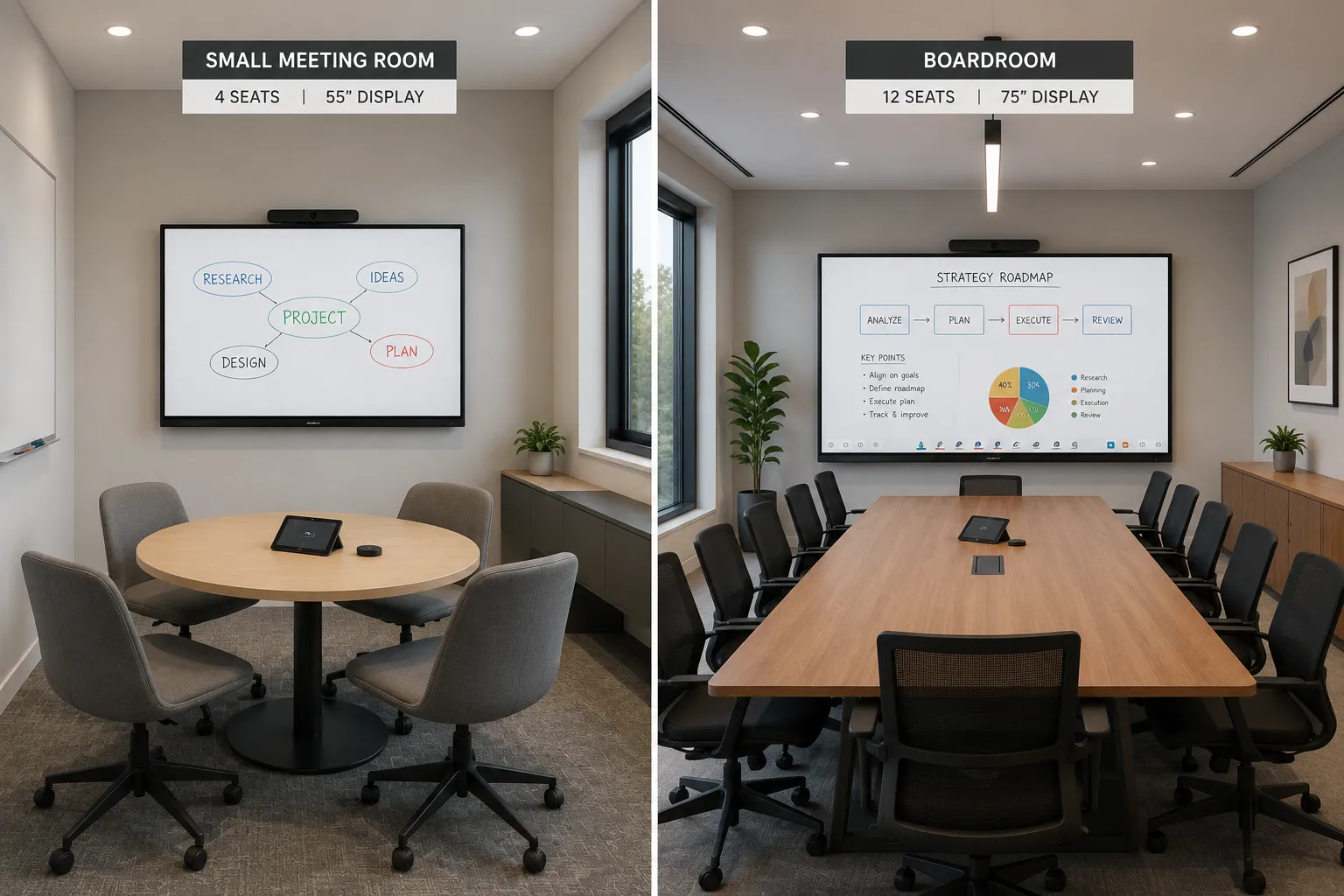
2–4 PeopleSmall enclosed spaces used for quick catch-ups and informal reviews. A 55" display is usually plenty, and in many huddle rooms an interactive board isn't even necessary — a simple non-interactive screen covers the job if the room is mostly used for video calls rather than in-room annotation.
If video conferencing is the main use for this room, our small meeting room video conferencing setup page covers camera and audio.
Small Meeting Rooms (4–8 People)
4–8 PeopleThe most common meeting room size in Australian offices. This is where a 65" interactive board earns its place — big enough to read from every seat, small enough to fit standard room dimensions.
For the camera and audio side of this room size, see our small meeting room video conferencing setup page.
Boardrooms (8–16 People)
8–16 PeopleLonger tables and greater distance from the screen push most businesses to a 75" or larger board.
Audio and camera coverage at this size is a different decision — our medium meeting room video conferencing setup page covers what changes once the table gets longer.
Large Boardrooms & Training Rooms (16+ People)
16+ PeopleAt this scale, a single display often isn't enough on its own — dual-screen setups, or a display paired with a separate presentation screen, become more common.
See our large meeting rooms & boardrooms video conferencing setup page for room-wide camera and audio coverage.
At A Glance
Decision Matrix — Room Type to Board Size
The table below summarises the room-size guidance above, with a direct link through to the matching video conferencing setup for each room type.
| Room Type | Seats | Display Size | Video Conferencing |
|---|---|---|---|
| Huddle Room | 2–4 | 55" (often optional) | Small meeting room VC setup |
| Small Meeting Room | 4–8 | 65" interactive board | Small meeting room VC setup |
| Boardroom | 8–16 | 75"+ interactive board | Medium meeting room VC setup |
| Large Boardroom / Training Room | 16+ | Dual display or display + presentation screen | Large meeting rooms & boardrooms VC setup |
Before You Pick a Board
Work Out Your Must-Haves Before You Pick a Board
Before we recommend any hardware, we ask clients to write two short lists: what the room absolutely must do, and what would just be nice to have. It sounds simple, but it's the single most useful step in the whole process, because the right platform for the board falls out of that list rather than being picked upfront.
"Our team needs to mark up PDFs that are already open on someone's laptop."
→ Points toward a Windows-connected setup
"People need to open files from Google Drive and run Microsoft 365 without a laptop at all."
→ Points toward a standalone Android board
Most businesses assume they need to pick a brand first. In practice, the use case decides the platform, and the platform narrows the brand options far more than logo preference ever should.
Wired, Wireless or Standalone
Choosing How Your Board Connects: Wired, Wireless or Standalone
Three ways a board gets used in practice, and they suit different rooms and habits.
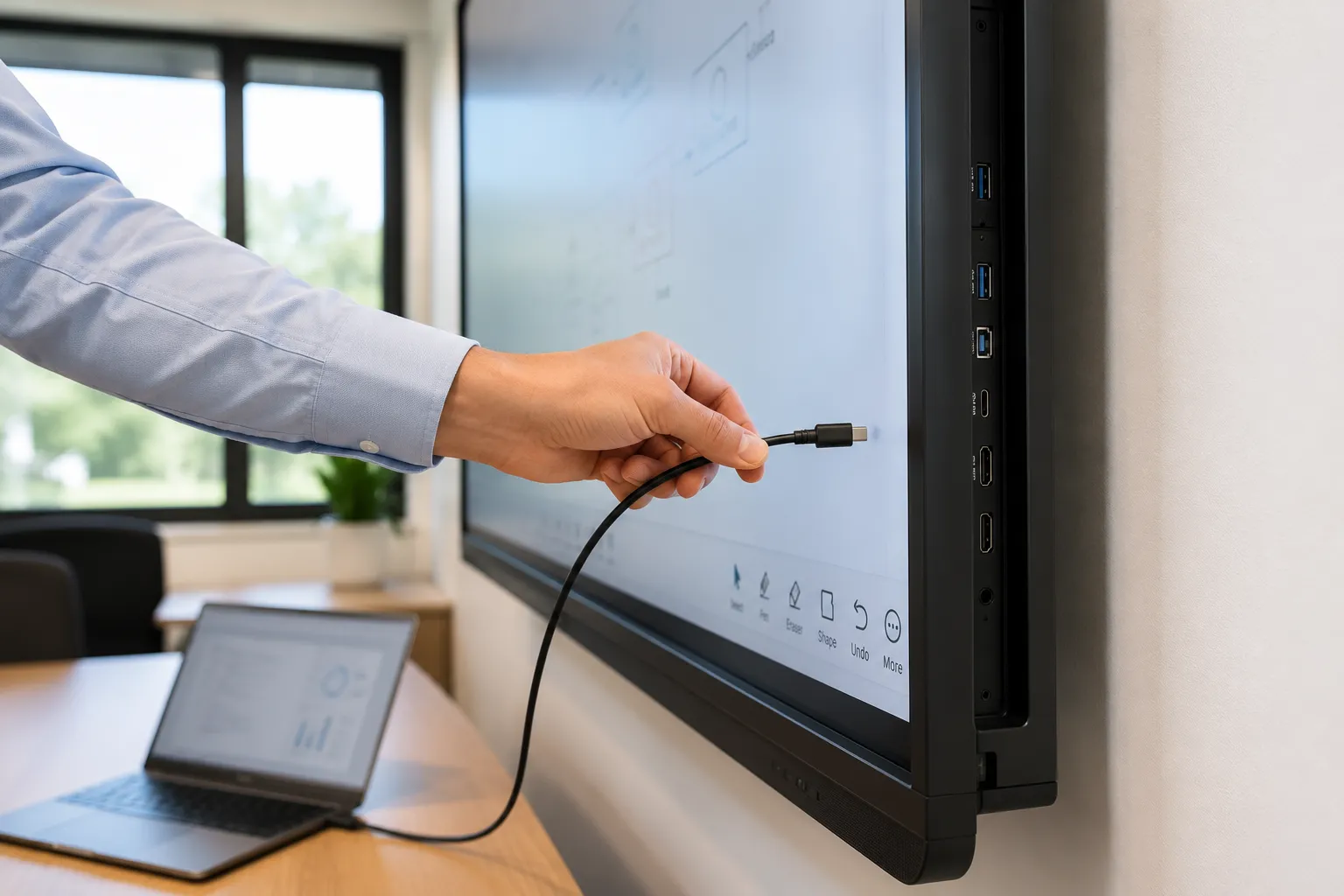
Wired: One Cable, Zero Setup
A single USB-C cable carries video, touch, audio and often power to the board. Your document stays open on your laptop, you write directly onto it during the meeting, and your annotations save straight back into the original file when you save it. The simplest, most reliable option, and the one we recommend by default.
Wireless: No Cable, Same Control
For rooms where people don't want to plug in every time, wireless presentation systems let a laptop present to the board — and on the better systems, control and annotate the board over that same wireless connection rather than losing touch functionality. Barco ClickShare and BenQ InstaShow are the two names that come up most often in this category, at different price points and warranty terms.
Standalone: No Computer Required
EDLA-certified Android boards behave much more like a large tablet than a screen tethered to a PC — opening files directly from OneDrive or Google Drive, running Microsoft 365 or Google Workspace apps, and installing supported Android business apps. Samsung's interactive range focuses heavily on natural writing and whiteboarding responsiveness. Boards from BenQ, ViewSonic and Hisense lean further into native Android functionality depending on model and price point, which is where ViewSonic and Hisense tend to come up for budget-conscious deployments.
If your business has already standardised on a specific platform, our SMART Board page covers that ecosystem in more detail. The same applies to Promethean, which we also cover on its own page.
Resolution and touch feel: all of the displays we recommend today are 4K, which keeps spreadsheets, CAD drawings and detailed documents readable from across the room. The other difference people notice less often but feel immediately is touch response — the better interactive boards offer very low touch latency, so writing on the board feels close to writing on paper rather than lagging behind your hand the way a consumer TV with a bolted-on touch overlay does.
It's worth being clear about what actually separates an interactive display from a large consumer TV in a meeting room, since the two can look similar in a spec sheet.
| Feature | Consumer TV | Interactive Display |
|---|---|---|
| Touch Input | None | Multi-touch |
| Connection | HDMI only | USB-C with touchback |
| Primary Purpose | Designed for watching | Designed for collaboration |
| Screen Sharing | Optional casting | Built for meetings |
| Interaction | Basic remote | Whiteboarding tools |
The Process
Typical Meeting Room Deployment Timeline
Must-Have vs Likes Conversation
Establishing how the room will actually be used before any hardware is discussed.
Site Assessment
Room dimensions, seat count, viewing distances, power and data drop locations, existing AV and network availability.
Hardware Selection
Board size and platform matched to the must-have list and room size.
Installation and Mounting
Display mounting, cable management, connection setup.
Configuration and Testing
Platform setup, staff walkthrough.
Who We Work With
Businesses We Typically Deploy Into
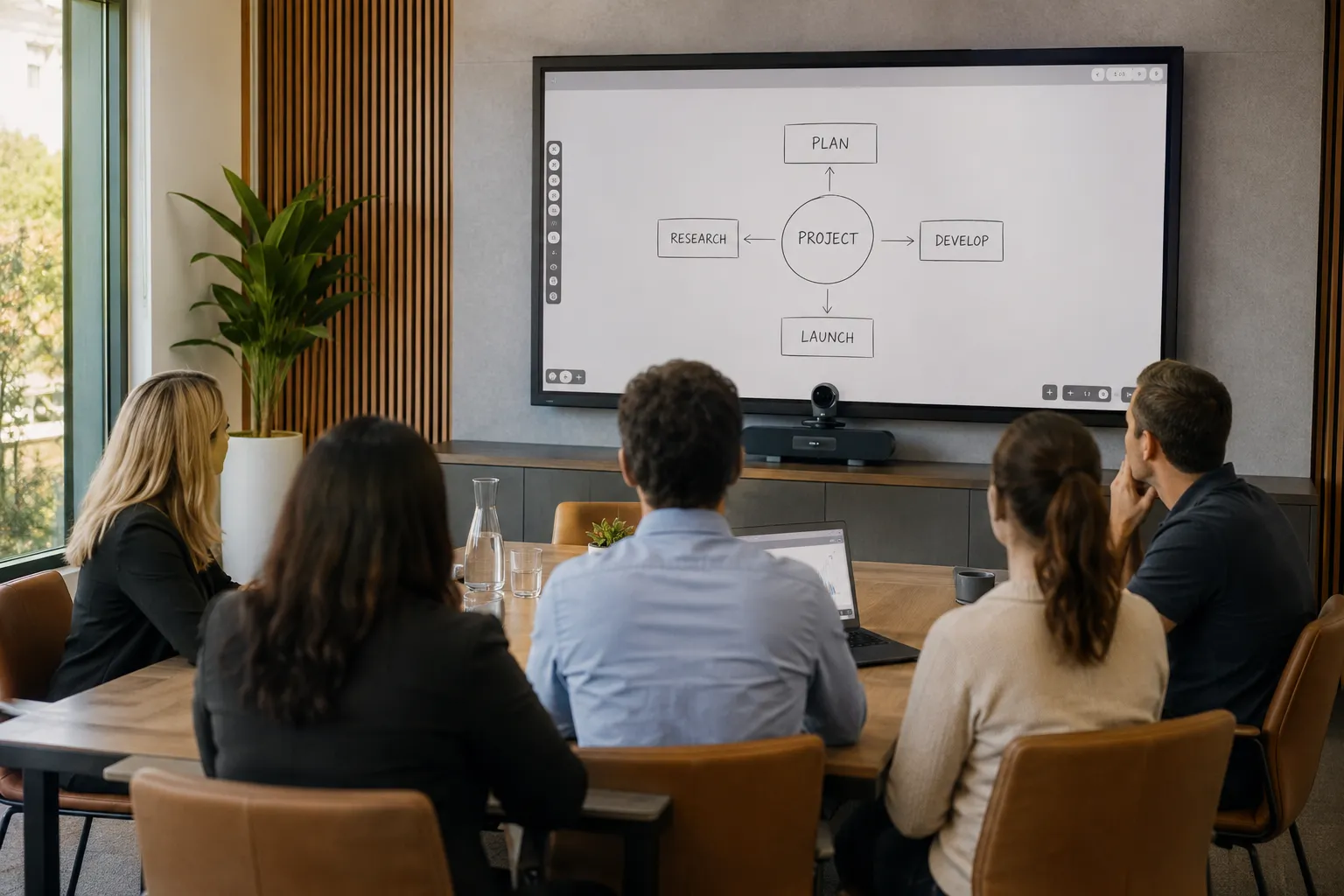
Corporate offices upgrading from projector-and-whiteboard boardrooms
Schools and training organisations setting up staff meeting and PD rooms
Small businesses fitting out their first dedicated meeting space
Budget-conscious organisations fitting out multiple rooms where price per room matters as much as spec
This page does not list product pricing. Current pricing for individual boards is available on each product page and is subject to change.
Fitting out a meeting room involves more moving parts than most businesses expect, which is exactly why we start with how the room will actually be used before recommending hardware.
As an independent small business, our reviews reflect the advice we give as much as the products we sell.
See what businesses across the Gawler and Adelaide region say about working with us.
Read Our ReviewsCommon Questions
Meeting Room Interactive Display FAQs
The ideal size depends on the number of people in the room and the viewing distance, not the room's floor area. A 55" display suits huddle rooms seating 2-4 people, a 65" board is the most common choice for meeting rooms of 4-8 people, and boardrooms seating 8-16 generally need a 75" or larger display so everyone can comfortably read detailed content.
They solve different problems - a whiteboard handles in-room annotation and collaboration, while video conferencing hardware handles how the room sounds and looks on a call. Many businesses discover they only need a quality commercial display with dedicated video conferencing equipment rather than a full interactive board.
Yes. A wired USB-C connection carries video, touch, audio and often power from most modern Windows and Mac laptops. Most interactive displays also support wireless screen sharing, letting presenters switch between Windows and macOS devices without changing cables.
Modern interactive whiteboards can operate either independently or alongside a laptop. EDLA-certified Android displays can access cloud storage, Microsoft 365 and Google Workspace without a computer connected. Other systems are built around a Windows or Mac workflow, where the laptop remains the primary device and the board becomes an extension of it.
Wired USB-C remains the most reliable option for permanent meeting rooms, carrying video, touch and audio over a single cable. Wireless presentation systems are better suited to hot-desking environments where multiple presenters use different laptops throughout the day.
Costs vary according to screen size, commercial-grade hardware, interactive technology, software platform and installation requirements. Rather than quoting a single figure, we recommend matching the solution to how the room will be used first, then fitting products to the available budget.
BenQ and Samsung generally suit organisations wanting premium collaboration features, excellent writing performance and long-term software support. ViewSonic and Hisense provide capable alternatives for organisations with tighter budgets or straightforward meeting room requirements. The best choice depends on how the room will actually be used, not the brand name alone.
Yes - most hybrid meeting rooms combine an interactive display with a dedicated camera, microphone and speaker system to deliver the best experience for both in-room and remote participants. The board and the video conferencing hardware are separate purchases working together, not one product doing both jobs.
4K Ultra HD is the standard resolution for commercial interactive displays, keeping spreadsheets, CAD drawings, engineering plans and detailed presentations readable from anywhere in the room. Lower resolutions become increasingly difficult to read as screen size and viewing distance increase.
Most single-room installations, including mounting, cable management and configuration, are completed within one working day. Larger deployments involving multiple displays, video conferencing hardware, new cabling or network changes may require additional time.
Yes, and for most meeting rooms it's a clear upgrade - no bulb replacements, no dimming the room to see the screen, and touch and annotation built in rather than bolted on.
Yes. Interactive displays work alongside Microsoft Teams and Zoom as the screen and annotation surface, while a separate camera, microphone and speaker setup handles the call itself.
Most commercial interactive displays support multi-touch input, allowing several people to write, annotate or move content on screen at the same time.
It depends on the board and the features used - core whiteboarding and annotation tools are typically included, while some cloud collaboration or device management features can carry an optional subscription.
The best choice depends on room size, how the board will be used, and budget - BenQ and Samsung suit most Australian meeting rooms, with ViewSonic and Hisense offering solid budget-conscious alternatives.
Ready to Fit Out Your Meeting Room?
Tell us your room size and must-haves, and we'll point you to the right board and setup — no obligation, no pressure.