
Digital Signage for Schools — What Every Campus Environment Actually Needs
Choosing the right digital signage for your school is rarely about buying a screen. It's about understanding that every area of a school campus has different operational requirements — and that a display that works perfectly in reception can fail within three years in a canteen kitchen.
This page works through six distinct campus environments — canteen, reception, corridors, staff room, outdoor, and classroom — covering what each one actually needs, what drives the specification, and where schools most commonly make costly procurement mistakes.
Our dedicated classroom page covers every aspect of the interactive display decision for Australian schools — platform comparison, writing feel, and rollout planning.
Classroom Interactive Displays →To discuss your school's specific display requirements directly with Andrew:
Talk to Andrew →
- Supplying Schools Since 2007
- South Australia Based
- Australia-Wide Delivery
- All Major Education Brands
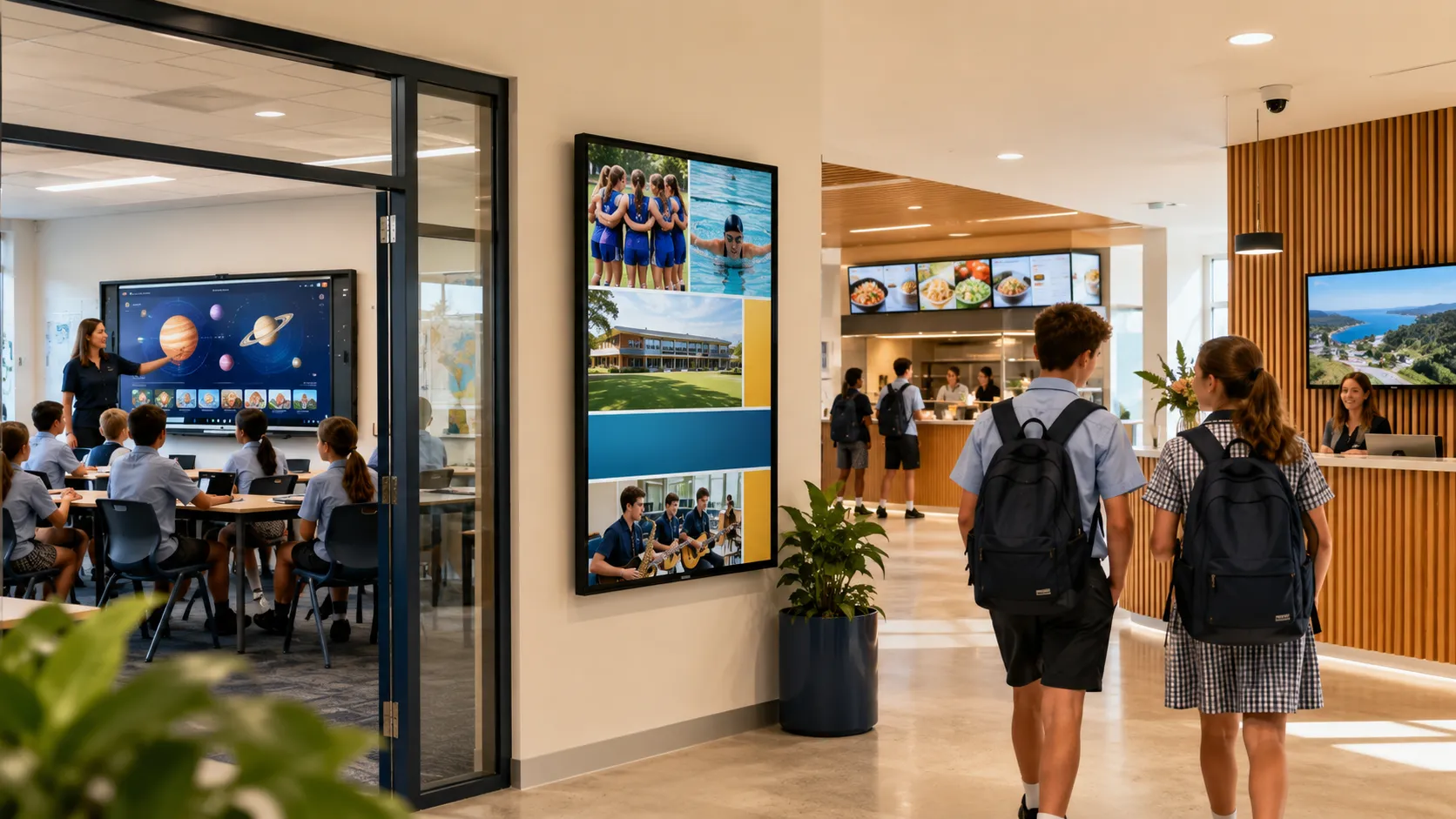
What Australian Schools Need to Know Before Buying Display Technology
- Choosing digital signage for a school is rarely about a single screen — a typical Australian school campus needs six distinct display environments, each with different technical requirements, different users, and different operating conditions
- Classroom interactive displays are the most consequential decision — platform choice affects teacher workflows and student engagement for 5–7 years, and getting it wrong is expensive to reverse
- School canteens are one of the most consistently under-specified display environments — consumer televisions and standard commercial displays regularly fail early due to heat, operating hours, and kitchen conditions
- Content management is as important as the hardware — the right CMS integrates with your existing Google or Microsoft environment and lets non-technical staff update their zone in under two minutes without IT assistance
- Manufacturer model ranges change regularly — the brands with genuine education credentials are consistent, but specific models evolve — always verify current Australian availability before committing
- The schools that get the most from their display investment plan the campus first and buy the hardware second
- Common procurement mistakes — consumer TVs in canteens, one display type across all spaces, CMS chosen after installation — are avoidable with the right sequence
A School Campus Needs Six Different Display Solutions
Before diving into each environment, it helps to see the full picture. Each area of a school campus involves a different procurement decision driven by different operational conditions.
The table below maps each campus area to the display type that typically suits it and the specification factor that drives the decision in that environment.
| Campus Area | Typical Display Type | Key Specification Driver |
|---|---|---|
| Classrooms | Interactive flat panel display | Writing feel — Software ecosystem — Platform longevity |
| Reception / Front Office | Commercial landscape display | Brightness — Content management — Emergency integration |
| Canteen | Portrait menu board display | Duty cycle rating — Heat tolerance — Content update ease |
| Corridors / Common Areas | Commercial landscape display | CMS simplicity — Mounting — Brightness |
| Staff Room / Administration | Commercial display | Operating hours — CMS permissions |
| Outdoor / Entrance | High-brightness weatherproof display | IP rating — Nits rating — UV & heat tolerance |
Each of these is a different procurement decision. The sections below cover what matters in each environment — and where schools most commonly get it wrong.
Classroom Interactive Displays — A 5–7 Year Platform Decision
The classroom is where the most significant display technology decision in any school gets made — and the one with the longest consequences. Interactive flat panel displays have replaced projector-based whiteboards across most Australian schools, and the choice of platform shapes teacher workflows, student engagement, and IT management for the next 5–7 years.
This decision involves writing feel, software ecosystems, Google Workspace or Microsoft 365 compatibility, hybrid learning capability, teacher onboarding, and a total cost of ownership that extends well beyond the per-unit hardware price. It deserves its own detailed treatment.
Interactive Whiteboard for Classroom — our dedicated page covers every aspect of the classroom display decision for Australian schools, from platform comparison and writing feel through to multi-classroom rollout planning and total cost of ownership.
Read the Full Page →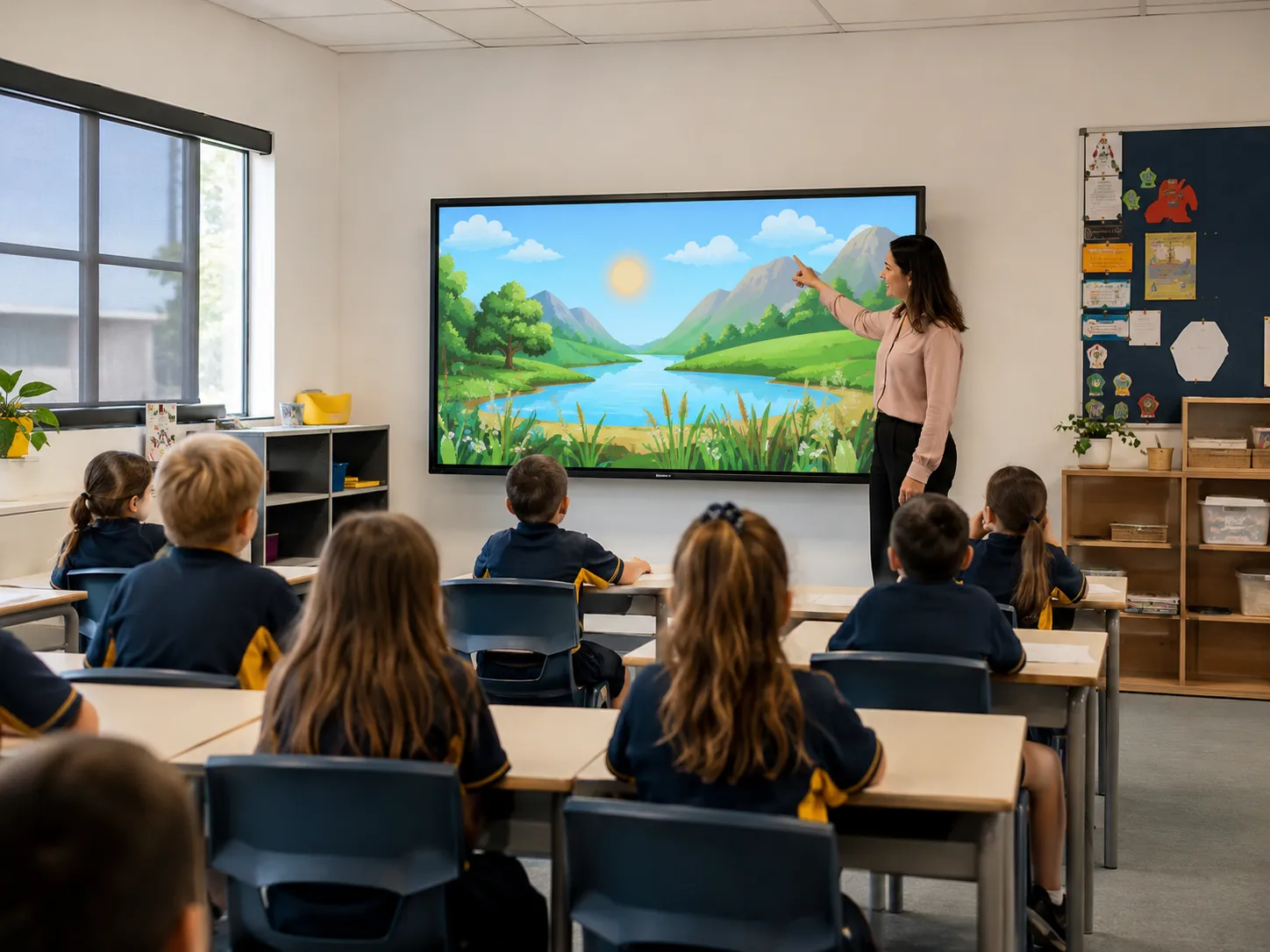
The most expensive school display projects I've seen weren't caused by buying poor hardware — they came from buying the right hardware for the wrong location. A panel built for an air-conditioned reception will fail prematurely in a hot canteen kitchen. A $4,000 classroom interactive display is complete overkill as a corridor noticeboard. Map every environment on your campus before choosing a single product — it almost always saves money over the life of the deployment.
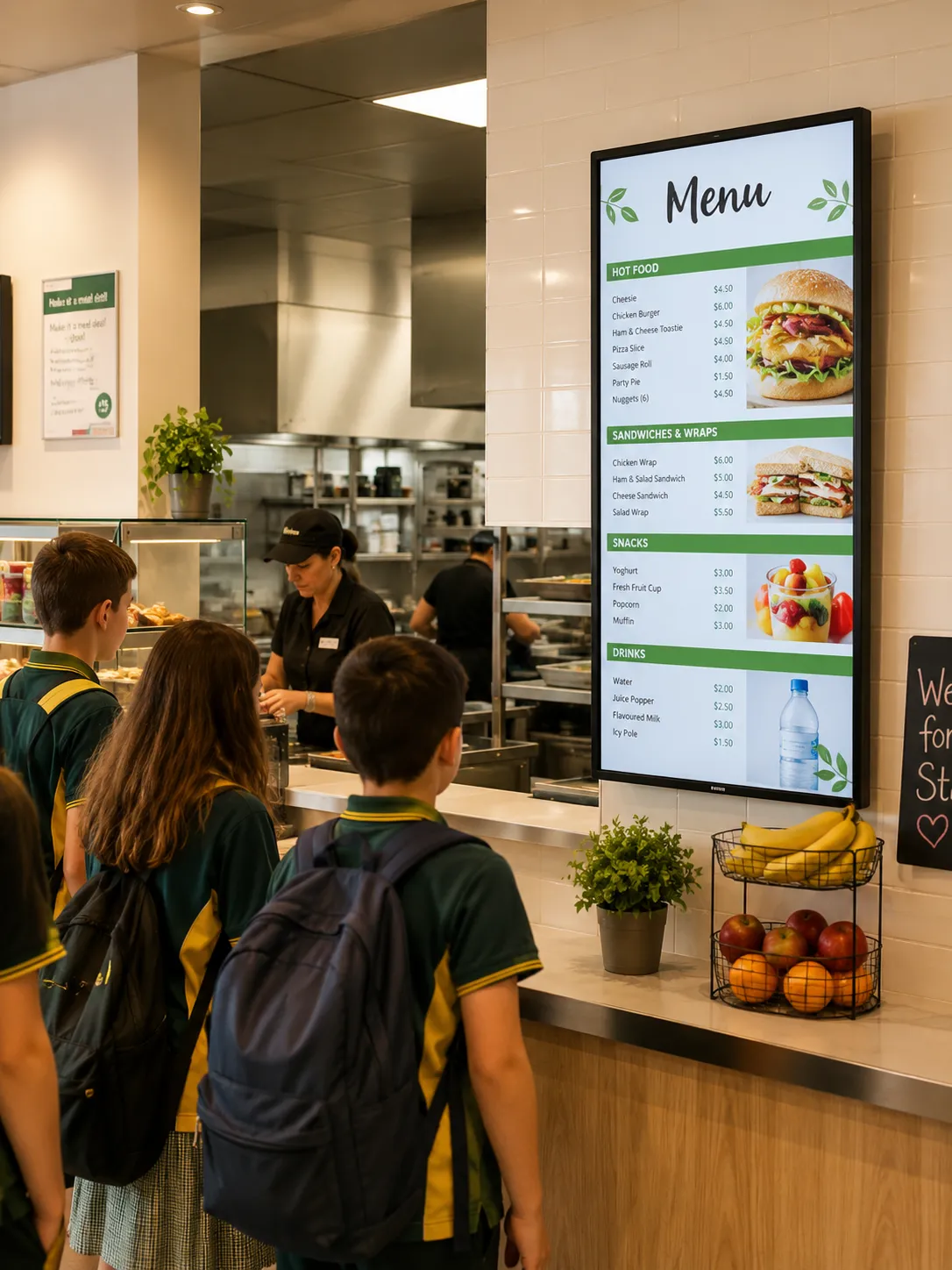
School Canteen Digital Menu Boards — The Most Under-Specified Environment on Campus
In our experience, school canteens are one of the most consistently under-specified display environments we see. They look straightforward — a screen showing today's menu — but the operating conditions make them one of the more demanding commercial display deployments on a school campus.
Canteen displays run from before school opens until after the lunch service ends. In most schools that's eight to ten hours a day, five days a week, across a forty-week school year. They operate in environments with elevated ambient temperature, airborne cooking grease, and often limited ventilation behind the servery counter. A consumer television in these conditions will show premature panel degradation — uneven brightness, colour shifts, dead zones — within two to three years. We see it regularly. The replacement cost combined with the original purchase ends up higher than a correctly specified commercial display would have been from the start.
Commercial displays rated for 16/7 operation are the minimum for a school canteen environment. In canteens adjacent to cooking equipment or with poor ventilation, a 24/7 rated display is the more appropriate specification — not because the screen runs 24 hours a day, but because the thermal engineering inside a 24/7 panel handles sustained heat load more reliably over time.
Portrait orientation suits most canteen menu board layouts — a tall narrow display shows a menu more naturally than a wide landscape panel. Worth checking before purchasing: not all commercial displays support portrait mode at full duty cycle rating. Some manufacturers cap portrait operation at fewer hours per day than the landscape specification. Verify this against the manufacturer's documentation before committing.
Content management for a school canteen is worth thinking through before selecting hardware. The staff member updating Thursday's specials is not an IT coordinator — they need a system that lets them change content from a tablet or laptop in under two minutes, without logging into something complicated or calling for help.
For a full explanation of duty cycle ratings and how they affect display longevity in high-use environments like school canteens, our dedicated page covers everything you need before specifying hardware:
Understand commercial display duty cycle ratings →
For an overview of content management platforms suited to school environments — including options that integrate with Google Workspace and Microsoft 365 — see our signage CMS page:
School Reception Digital Signage — Emergency Messaging, Visitor Management and More
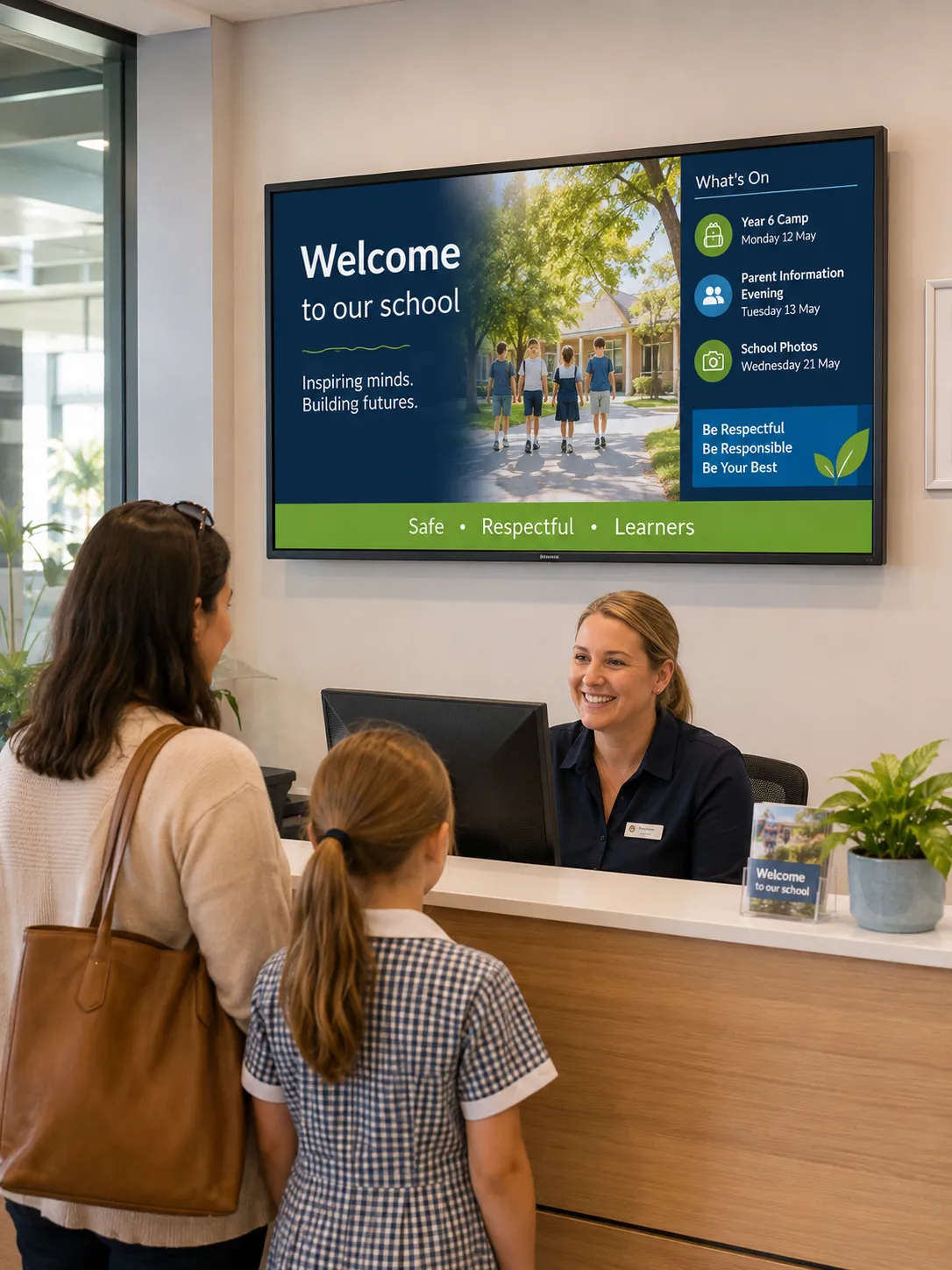
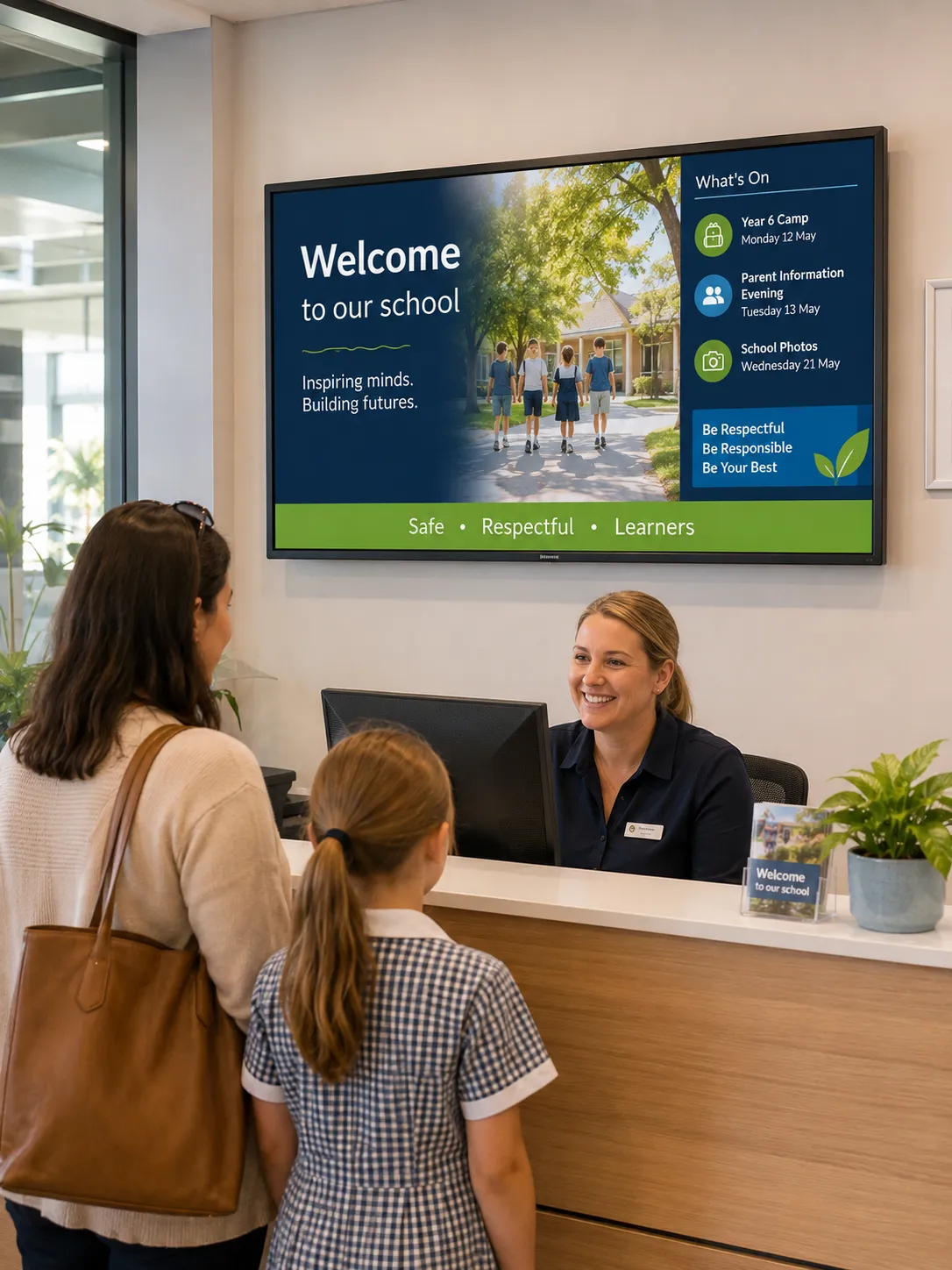
Reception displays in schools do more than create a first impression. They are an active communication tool — and thinking about them only in terms of aesthetics undersells what they can do for a busy school front office.
A well-configured reception display handles a range of real operational needs throughout the school day:
- Visitor information and check-in instructions during school hours
- Emergency messaging and lockdown instructions when needed
- Event welcome screens for parent information nights and enrolment periods
- School values and community notices for parents and contractors waiting
- Real-time scheduling information for administration staff managing a busy front desk
- Student achievement recognition and upcoming event promotion
The emergency messaging use case is worth planning for specifically. Some schools connect their reception display to their PA and emergency management systems so that lockdown instructions, evacuation routes, or urgent alerts can be pushed to the screen automatically without manual intervention. CMS platform compatibility with your emergency management system needs to be confirmed before hardware selection — not retrofitted afterwards.
Hardware requirements for reception are more straightforward than the canteen or classroom. A quality commercial landscape display, 400 nits or above to handle natural light from windows or skylights, connected to a CMS that gives front desk staff simple update capability, suits most reception environments. Standard commercial operating hours mean a 16/7 rated panel is generally appropriate.
Corridors and Common Areas — Replacing the Physical Notice Board
Walk through most Australian schools and you'll find physical notice boards covered in overlapping A4 printouts — some current, some weeks old, some half-removed. Digital displays in corridors and common areas solve this problem directly. But only if updating them is easier than printing and pinning.
The practical test for corridor signage: can a classroom teacher or administration staff member update the display from their desk, in under two minutes, without IT assistance? If the answer is no, the display will run stale content or generate IT tickets. Neither justifies the investment.
The content that corridor displays actually carry in Australian schools includes:
Today's timetable changes, assembly reminders, bus change notices, room relocations
Sports day schedules, parent-teacher interviews, excursions, exam timetables, canteen specials
Student achievement recognition, school values, community notices, fundraising campaigns
A permissions model that lets the sports coordinator update the sports board without touching the administration notices — and lets the canteen manager push a sold-out alert without accessing the general noticeboard — is the practical requirement. Most enterprise-grade CMS platforms support role-based content zones. Confirm this before selecting a platform.
Hardware requirements for corridors are relatively modest. Commercial landscape displays in 43″ to 55″ sizes suit most corridor widths. Brightness of 400–500 nits is advisable where natural light enters from windows or skylights. In high-traffic student areas, displays benefit from commercial-grade tempered glass and secure mounting.
Staff Rooms and Administration — Internal Communication That Actually Gets Read
Staff room displays work best when they carry genuinely operational content — the kind of information that currently lives in an email that gets buried, a printed memo that gets ignored, or a verbal announcement at the start of a staff meeting that half the room misses.
The four cards below cover the main use cases and hardware considerations for staff room and administration displays — a shorter checklist than most campus environments, but worth getting right.
What Staff Room Displays Carry
Daily briefing summaries, timetable changes, upcoming professional development dates, maintenance alerts, and room booking information — reducing the load on email for time-sensitive updates and giving staff a single place to check operational information.
Meeting Room Booking Displays
For schools with dedicated meeting rooms, a small display mounted outside each room showing current and upcoming bookings reduces double-booking friction without requiring a central coordinator to manage it manually.
Hardware Requirements
Staff room displays have the most forgiving hardware requirements on a school campus — standard operating hours, controlled indoor environments, and limited public interaction. A quality commercial display rated for standard operating hours suits most staff room and administration deployments.
Content Management
Staff-facing displays benefit from the same CMS as the rest of the campus — separate systems for staff and public-facing displays create unnecessary management overhead. A single platform with role-based zone permissions handles both without duplication.
School Outdoor and Entrance Displays — What Australian Conditions Actually Demand
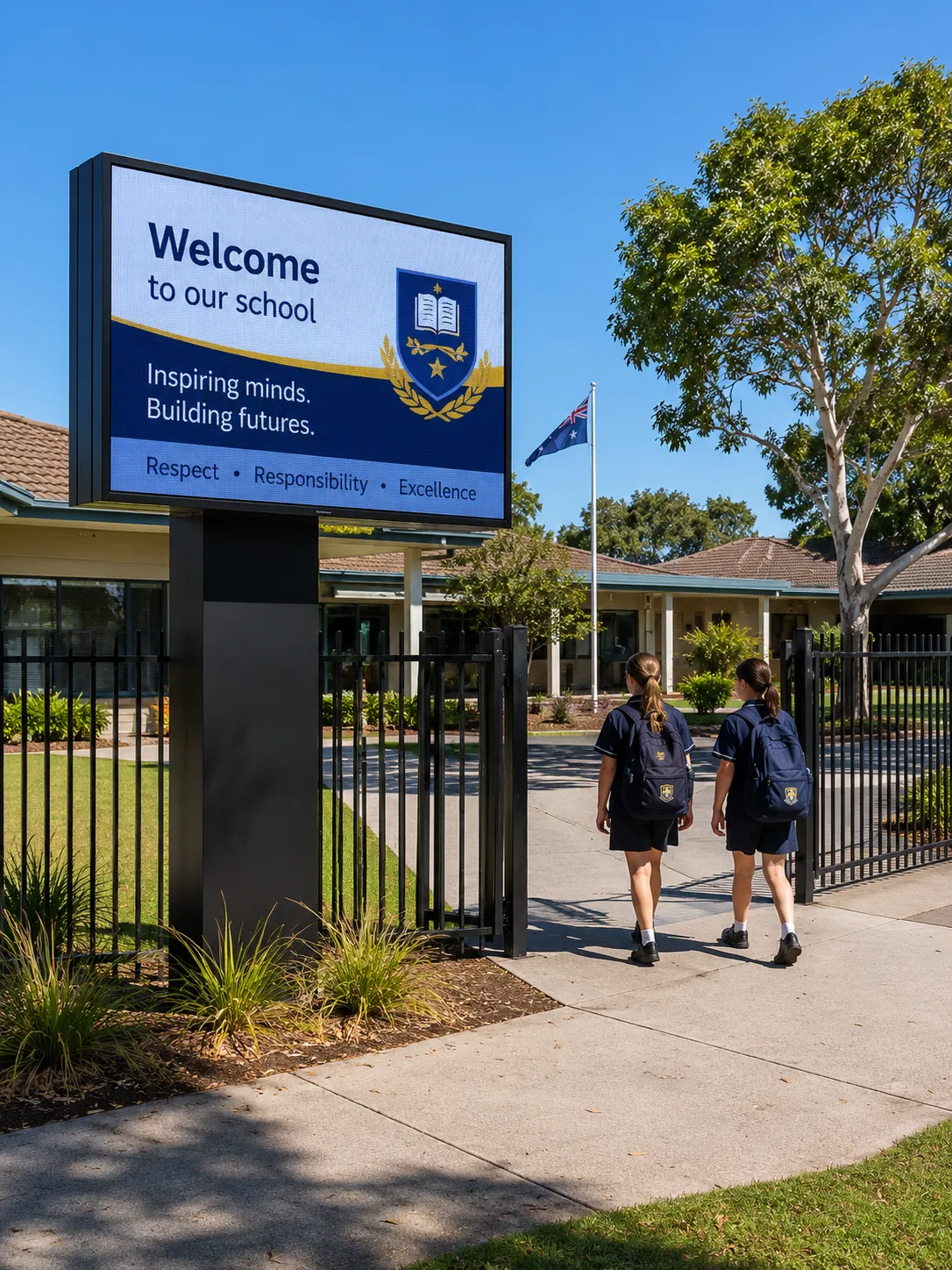
Outdoor display requirements vary considerably across a school campus. An entrance sign at the school gate faces direct sun exposure and needs to remain legible to passing traffic. A display in a covered outdoor assembly area has different light and weather conditions. A sports facility display may need to handle scoring, event scheduling, and community-facing announcements across a full weekend of activity.
Australian outdoor conditions are genuinely demanding. West-facing school entrances deal with intense afternoon glare. Open courtyards concentrate reflected heat. Morning sun can make an east-facing entrance display unreadable during peak arrival periods. These aren't edge cases — they're common site conditions that need to be assessed for each specific location before hardware is specified.
Non-negotiable for any outdoor school display. Protects against dust and moisture ingress in all Australian weather conditions.
2,500 nits minimum for direct sunlight locations. Covered outdoor areas with indirect light may suit 700–1,000 nits in an appropriate enclosure.
UV-resistant housing and thermal management rated for Australian temperature extremes. On-site assessment recommended before specifying.
Consumer-grade or standard indoor commercial displays are not appropriate for outdoor school environments — not even in enclosures, which introduce their own thermal management problems.
Our outdoor digital signage page covers IP ratings, brightness specifications, enclosure options, and Australian deployment considerations in full — useful reading before specifying any outdoor school display:
Content Management for Schools — The Decision Most Schools Leave Too Late
The CMS choice constrains the hardware choice — not the other way around. A school that selects displays first and then tries to find a CMS that works with them often ends up with a system more complex than it needs to be, or that requires IT involvement for tasks that should be self-service.
Native Google Account Integration
CMS platforms with native Google account authentication reduce friction significantly — staff log in with their school Google account rather than managing a separate login. EDLA-certified displays (Google Enterprise Devices Licensing Agreement) provide native, security-compliant access to the Google Play Store without sideloading or third-party APK workarounds — which matters for schools with strict IT security policies.
Azure AD & Teams Integration
CMS platforms with Azure AD integration and Teams compatibility provide equivalent benefits for Microsoft environments — single sign-on, familiar interfaces, and compatibility with existing IT infrastructure. Independent and Catholic schools are more commonly Microsoft-aligned; verify platform compatibility before hardware selection.
Network-Level Content Control
School groups and education authorities managing displays across multiple campuses need a CMS with centralised content control — the ability to push content to all sites while giving individual schools the ability to manage local zones. Most enterprise-grade platforms support this model. Scope the infrastructure requirements before hardware selection.
Under Two Minutes, No IT Call
The right CMS for a school passes one test: can a non-technical staff member update their content zone in under two minutes without calling IT? If they can't, the system won't be used consistently — and stale content on a corridor noticeboard is worse than no digital display at all.
For a full comparison of content management platforms suited to school and multi-campus education environments, including Google Workspace and Microsoft 365 compatible options:
Display Manufacturers With Genuine Education Credentials
Not every commercial display manufacturer has invested meaningfully in education-specific product development. The manufacturers with the strongest long-term investment in education have remained relatively consistent — but specific models, current pricing, and Australian availability change regularly as manufacturers release updated generations.
A note on model recommendations: We work across all major education display brands and recommend based on your specific environment and current Australian stock — not a fixed catalogue. For current model recommendations suited to your school's budget and requirements, contact us directly.
Samsung & BenQ
Manufacturers well established in this environment:
- Samsung
- BenQ
Samsung and BenQ are well established in Google Workspace school environments. Samsung's education interactive display range includes EDLA certified options, supporting native Google Play Store access, Chromebook casting, and Google Classroom integration. BenQ's Board range also carries EDLA certification alongside TÜV-certified anti-microbial glass surfaces and built-in microphone arrays — a combination that suits primary schools where hygiene specifications carry weight in procurement. Both manufacturers offer open Android platforms that integrate naturally with Google Workspace workflows.
To see the full Samsung commercial display range available through Kickstart — including current education interactive display models and non-interactive signage options for canteens, corridors, and reception areas:
Samsung digital signage range at Kickstart →To see the full BenQ commercial display range available through Kickstart — including the Board education interactive display range and BenQ's broader commercial options:
BenQ display range at Kickstart →SMART Board, Promethean & LG
Manufacturers well established in this environment:
- SMART Board
- Promethean
- LG CreateBoard
SMART Board and Promethean are the most widely deployed education-focused ecosystems in Microsoft 365 school environments. SMART Board is well established in schools prioritising classroom writing feel and Microsoft Teams integration. Promethean's ActivPanel has a large installed base across Australian schools, with a software ecosystem built specifically for classroom engagement — schools already running ActivInspire lesson libraries benefit from staying within the Promethean ecosystem to avoid significant content migration costs. LG's CreateBoard range also performs well in Microsoft environments, bringing strong commercial display engineering to the education interactive display category.
If you're evaluating SMART Board and Promethean side by side for an Australian school context, this comparison post covers the key differences in depth:
Promethean vs SMART Board for Australian schools →If you're comparing all three major education platforms — SMART, Promethean, and BenQ — this three-way comparison covers the decision in a school deployment context:
Promethean vs BenQ vs SMART — three-way comparison →For the full classroom interactive display decision — covering platform choice, writing feel, ecosystem, and rollout planning beyond these individual brand comparisons:
Interactive whiteboard for classroom — full platform decision overview →Philips, Samsung, Hisense & ViewSonic
Manufacturers with strong non-interactive commercial display options for school campus signage:
- Philips
- Samsung
- Hisense
- ViewSonic
Philips commercial displays offer well-regarded options for non-interactive school signage. The Philips D-Line is rated for 24/7 operation and suits canteen and high-use environments; the Q-Line is rated for 18/7 and is appropriate for corridors and reception areas with standard operating demands — a distinction worth confirming against your specific operating hours before purchasing. Samsung's commercial display range has a strong track record across Australian school deployments. For schools where budget efficiency is a priority, Hisense and ViewSonic both offer capable commercial display options worth considering depending on specification requirements.
For a full explanation of the difference between 16/7 and 24/7 rated displays and how to choose the right specification for each school environment — including canteen, corridor, and outdoor scenarios:
Understanding 16/7 vs 24/7 duty cycle ratings →To see the full Philips commercial display range available through Kickstart — including D-Line and Q-Line models suited to school canteens, corridors, and reception areas:
Philips commercial display range at Kickstart →To see the full Samsung commercial display range at Kickstart — including options suited to non-interactive school signage across canteens, corridors, and outdoor environments:
Samsung digital signage range at Kickstart →Common Mistakes Schools Make When Buying Display Technology
These are the procurement decisions we see create problems — consistently, across school types and budget levels. Most are avoidable with the right sequence.
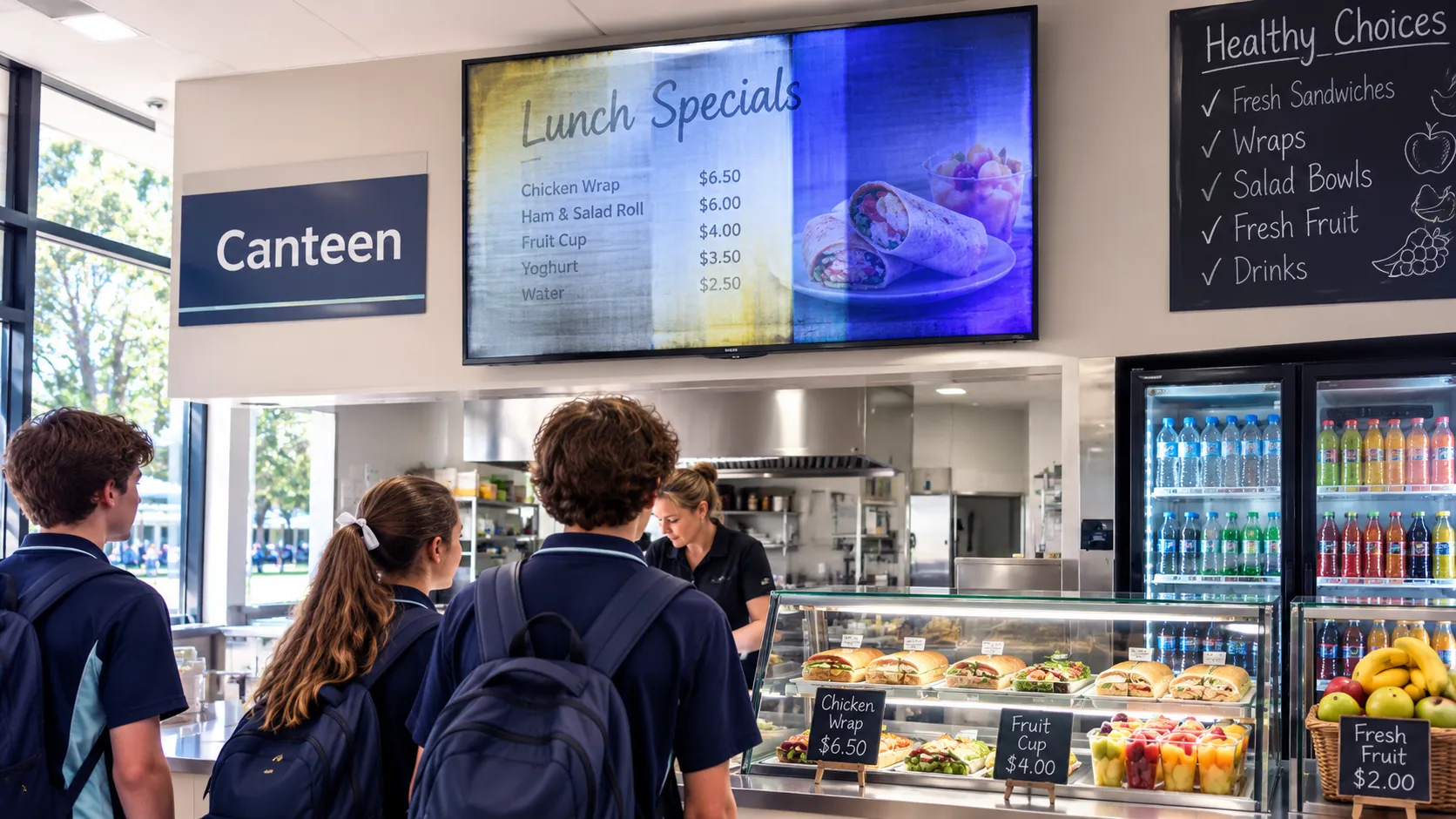
The image below shows what premature panel degradation looks like in a school canteen — a common outcome when consumer televisions are used in commercial operating conditions.
Buying Consumer Televisions for the Canteen
The most common and most expensive mistake. Consumer TVs are not rated for canteen operating conditions — heat, airborne grease, and extended daily operation. They fail early, the warranty doesn't cover commercial use, and the combined replacement cost ends up higher than a correctly specified commercial display from the start.
Specifying One Display Type Across the Whole Campus
A single product rarely suits every environment. The display right for a corridor is wrong for a canteen. The display right for a classroom is wrong for outdoor use. Campus-wide specifications that ignore environmental differences create expensive problems that surface years later.
Choosing the CMS After Installation
Content management should drive hardware selection, not follow it. Schools that select displays first often discover CMS incompatibilities that require workarounds, additional hardware, or a system more complex than the job requires. Decide on your platform first.
Forgetting Staff Training
Hardware without onboarding produces displays that don't get used. A corridor noticeboard that requires IT assistance to update will run stale content within a term. A classroom interactive panel that teachers weren't trained on close to installation often becomes an expensive display screen. Budget for training at the right time.
Buying on Brightness Specification Alone
Higher nits doesn't automatically mean better visibility in every environment. A 700-nit display in a well-shaded corridor may outperform a 1,000-nit display in a poorly configured room. Brightness needs to be assessed against the specific light conditions at each location — not compared on a specification sheet.
Ignoring Warranty and Local Support
A display failure in a classroom or canteen has immediate operational consequences. A supplier with local support capability resolves issues in hours. International manufacturer support channels can take days or weeks. For school deployments, local warranty support isn't optional.
Selecting a Platform Without Involving the Staff Who Use It
Teachers who weren't consulted in the classroom display decision are the most resistant to adopting it. Canteen staff who weren't involved in the CMS selection are the most likely to revert to printed signs. Involvement in evaluation produces adoption after installation.
Overlooking Large-Audience Presentation Needs
Some schools also need display solutions for assembly halls, gymnasiums, and large-group events — environments where projector technology is often more appropriate than flat panel displays. This page focuses on campus display signage. If your school has large-audience presentation requirements alongside a signage project, contact us to discuss the full range of options.
School Digital Signage Rollout — What to Lock In Before You Buy a Single Screen
The schools that get the most from their display technology investment almost always share one characteristic — they planned the campus before they bought the hardware.
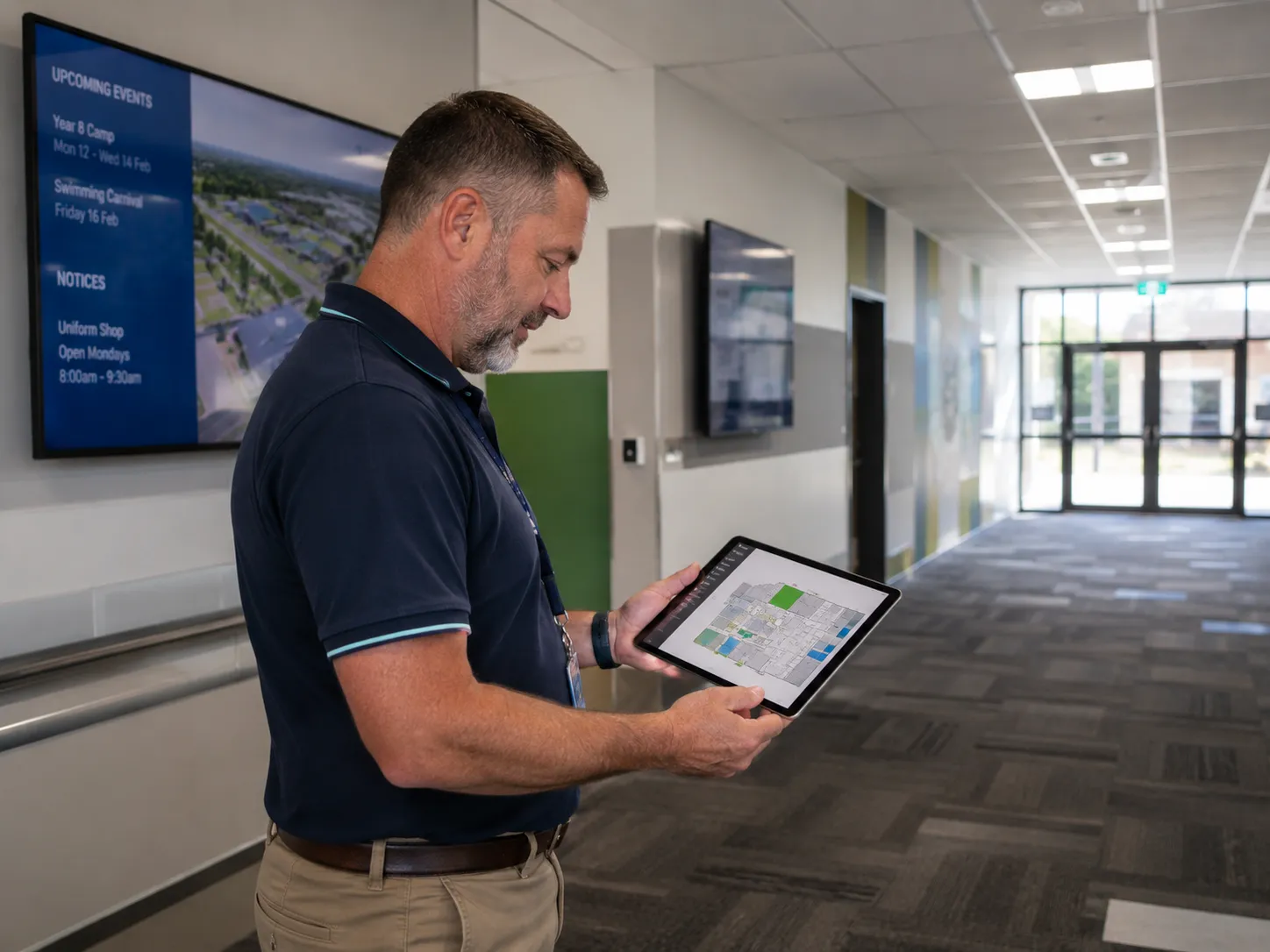
- Map every display location on campus first Walk the campus and identify each space — what it needs to do, who will manage the content, how many hours per day it will run, and what the environmental conditions are. This determines the specification for each location and usually reveals that different spaces need different products.
- Decide on a content management platform before selecting displays The CMS should drive the hardware decision. A platform your staff will actually use, that integrates with your existing Google or Microsoft environment, and that allows the right people to update the right zones without IT assistance, is worth more than marginally better hardware connected to a system nobody opens.
- Build onboarding into the project budget from the start Training delivered at or shortly after installation produces adoption. Training delivered months earlier is largely forgotten. For classroom interactive displays, structured onboarding within the first two weeks of use is the most reliable predictor of long-term adoption.
- Phase the deployment where budget allows Beginning with two or three locations as a pilot — particularly for the classroom interactive display decision — allows real-world validation before a full campus commitment. A semester of genuine use is more reliable evidence than any specification document.
- Calculate the full lifecycle cost, not just the hardware price Installation, mounting, content management subscriptions, IT management, staff training, warranty support, and eventual hardware refresh all contribute to the real cost. Schools that budget only hardware cost consistently find the project more expensive than anticipated.
A video wall looks impressive in an assembly hall or gymnasium on paper — but once professional installation, licensed electrical work, and structural considerations are factored in, the total installed cost often shifts the calculus significantly. In these spaces, upgraded laser projector systems frequently offer comparable visual impact at a lower installed cost. If your school is weighing options for a large communal space alongside a campus display project, it's worth having that conversation before committing to a display format. Contact us to discuss the full range of options.
Most Schools Don't Replace Everything at Once
A staged rollout across budget cycles is the most common approach — and with the right planning it works well. The critical thing is selecting a CMS in year one that can scale to cover the whole campus, so each subsequent purchase fits cleanly into an existing system rather than creating incompatible islands.
Plan the Full Campus
Map every display zone before buying anything — even if this budget cycle only covers one area
Select the CMS Platform
Choose a platform that scales to the full campus — not just the first deployment area
Specify Hardware by Location
Match each display to its environment — canteen, classroom, corridor, outdoor each have different requirements
Pilot One Area First
Start with classrooms or reception — validate the platform with real users before full campus commitment
Onboard Staff at Installation
Training delivered at the point of use — not months before — produces consistent adoption
Roll Out Across Campus
Expand to remaining zones across subsequent budget cycles — each step fits the existing platform
The image below reflects how most school display projects actually start — with someone walking the campus and mapping what each space needs before a single product is specified.
At Kickstart Computers, we've been deploying display technology across South Australian schools since 2007 — across classrooms, canteens, reception areas, corridors, and outdoor spaces. We provide campus-level advice based on your specific environment and current product availability, not a fixed package recommendation.