
Interactive Whiteboards Australia — Everything You Need to Know Before You Buy
Picking an interactive whiteboard sounds straightforward until you realise that two displays with almost identical specifications can feel completely different the moment someone picks up a pen. One feels immediate, like pen on paper. The other feels a fraction behind. That gap doesn't show up on a spec sheet, but it determines whether teachers use the board every day or ignore it after a month.
Most people begin by comparing brands. In our experience, that's usually the wrong place to start. The room has a much bigger influence on whether an interactive display succeeds than the logo on the front. Understand how room layout, lighting, mounting, touch performance and connectivity influence the outcome before comparing brands, and choosing between manufacturers becomes much simpler.
After supplying interactive displays since 2007, we've found the process almost always follows the same order: understand the room, choose the platform, then compare brands. Get those three right and the size and budget decisions almost make themselves.
- Australian stock — all major brands
- Commercial specialists since 2007
- Independent advice — no brand favourites
- Adelaide-based, Australia-wide supply
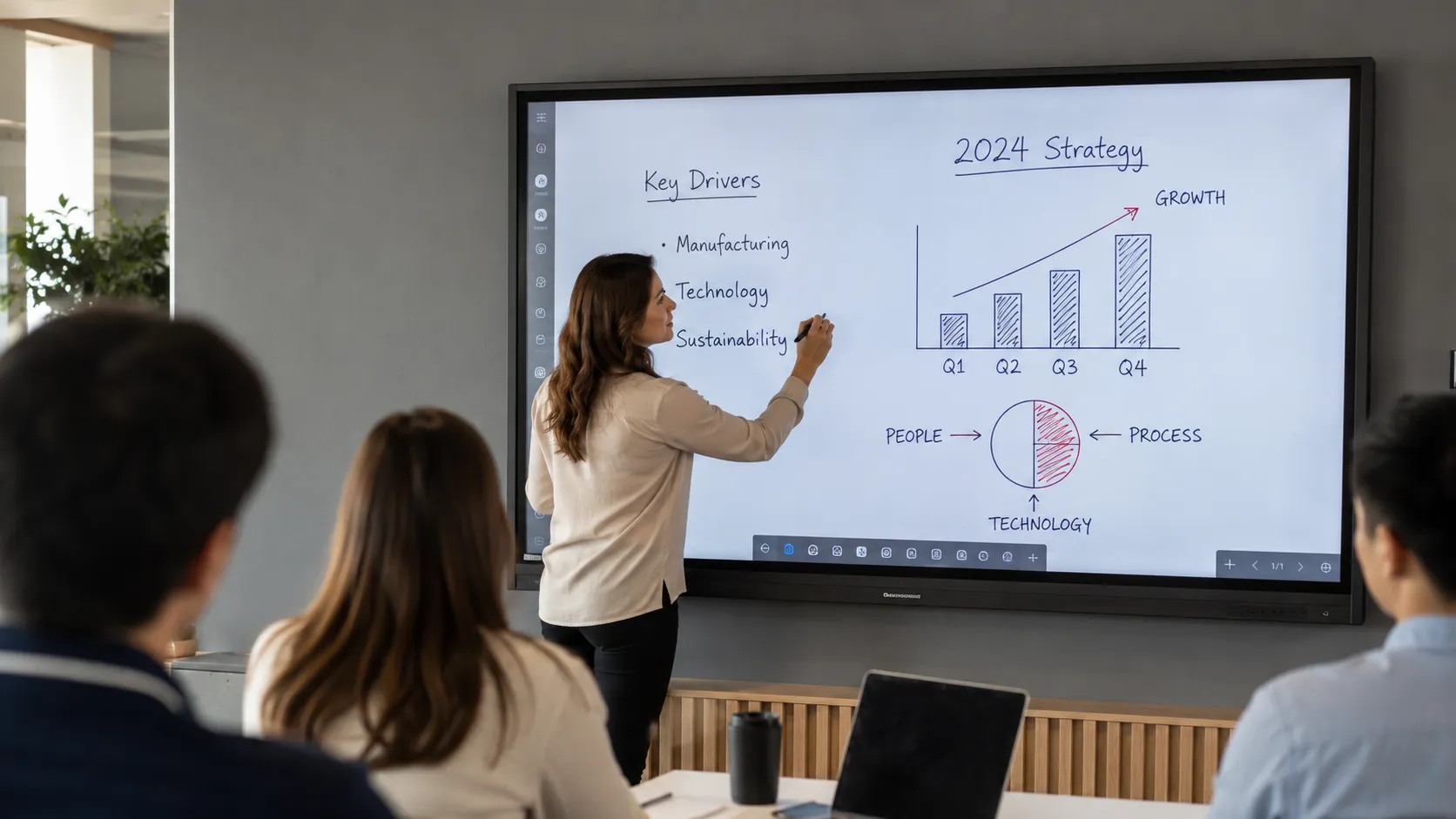
Before You Compare Brands — What Environment Are You Buying For?
- ✓ Schools replacing projectors or ageing interactive boards
- ✓ Businesses fitting out meeting rooms or boardrooms
- ✓ IT managers comparing platforms before a multi-site rollout
- ✓ Government and enterprise teams specifying collaboration displays
- ✓ Anyone quoted an interactive whiteboard price who wants to understand what they're actually being sold
If you already know which environment you're buying for, use the environment links in the cluster map below to go straight there.
Need a fast quote or advice for a multi-site rollout? Talk to someone who has been doing this since 2007.
Contact Us →Not what you're looking for? If your requirement is content broadcasting — digital menu boards, reception screens, corridor displays, outdoor signage, or video walls — that's a different category. Our digital signage hub covers the full range.
Digital Signage →What This Page Covers — Writing Feel, Platforms, Brands, Pricing, and Environments
Use the map below to jump to any section on this page, or follow the links to dedicated child pages as they go live.
What Actually Matters When Choosing an Interactive Whiteboard — The Short Version
- Writing feel is the specification that matters most — and it appears on no spec sheet. Glass bonding, touch latency, and digital ink processing determine whether a display gets used daily or becomes expensive furniture.
- There are two fundamentally different computing platforms. Android SoC (simpler, Google-friendly) and Windows OPS (enterprise software, full Teams Rooms). Choosing the wrong one for your environment is a more expensive mistake than choosing the wrong brand.
- Every major brand has a genuine strength and a genuine limitation. SMART, Promethean, Samsung, BenQ, LG, Yealink, ViewSonic, Hisense — all covered honestly in Section 5.
- Commercial interactive whiteboards in Australia start from around $1,870 inc GST for a 65" entry-level display. The difference between entry and premium is glass quality, software depth, and commercial build — not just screen size. The difference is glass quality, software depth, and commercial build — not just screen size.
- The right display for a primary classroom is usually wrong for a corporate boardroom. Environment shapes the decision more than brand preference.
How to Choose an Interactive Whiteboard in Australia — A 5-Step Framework
Most buyers approach interactive whiteboards backwards — they start with brand or price and work back to fit. The decisions that actually matter run in a specific order. Get them right and the brand and budget decisions almost make themselves. This is the short version — see the full room-by-room walkthrough of each decision.
Decision 1 — Environment
Where is this going and who uses it? Classroom, boardroom, training room, campus. Everything follows from this answer.
Decision 2 — Platform
Android SoC or Windows OPS? This shapes which brands and models are even on the table.
Decision 3 — Brand
Software ecosystem, writing feel, warranty, specific features. Only compare brands that fit your environment and platform.
Decision 4 — Size
Commercial interactive whiteboards are available in 55", 65", 75", and 86". Most deployments start at 65". As a rough starting point: 55"–65" suits small meeting rooms and breakout spaces; 75" suits standard classrooms and mid-size meeting rooms; 86" suits larger classrooms, training rooms, and boardrooms. Comfortable viewing distance is roughly 2.5–3× the screen height.
Decision 5 — Budget
Budget is the last decision, not the first. Know what environment and platform you need before setting a price ceiling — the wrong display for the right environment costs more to fix than buying correctly from the start.
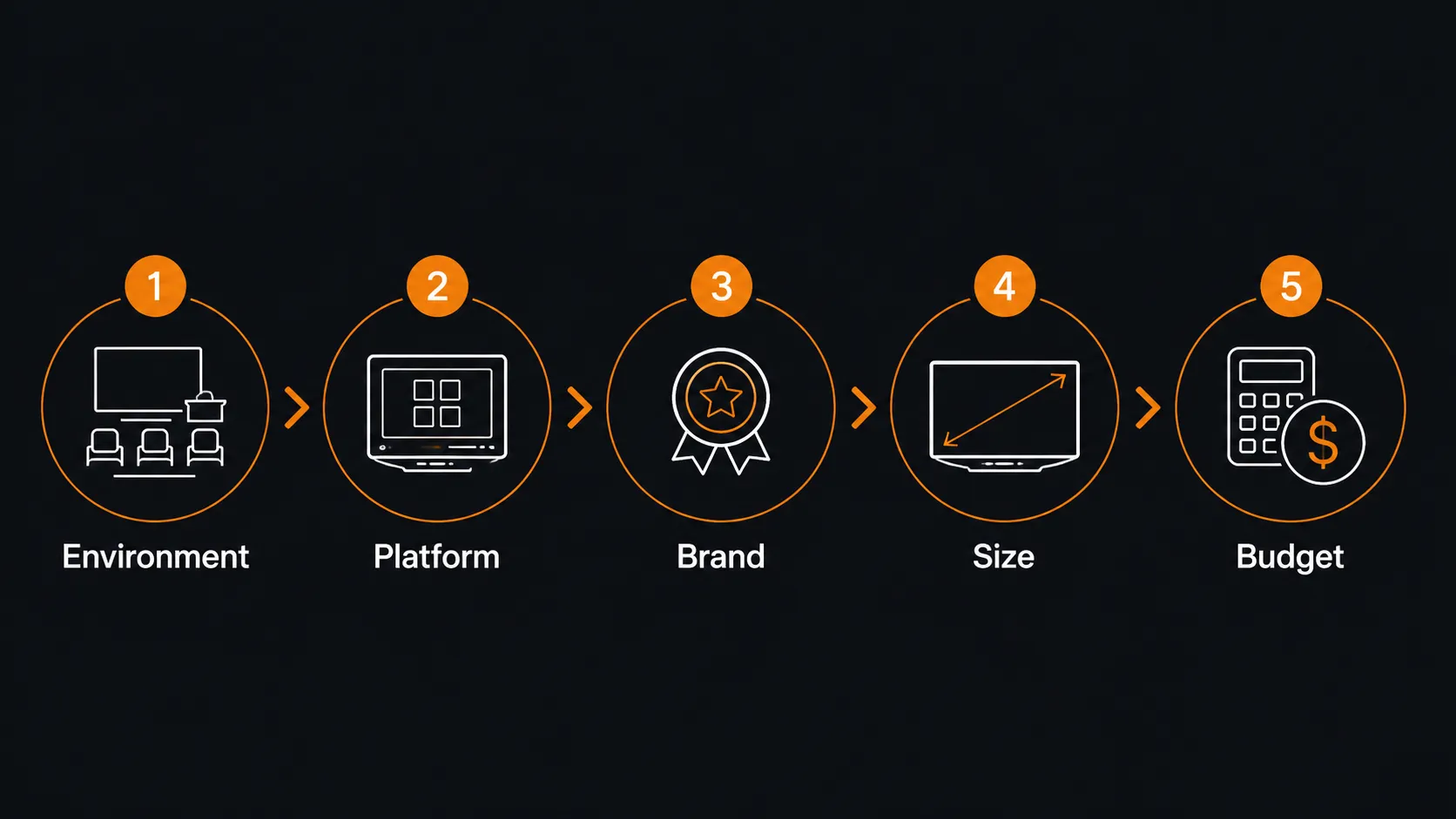
Most buyers compare brands long before they've defined how the display will actually be used. Daily workflow should drive the decision — not the logo on the front. Is writing feel the priority? Do teachers need Android apps and Google Play? Will staff present wirelessly and use touchback? Does Microsoft 365 need to run directly on the display?
Once you know what matters most in daily use, the list of suitable products gets very short, very quickly. Five minutes defining the workflow saves months of buyer's remorse.
What Makes an Interactive Whiteboard Feel Good to Write On — The Specs Behind the Experience
Most people researching interactive whiteboards start with screen size and price. That's reasonable. But the specification that actually determines whether a display gets used every day — or quietly becomes a very expensive piece of wall furniture — is writing feel.
Pick up a stylus on a premium interactive whiteboard and the ink appears immediately, following your hand without perceptible lag. It feels connected. Natural. The kind of thing you stop noticing because it just works.
Pick up a stylus on a display with the same headline specifications but inferior glass bonding or slower touch processing, and something feels slightly off. The ink appears a fraction behind your hand. The stroke doesn't start quite where the pen touches the glass. Anyone who writes on it daily notices immediately. Within a month, the pen stays in the tray.
This matters whether the display is going into a primary school classroom, a small business meeting room, a training facility, or a government boardroom. The gap comes down to five factors that rarely appear clearly on any product listing — but combine to define the real-world annotation experience.
The table below breaks down each factor, what it means technically, and why it matters in daily use.
| Factor | What it is | Why it matters |
|---|---|---|
| Glass bonding | Bonded vs air-gap construction | Bonded glass makes ink appear to sit on the surface. Air-gap feels disconnected, especially during fast annotation. |
| Touch latency | Delay between pen contact and ink appearing | Premium displays target under 10ms. Budget displays may reach 20–30ms — perceptible during writing, fatiguing over a full working day. |
| Touch polling rate | How frequently the display samples pen position | Higher rate means smoother curves and more accurate strokes at writing speed. |
| Digital ink processing | Software engine rendering strokes and predicting pen movement | Where brands genuinely diverge even when hardware looks similar on paper. SMART Ink and BenQ Fine IR are meaningfully different from generic Android rendering. |
| Palm rejection | Display's ability to ignore accidental hand contact | Critical for natural writing — without it, every hand resting on screen creates interference and breaks the annotation flow. |

The buyers who come back unhappy almost always chose on price and screen size. The ones who recommend us to others chose on writing feel and workflow fit. That's true whether they're fitting out a school, a small business meeting room, or a training facility.
A display that feels wrong to write on stops getting used. That's a more expensive outcome than paying more upfront for the right one.
The Platform Decision Behind Every Interactive Whiteboard — Android SoC or Windows OPS
Before you decide between brands, there's a more fundamental decision that shapes everything else: what computing platform powers the display? Get this wrong and no brand choice fixes it.
Android SoC
System on Chip — computing built in
The display boots like a large Android device — fast, simple, no external computer required. EDLA-certified models access Google Play natively. Strong Google Workspace integration.
Typical displays:
SMART Board GX Plus, Promethean ActivPanel, Samsung WAFX-P, BenQ RP series, Hisense GoBoard
Best for:
Classrooms, training rooms, lightweight collaboration, Google Workspace environments
Windows OPS
Open Pluggable Specification — Windows module
A Windows computing module slots into the display. Full Windows environment — enterprise software, certified Teams Rooms, IT management, security policy compliance.
Typical displays:
Yealink MeetingBoard, SMART Board with AM60 upgrade, enterprise boardroom configurations
Best for:
Boardrooms, enterprise environments, government, full Microsoft Teams Rooms deployments
The table below compares both platforms across the decisions that matter most for Australian buyers.
| Feature | Android SoC | Windows OPS |
|---|---|---|
| Startup | Fast, simple | Full Windows boot |
| Google Workspace | Native (if EDLA certified) | Via browser only |
| Microsoft Teams Rooms | App only | Full certified experience |
| IT management | MDM via Android | Full enterprise management |
| Software compatibility | Android apps + browser | Full Windows software |
| Entry cost | Lower | Higher |
| Best for | Classrooms, training, collaboration | Boardrooms, enterprise, government |
For a full breakdown of this decision — with real deployment scenarios, IT implications, and trade-offs — see the dedicated comparison page.
The Android SoC vs Windows OPS comparison covers every angle in detail, including hybrid deployment strategies for organisations running both environments across different room types.
Android SoC vs Windows OPS — full comparison →The image below summarises how Android SoC and Windows OPS deployments typically differ across classroom, meeting room, and enterprise environments.
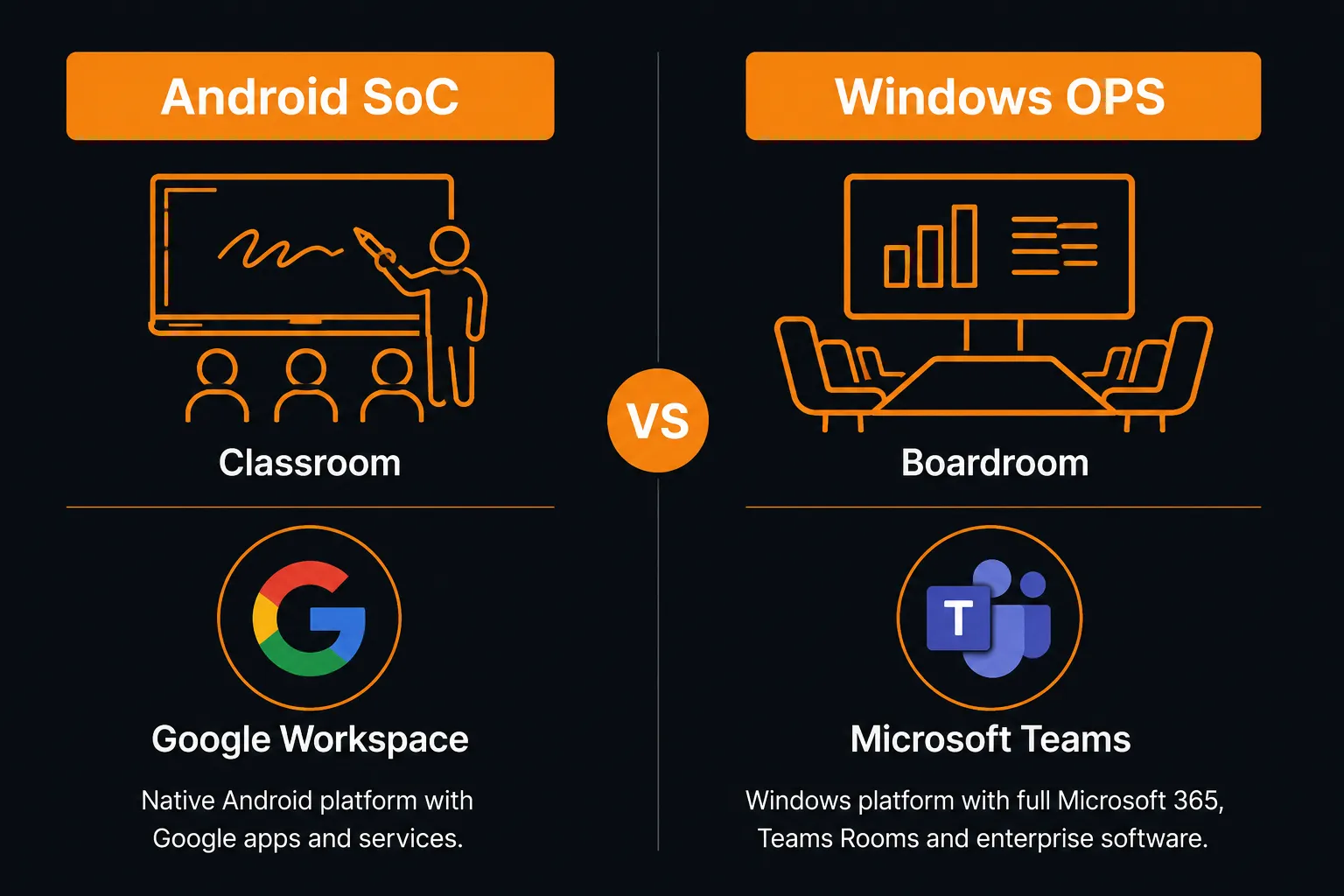
The biggest mistake isn't choosing the wrong brand — it's choosing the wrong platform. Too many buyers compare Samsung, SMART, BenQ and Promethean before they've decided whether Android or Windows best suits the way they'll use the display every day. Platform first. Brand second.
Ask the platform question before any other conversation starts.
Four Environments, Four Different Interactive Whiteboard Priorities
The image below shows the four primary deployment environments for commercial interactive whiteboards in Australia — each with different platform, software, and hardware priorities.
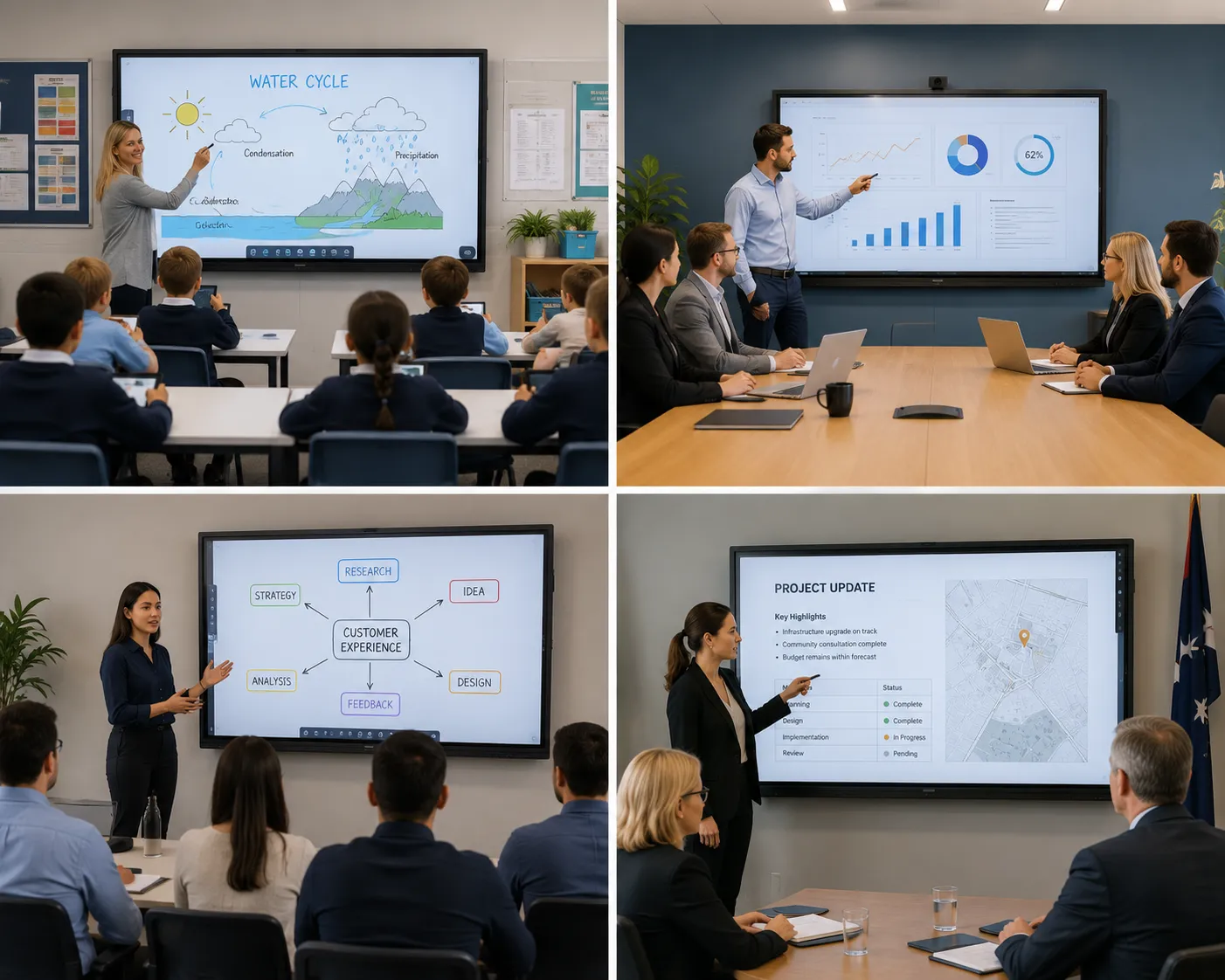
The same display can be exactly right for one environment and completely wrong for another. Here is what each environment actually needs — with links to the dedicated pages for each one.
Small Business & Meeting Rooms
Platform: Android SoC or Windows OPS
The most common deployment Kickstart handles. A small business fitting out a meeting room or boardroom needs wireless presentation, good writing feel for brainstorming, and ideally something that works with Teams or Zoom without needing a separate laptop. Budget matters. Simplicity matters more.
Common brands: Samsung WMFX, ViewSonic ViewBoard, Yealink MeetingBoard, Hisense GoBoard
Contact us with your room size, platform preference (Teams or Zoom or neither), and budget — we'll narrow it down to two or three genuine options.
Talk to us about meeting room requirements →Classrooms & Education
Platform: Android SoC
Writing feel and multi-user interaction are the priorities. Software ecosystems — Google Classroom, SMART Notebook, ActivInspire — often drive the brand decision more than hardware. Commercial build quality matters because these displays are used by many people every day.
Common brands: SMART Board, Promethean, Samsung WAFX-P, BenQ RP series
For the full classroom decision — platform choice, writing feel, ecosystem, and rollout planning — see the dedicated classroom page.
Interactive whiteboard for classroom →Training Rooms
Platform: Android SoC
A blend of meeting room and classroom priorities. Good writing feel for facilitator annotation. App flexibility for interactive activities. Android SoC suits training rooms well — fast to set up, no IT dependency for daily use, works with Google or Microsoft via browser.
Common brands: Samsung WMFX, ViewSonic ViewBoard, EDLA Android displays
Contact us to discuss training room configurations — room size, facilitator workflow, and software requirements all shape the right choice.
Talk to us about training room requirements →Government & Enterprise
Platform: Windows OPS
Windows OPS almost always. Full enterprise IT management, security policy compliance, multi-site deployment consistency. Remote management capability is a primary requirement. Procurement typically requires certified Teams Rooms or Zoom Rooms compatibility.
Common platforms: Windows OPS, Teams Rooms certified systems, centrally managed environments
We supply to government and enterprise organisations across Sydney, Melbourne, Brisbane, Adelaide, Perth, and regional Australia.
Talk to us about enterprise requirements →Schools — planning a full campus rollout?
If you're a school planning more than just classroom interactive whiteboards — canteen screens, corridor displays, reception, staff room, and outdoor spaces — interactive whiteboards are one part of a larger decision. Each environment has different duty cycle, brightness, and content management requirements.
The digital signage for schools page covers every campus environment and what drives the specification in each one.
Digital signage for schools — full campus overview →Interactive whiteboard price in Australia — what the range looks like and why
Commercial interactive whiteboards in Australia start from around $1,870 inc GST for a 65" entry-level display. A 65" mid-range display with bonded glass and mature software sits between $2,750 and $4,950 inc GST. Flagship 86" education and enterprise displays reach $8,250 inc GST and above. Room solutions with integrated video conferencing are available across all size ranges — contact us for current pricing. Here is an honest breakdown of what the money actually buys at each tier.
Entry tier
65" from ~$1,870 inc GST
Android SoC, 4K, 40-point touch. Adequate for basic annotation and general use. Writing feel is serviceable. Software ecosystems are thinner. Commercial warranty may be shorter.
Right for: budget-constrained rollouts where volume matters more than premium performance. Small meeting rooms with light use.
Mid-range — most deployments
65"–75" from ~$2,750 inc GST
Where most serious business and education deployments land. Bonded glass, refined touch processing, anti-glare, mature software ecosystems, stronger commercial warranties. Writing feel is noticeably better.
Typical models: SMART MX V5, BenQ RP series, Samsung WMFX, ViewSonic ViewBoard mid-range.
Premium
75"–86" from ~$4,950 inc GST
Flagship displays where the board is the centrepiece of daily operation. Full ecosystem depth, premium writing feel, long-form commercial warranty, enterprise management capability.
Typical models: SMART RX, Samsung RX series, Yealink MeetingBoard, QX Pro enterprise panels.
Room solutions — contact us for current pricing inc GST
Pre-bundled display plus video bar packages — 65", 75", and 86" configurations paired with Jabra, Yealink, and Logitech video bars, warranted as a complete system. Simpler procurement, tested compatibility, one supplier for display and conferencing hardware.
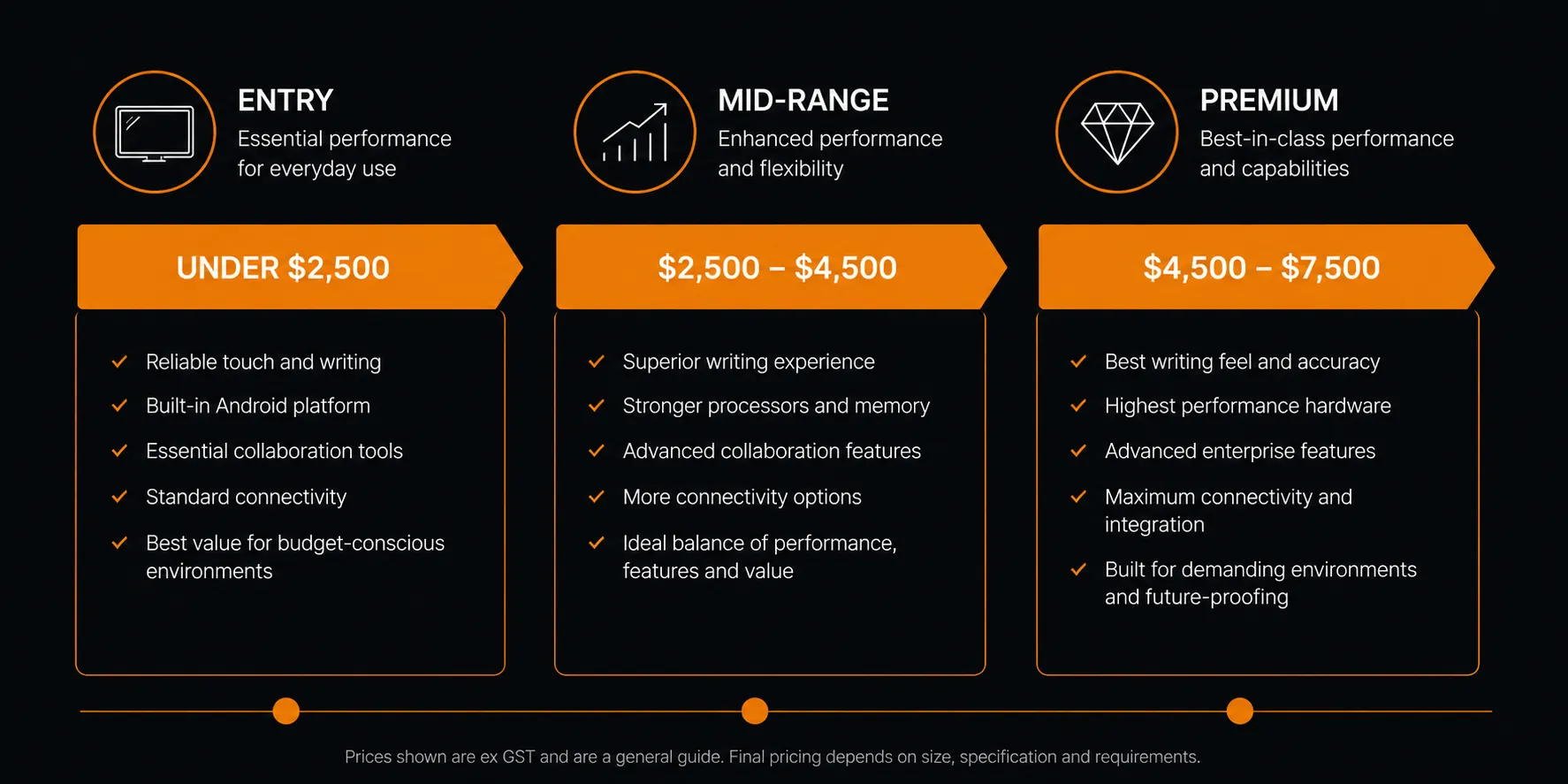
The total cost of ownership question is the one most buyers skip. A display that gets avoided because it feels wrong to write on, or that fails two years into a seven-year deployment, costs considerably more than the price difference between entry and mid-range. I've replaced enough entry-tier displays mid-rollout to know the saving rarely holds over the life of the deployment.
Buy for how the display will be used in year three, not how it looks on an invoice in year one.
Interactive whiteboard brands — what each one is actually good at
There is no single best interactive whiteboard brand. There are brands that are genuinely better for specific environments, ecosystems, and buyer priorities. Each entry below follows the same format. Use this section to work out which brand deserves a closer look — then follow the link to the full brand page for model range, pricing, and deployment detail.
SMART Technologies
SMART Board
Writing feel and long-term adoption
Best for
Schools with existing SMART Notebook libraries. Environments where writing on live content — PDFs, websites, video mid-playback — is a daily priority. Inclusive classrooms needing Tool Explorer (RX series).
Worth questioning if
No existing SMART software investment. Small business meeting room where software ecosystem depth isn't needed.
SMART invented the interactive whiteboard in 1991. Their SMART Ink layer — annotating on any file type without switching modes — is still genuinely differentiated. Range: GX Plus (entry, EDLA), MX V5 (mid, iQ OS), RX (flagship, iQ 4).
The full SMART Board range — model differences, pricing, and deployment advice — is on the dedicated SMART page.
SMART Board interactive whiteboard →Promethean
ActivPanel
Education-first ecosystem
Best for
Schools already running Promethean. Large education department rollouts where standardisation matters. Environments where ActivInspire is the preferred teaching platform.
Worth questioning if
Starting fresh with no existing brand investment. ClassFlow was retired — the exclusive software advantage has narrowed.
One of the most widely deployed education display brands in Australia. ActivPanel 9 is a solid classroom platform with strong teacher onboarding resources and good multi-user interaction capability.
Full Promethean range, model comparison, and deployment advice on the dedicated Promethean page.
Promethean interactive whiteboard →Samsung
Flip WMFX & WAFX-P
Two ecosystems for two use cases
Best for
WMFX — meeting rooms, small business, enterprise annotation. Premium writing feel, pressure-sensitive stylus.
WAFX-P — Google Workspace classrooms. EDLA Android, 48MP camera, 10m mic array, 40-point multi-touch.
Worth questioning if
Comparing WMFX vs WAFX-P without deciding which environment you're deploying into first. They are not the same product at different price points.
Samsung runs two parallel interactive whiteboard ecosystems engineered for genuinely different use cases. The WMFX prioritises annotation precision. The WAFX-P prioritises classroom-scale multi-user interaction and Google Workspace integration.
Full Samsung range, WMFX vs WAFX-P comparison, and room solution bundles on the Samsung page.
Samsung interactive whiteboard →BenQ
Board RP Series
Teacher experience and eye comfort
Best for
Schools prioritising eye comfort, hygiene, and reliable classroom performance. Healthcare and public-facing environments where germ-resistant glass is a procurement requirement.
Worth questioning if
You need the depth of SMART Notebook or ActivInspire. Heavy platform-specific lesson software dependency.
BenQ's Fine IR touch technology delivers strong writing feel. Eye-care technology — reduced blue light, flicker-free — matters in environments where people spend hours in front of the display. Germ-resistant glass is increasingly specified in education and healthcare.
Full BenQ range, model breakdown, and deployment guidance on the BenQ page.
BenQ interactive whiteboard →LG
CreateBoard TR3DQ-B
Commercial hardware behind a consumer brand perception
Best for
Google Workspace schools that want a solid EDLA-certified Android IWB without proprietary software dependency. Corporate meeting rooms where the brief is reliable wireless presenting and video calls — without complex AV infrastructure.
Worth questioning if
Your school relies on SMART Notebook, BenQ IntelliBoard, or Promethean ActivInspire. Always-on or 24/7 operation is required. Portrait orientation is needed — not supported on any TR3DQ-B model.
LG CreateBoard is routinely overlooked because buyers associate LG with consumer electronics. The TR3DQ-B Standard Series is a commercial product — Android 14 EDLA, octa-core processor, 8GB RAM, 50-point touch, WiFi 6E, and security updates guaranteed until December 2030. Available in 55", 65", 75", and 86".
Full LG CreateBoard range, honest limitations, and comparison with Samsung and SMART Board on the LG page.
LG interactive whiteboard →Also available through Kickstart
Yealink, ViewSonic, and Hisense
Brands we stock and can source — with context on where each one fits
Yealink MeetingBoard
The MeetingBoard is a Microsoft Teams Rooms certified all-in-one system — display, 4K AI-framing camera, beamforming microphone array, and premium audio in a single unit. It is a boardroom collaboration system, not a classroom display, and is covered in full on the Yealink video conferencing page.
The Yealink video conferencing page covers the full MeetingBoard range, Teams Rooms configuration, and room solution options.
Yealink MeetingBoard — video conferencing →The Yealink MeetingBoard Pro is available to purchase online with Australia-wide shipping.
Shop Yealink MeetingBoard Pro →ViewSonic ViewBoard
ViewSonic occupies a strong mid-market position — mature collaboration software, competitive pricing, and onboard audio that frequently removes the need for external speakers. Well suited to training rooms and mid-range corporate meeting spaces. We stock and can source the ViewBoard range.
A ViewSonic training room deployment post walks through a real-world installation — room size, mounting, configuration, and outcome.
ViewSonic ViewBoard training room deployment →If you are comparing ViewSonic and Hisense on value, the comparison post covers both ranges side by side across price, specs, and real-world fit.
ViewSonic ViewBoard vs Hisense GoBoard →The full ViewBoard range is available to purchase online with Australia-wide shipping.
Shop ViewSonic ViewBoard →Hisense GoBoard
Google EDLA certified Android 14, integrated 4K conferencing camera, native Google Play access. A solid value proposition for hybrid meeting environments where budget is a genuine constraint. We stock and can source the GoBoard range.
If you are weighing up ViewSonic and Hisense on value, the comparison post puts both ranges side by side so you can make the call on specs and price.
ViewSonic ViewBoard vs Hisense GoBoard →The full Hisense GoBoard range is available to purchase online with Australia-wide shipping.
Shop Hisense GoBoard →Not sure which brand suits your environment? Contact us with your room size, use case, and budget and we will put together a shortlist across all three ranges.
Contact Kickstart Computers →